Back up your iPhone to a computer
Back up your iPhone to your computer, then browse supported data such as WhatsApp chats, messages, contacts, photos and videos.
Windows & macOS · Free · No account required
Why it matters
The problems this solves
How this feature helps you keep and use your phone data.
-
Keep a copy on your own computer
A local backup gives you a copy you can access on your computer without signing in to a cloud service.
-
The important data is not just photos
A backup can also preserve call history, text messages, contacts, notes, calendar entries, Safari history, voice memos and voicemail.
-
You cannot read what you backed up
Finder and iTunes create backups for restoring a device. Memora Keep lets you browse supported contents before you need a restore.
How it works
How to use it
- 1
Connect and trust
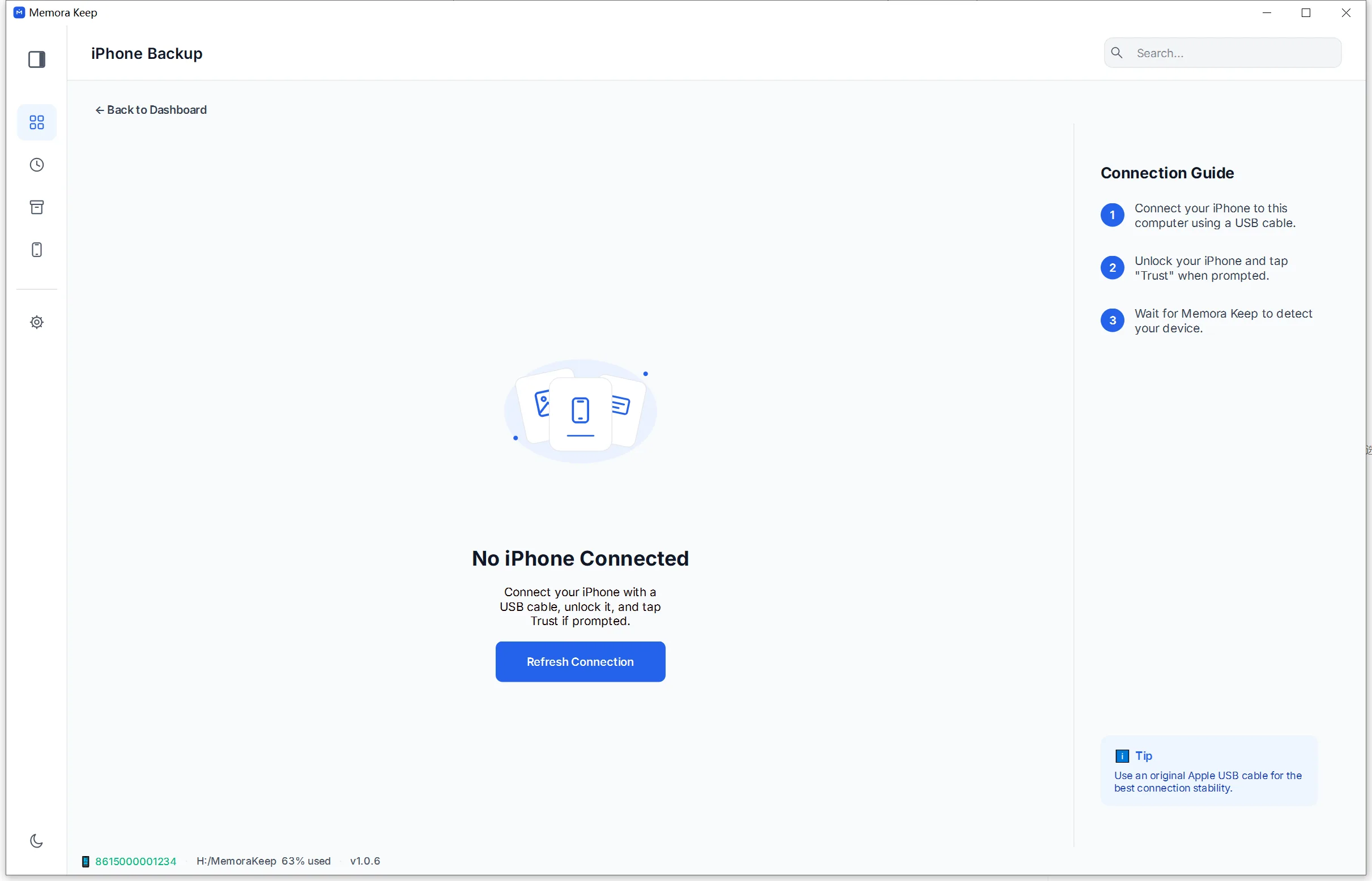
Plug the iPhone in over USB, unlock it and tap “Trust This Computer”. Memora Keep shows the device once the connection is authorized.
- 2
Choose where it is stored
Pick the folder on your own disk. The app checks the detected backup encryption state and verifies there is enough free space before it starts.
- 3
Back up, then organize
The device data is copied to your backup folder, then parsed into the local archive so messages, WhatsApp, media and call history become browsable.
Capabilities
What you can do with it
Step by step
Back up an iPhone and read the data, step by step
Two stages: back up the iPhone to your own computer, then extract the data into the local archive.
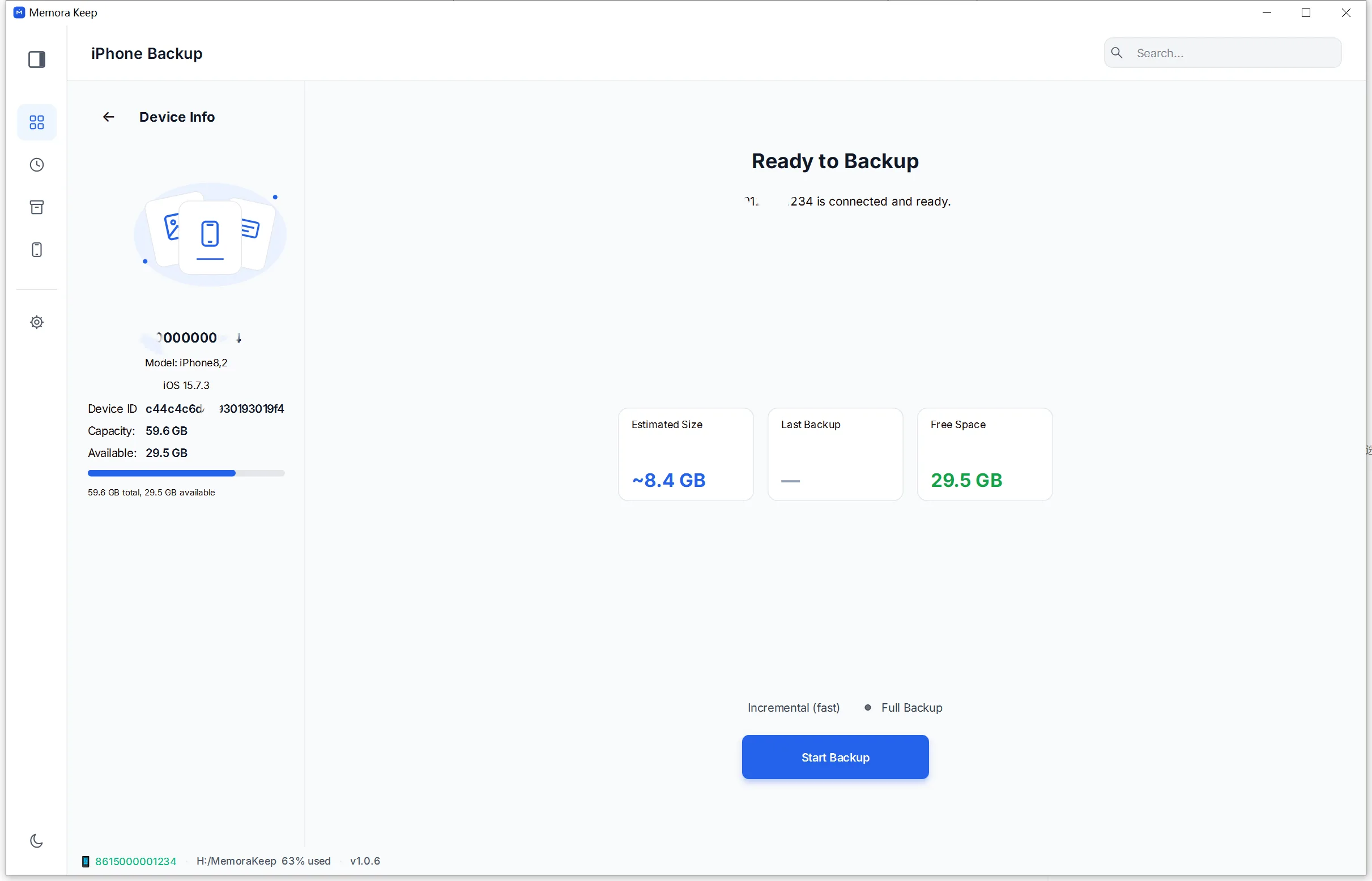
1. Back up your iPhone
- 1
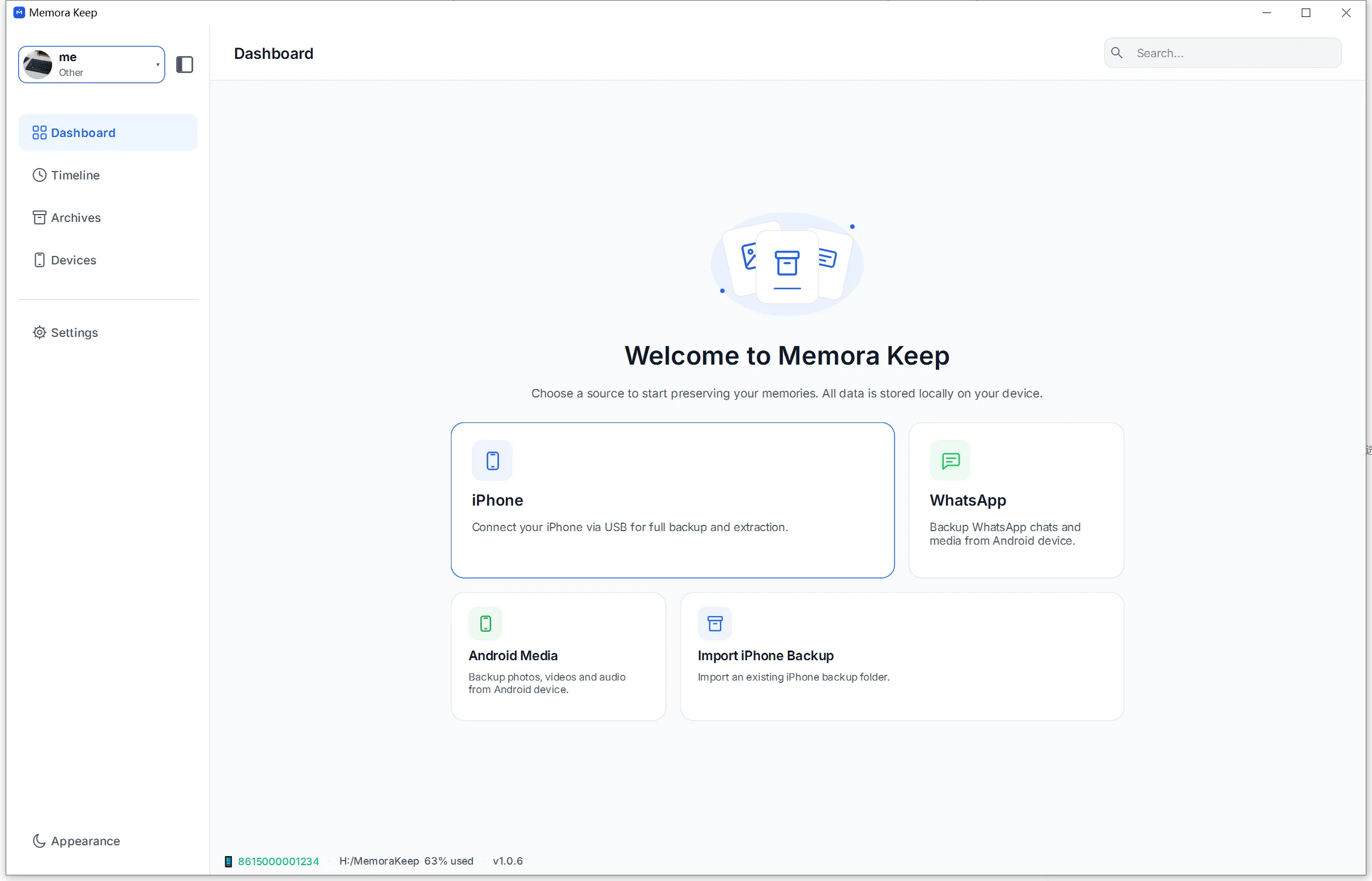
Open the iPhone module from the Dashboard
- 2
Connect your iPhone to the computer with a USB cable
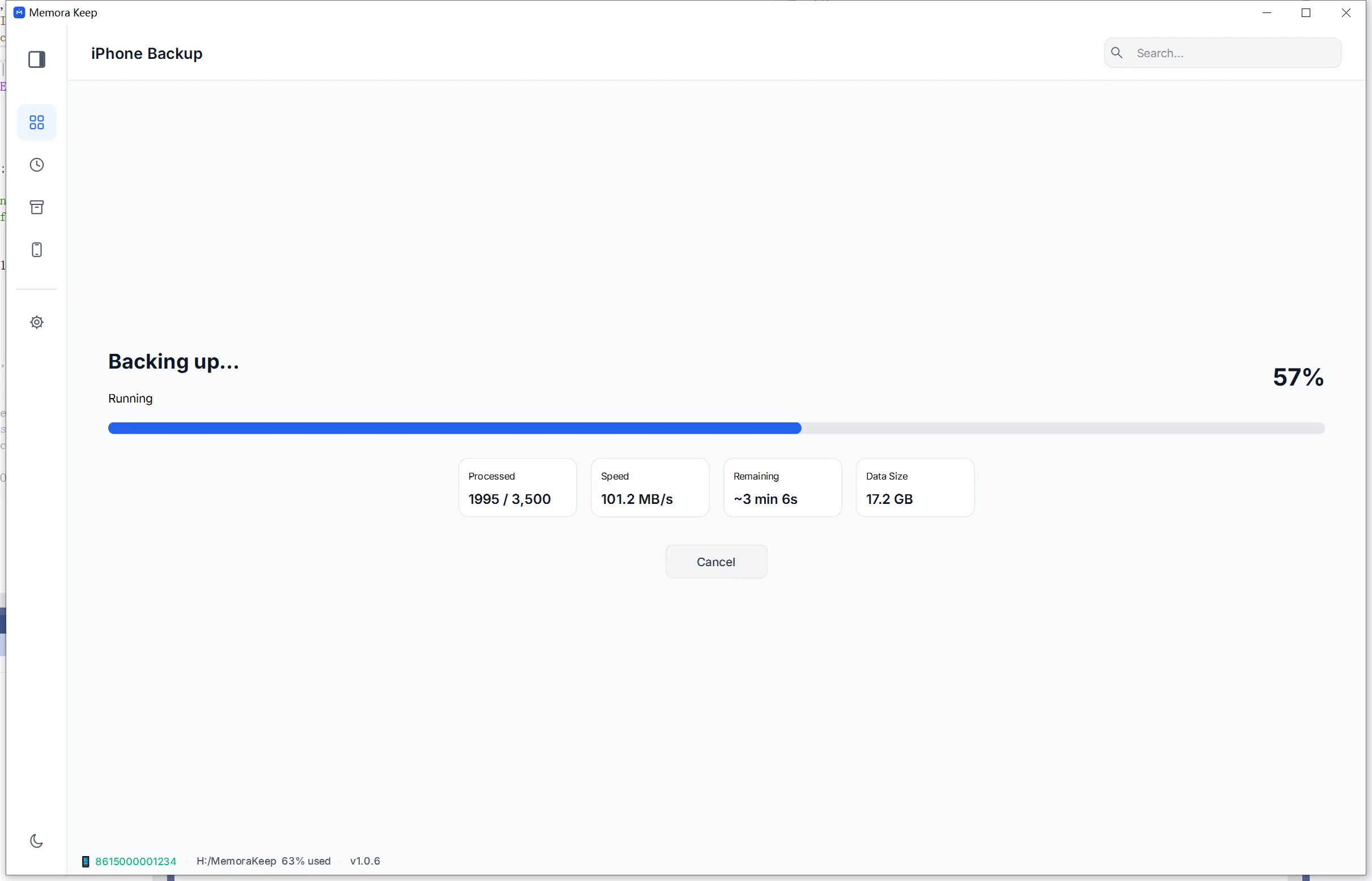
- 3
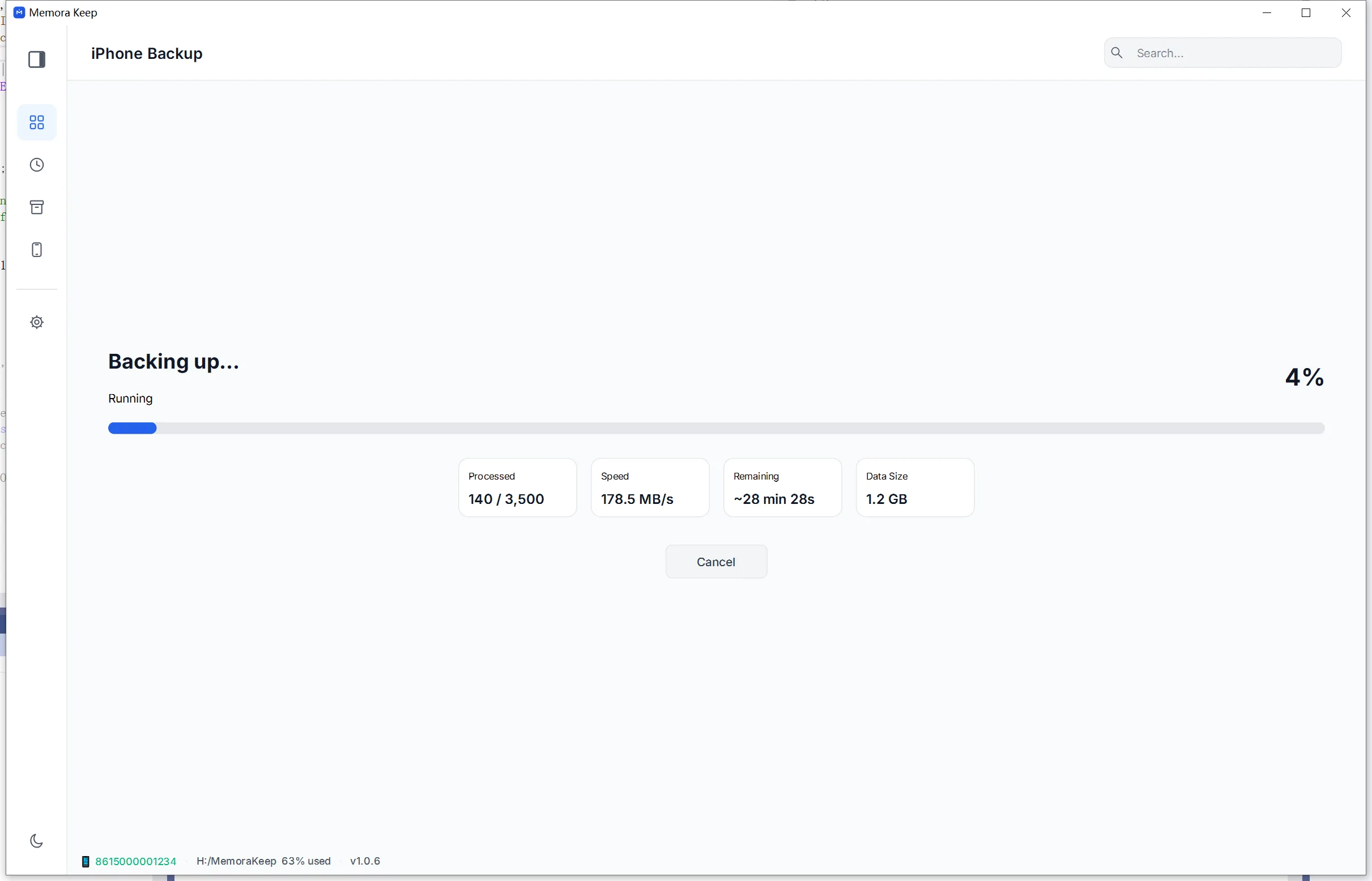
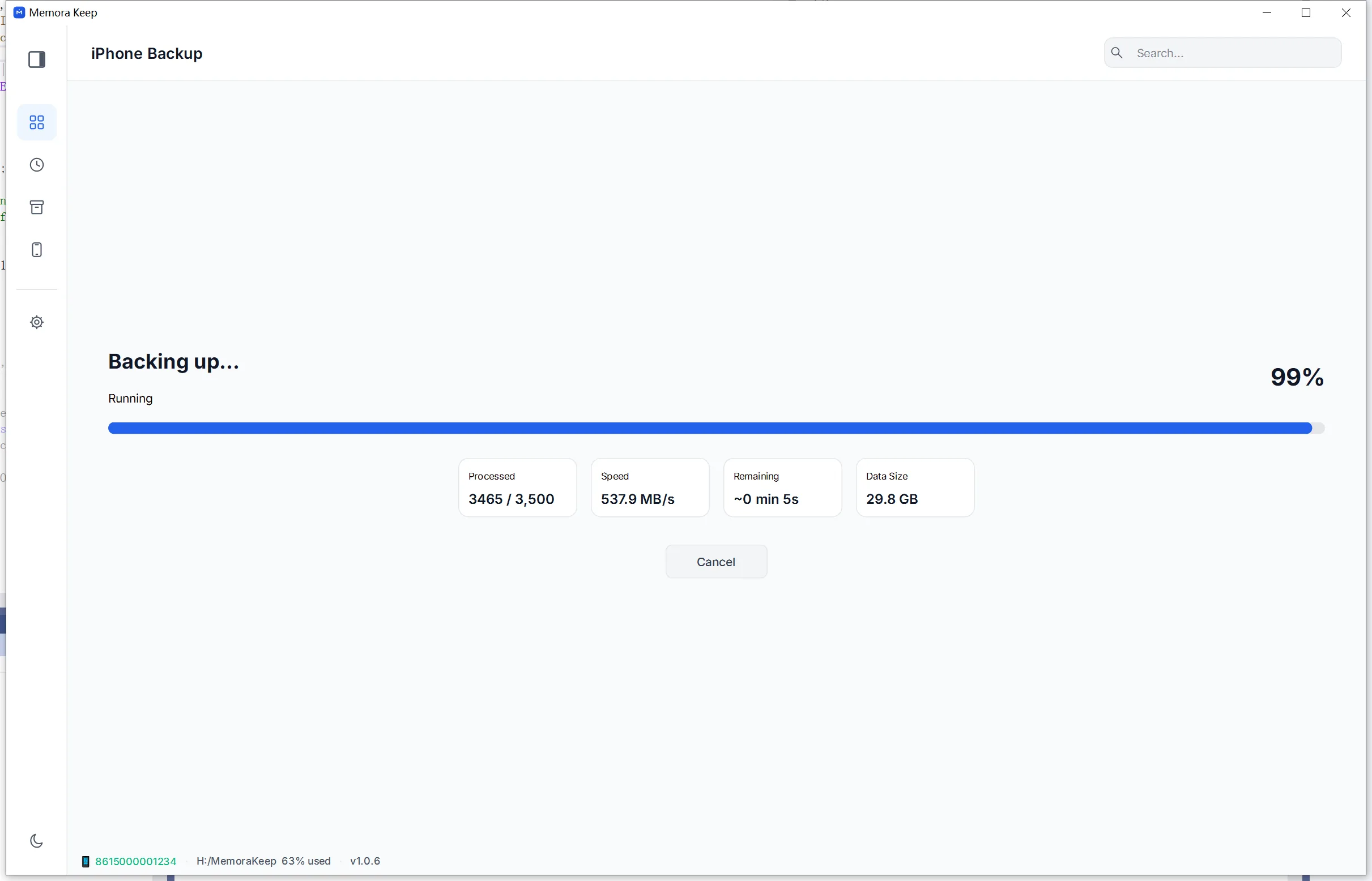
Wait while the iPhone is backed up
- 4
The backup completes
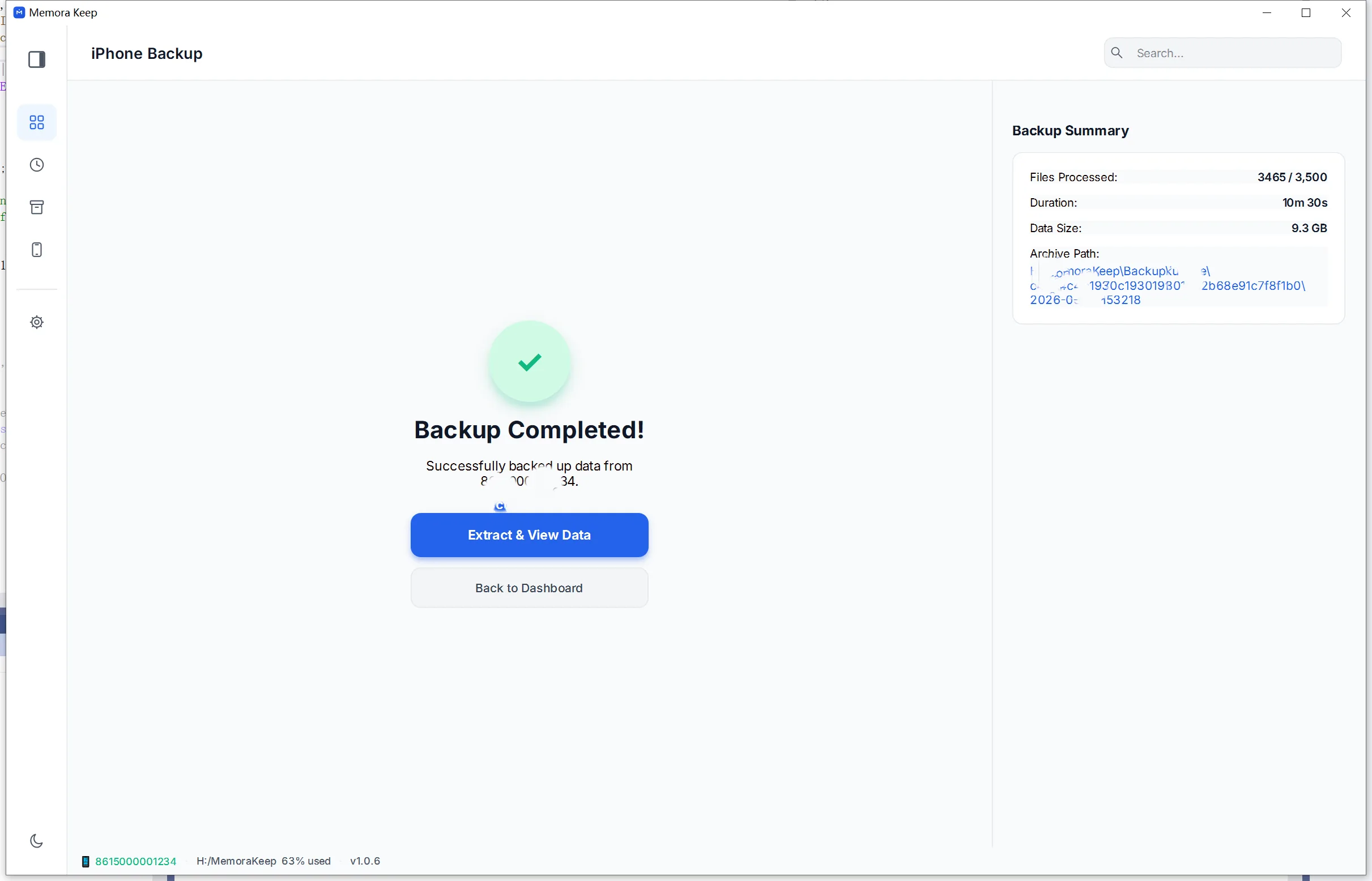
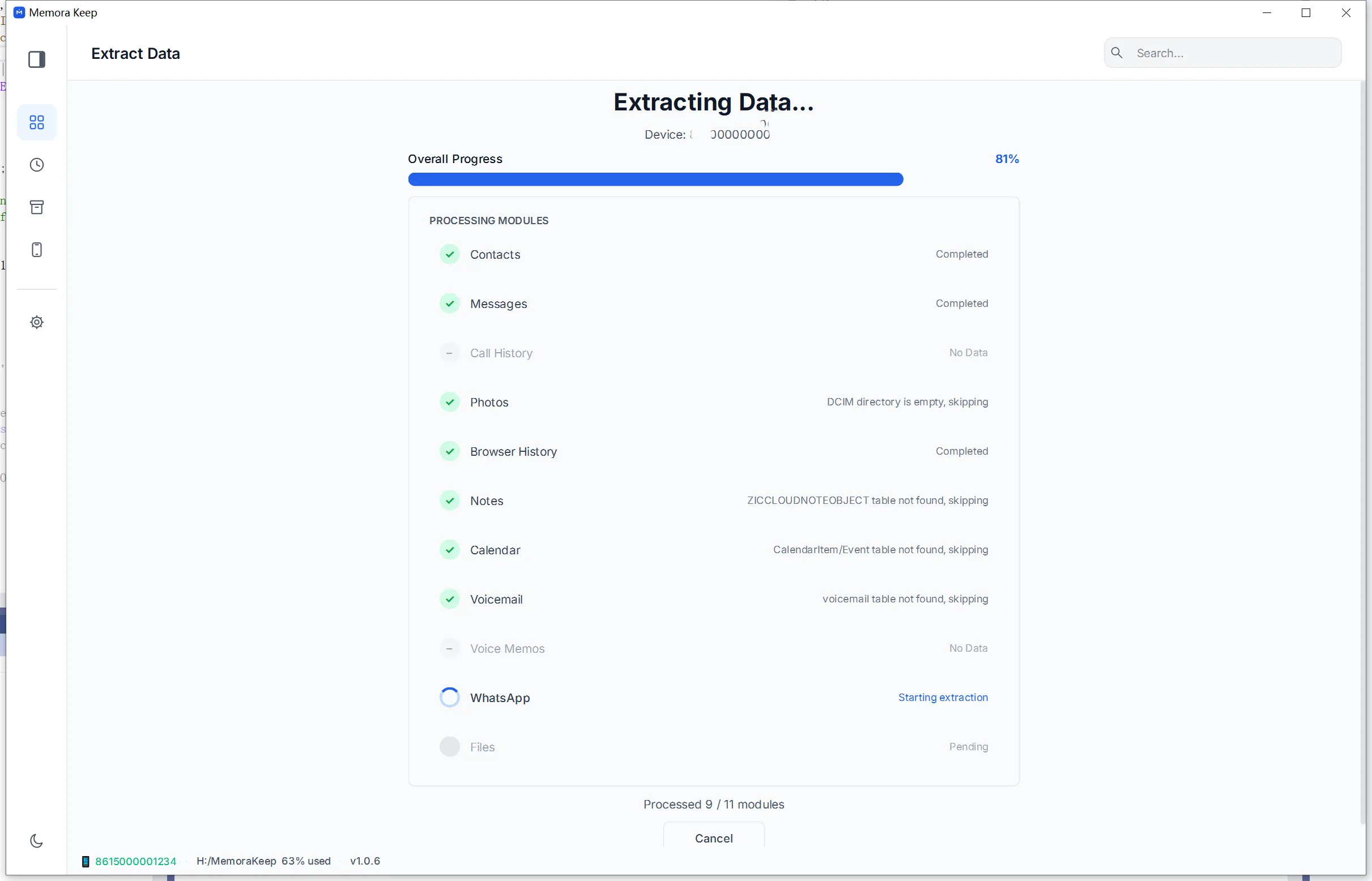
2. Extract the data
- 1
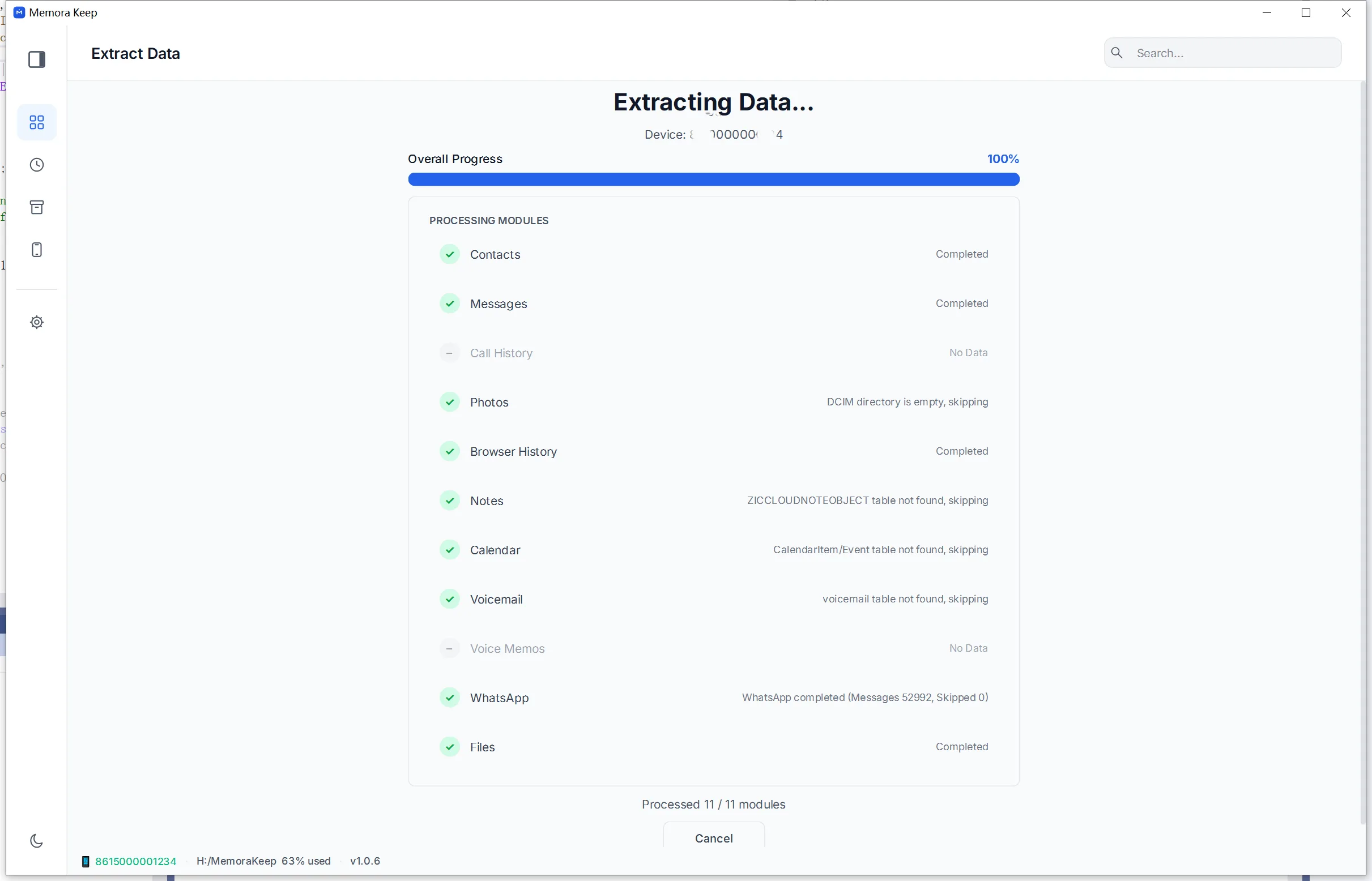
Extract the data from the backup
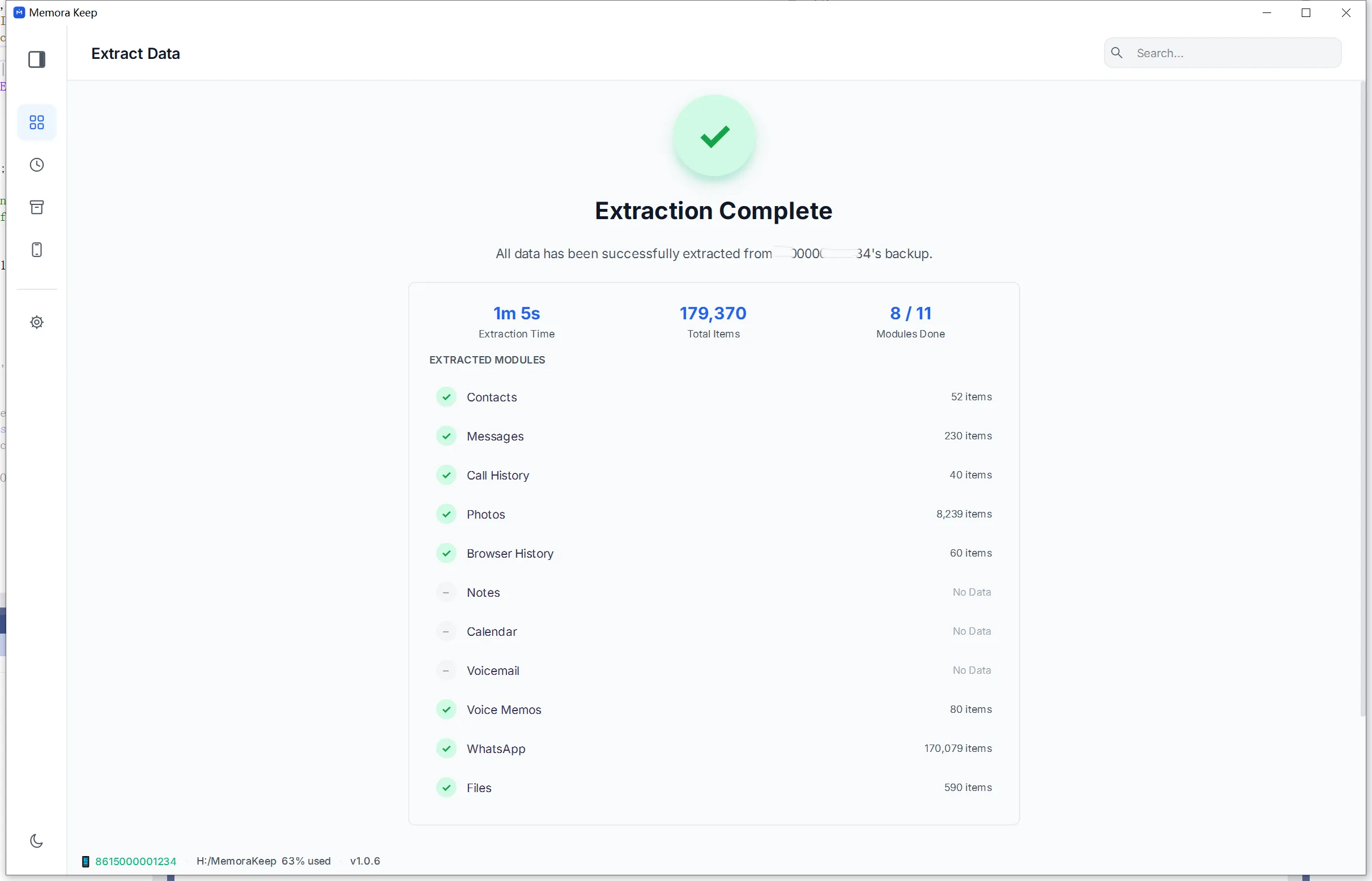
- 2
Extraction completes
Your archive stays on your computer
Save backups, chats and media in a folder you choose. Memora Keep does not upload your archive, and you can browse and export it offline without an account.
- No account and no sign-in required
- Backups, chats and media are never uploaded
- Diagnostics stay local unless you choose to send them
- Backups and the archive stay readable offline
FAQ
Back up your iPhone to a computer questions
Is the backup uploaded anywhere?
No. The backup is written to the folder you choose on your own computer. Nothing is uploaded to Memora Keep or to any third party.
What do I need to do on the iPhone?
Unlock the device, connect it with a USB cable and tap “Trust This Computer” when asked. If the backup is encrypted, you also need the backup password.
Can I keep using the old Finder or iTunes backup folder?
Yes. You can point Memora Keep at an existing MobileSync/Backup folder and import it instead of creating a new backup.
Is the original backup modified?
No. The raw backup is kept intact on disk; parsing writes into the local archive and does not rewrite the backup itself.
Related
Keep reading
- Feature Browse iTunes backups Open an iTunes or Finder backup you already have: select the backup folder, validate it, and import it into your local archive. Read
- Feature WhatsApp backup Back up WhatsApp and WhatsApp Business chats and media from a phone, and read them in a local archive. Read
- Feature Timeline Browse imported chats, photos, videos, documents and calls in one timeline, grouped by year, month and day. Read
Start your own local archive
Free, with no account or subscription. Your archive stays on your computer.
Windows & macOS · Free