View and import an iTunes or Finder backup
Point Memora Keep at an iTunes or Finder backup you already have and read its contents in the local archive.
Windows & macOS · Free · No account required
Why it matters
The problems this solves
How this feature helps you keep and use your phone data.
-
You already own a backup you cannot open
An iTunes or Finder backup is a folder of files on your disk, not a set of albums, chats and contacts you can click through.
-
You cannot tell whether a backup is complete
A folder can be copied, moved or partly deleted without any warning, and a broken backup looks the same as a good one.
-
Old backups drift out of reach
A backup written years ago on another computer can become hard to open as tools change, and the data inside it is the part you need later.
How it works
How to use it
- 1
Select the backup folder
You point Memora Keep at the iTunes or Finder backup directory on your disk, including an existing MobileSync/Backup folder.
- 2
Validate and read it
Memora Keep checks the device identifier and required backup files, then reads the device and backup details.
- 3
Parse into the archive
After the encryption and space pre-checks, the backup is parsed into the local archive while the raw backup is left in place.
Capabilities
What you can do with it
Step by step
Import a backup, step by step
Seven steps from installing the app to reading your data.
1. Import an existing backup
- 1
Download and install Memora Keep
Run the installer, then choose where the local archive is stored on first launch.
- 2
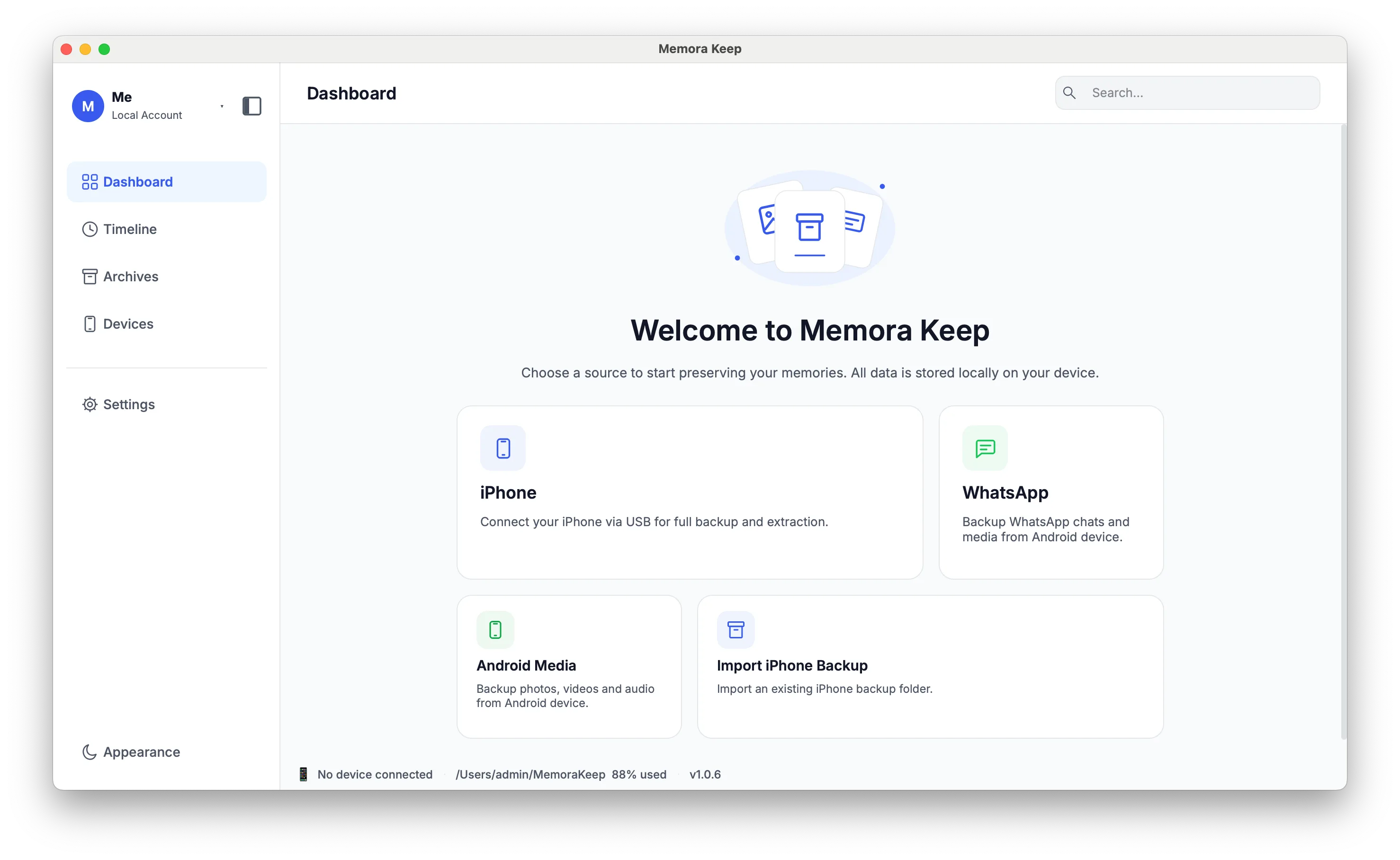
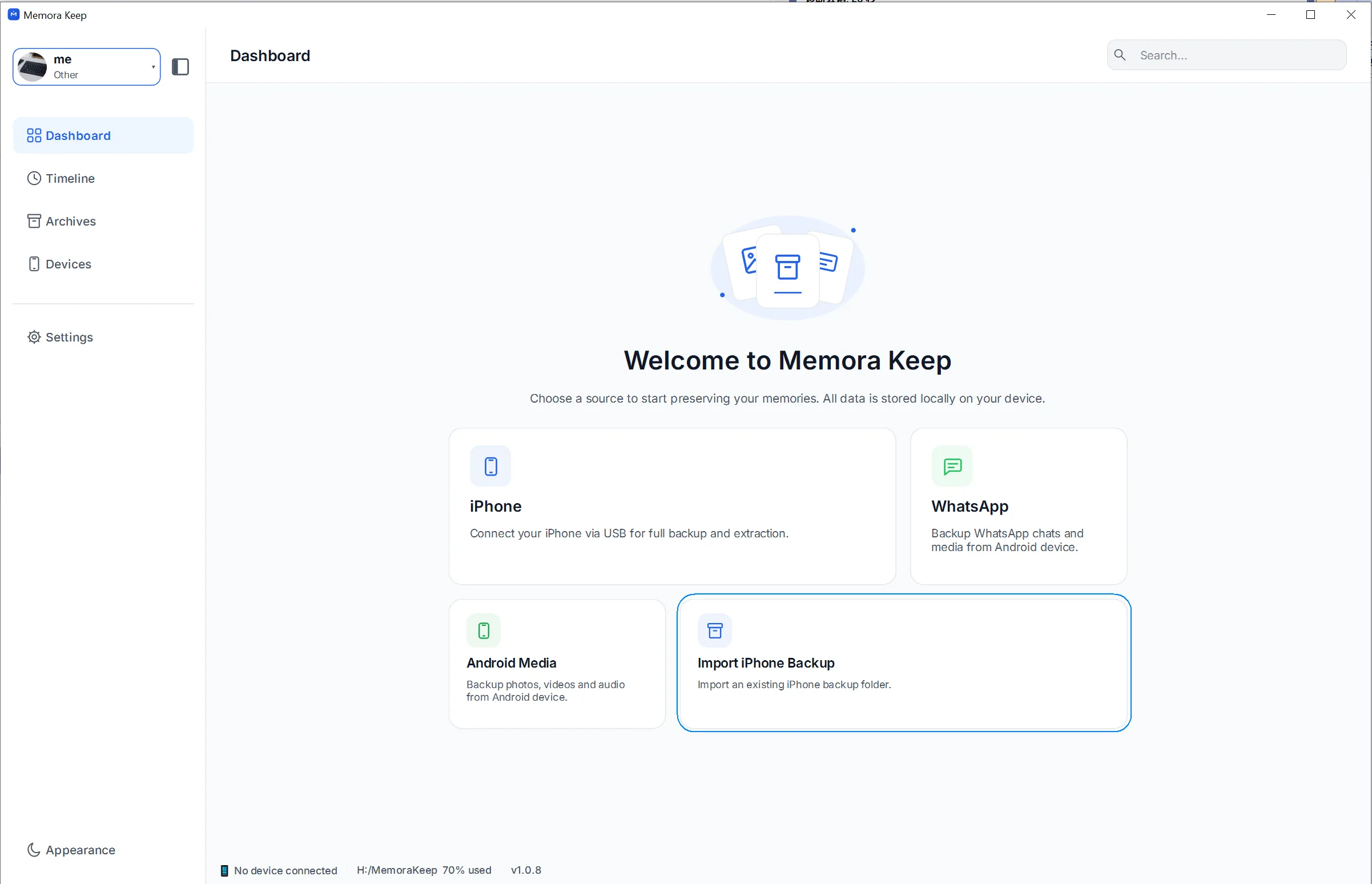
Choose “Import iPhone Backup”
On the Dashboard, click the “Import iPhone Backup” card to read a backup you already have — no cable needed.
- 3
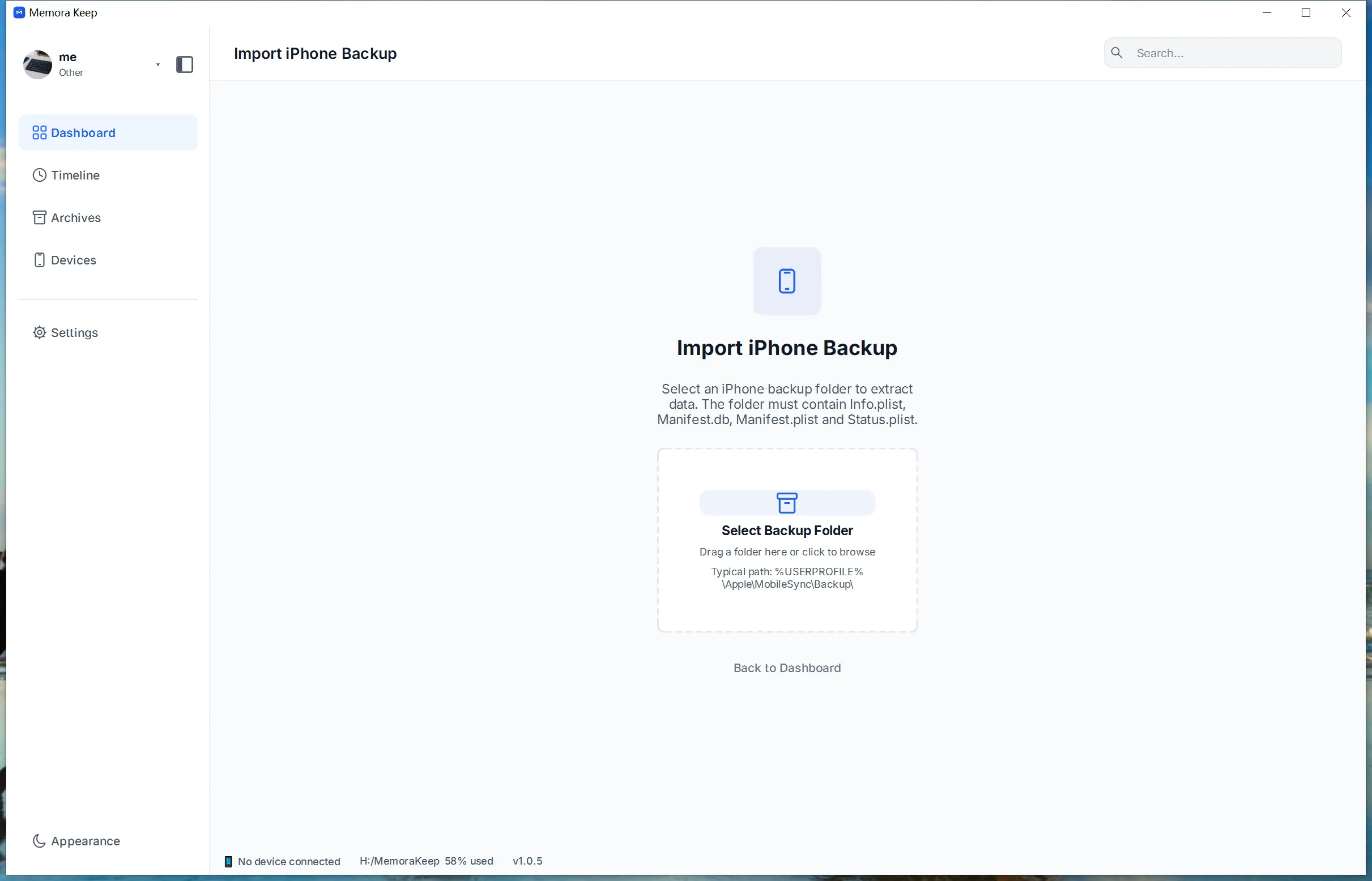
Click “Select Backup Folder” and pick the device folder
Inside MobileSync/Backup, select the subfolder whose name is a 40-character (or, on newer devices, 64-character) string of digits and letters A–F — that is one device’s backup. Do not pick the Backup folder itself.
- 4
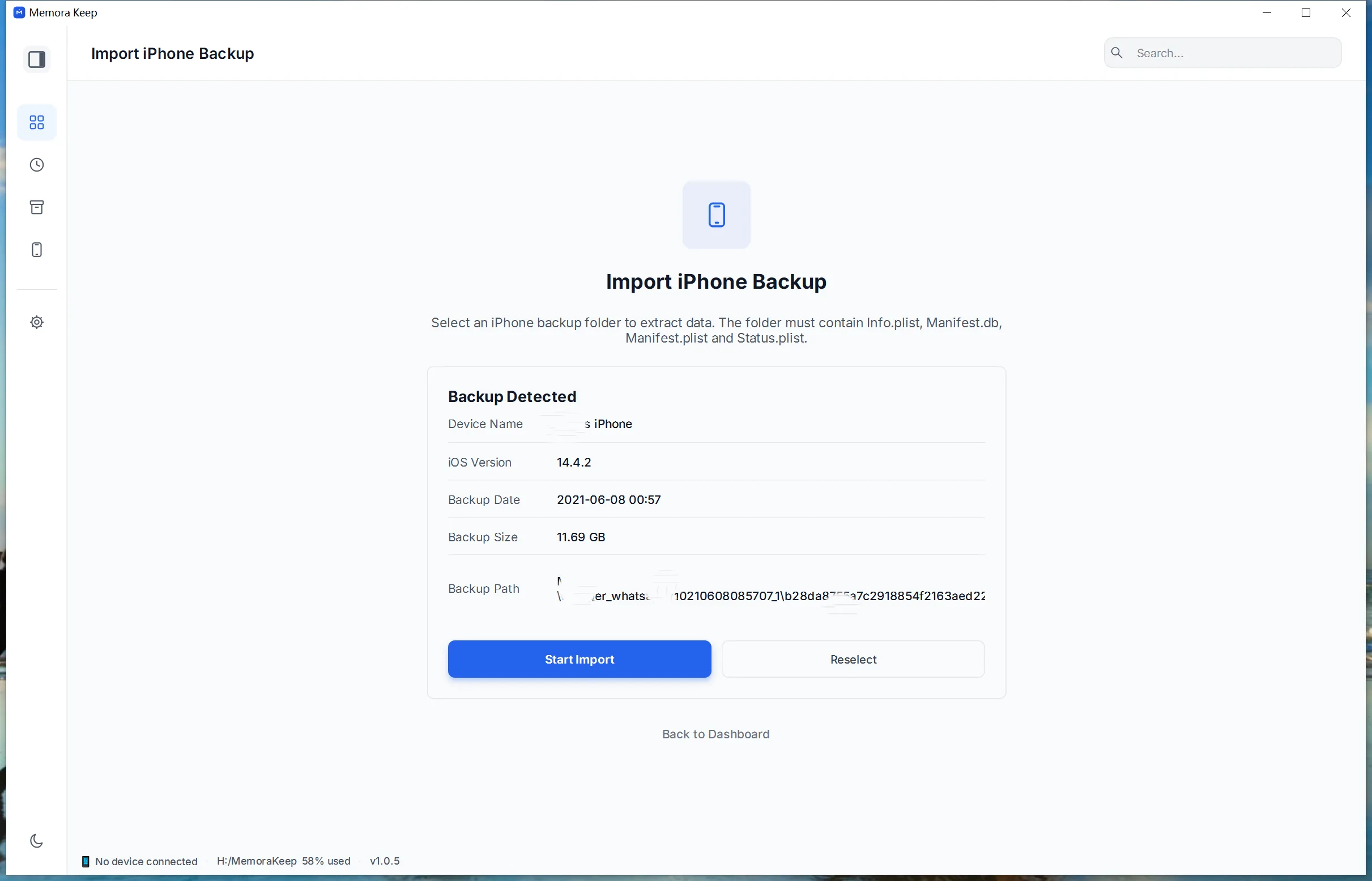
Check the details, then click “Start Import”
The app shows the device name and backup date. Confirm it is the backup you want before starting.
- 5
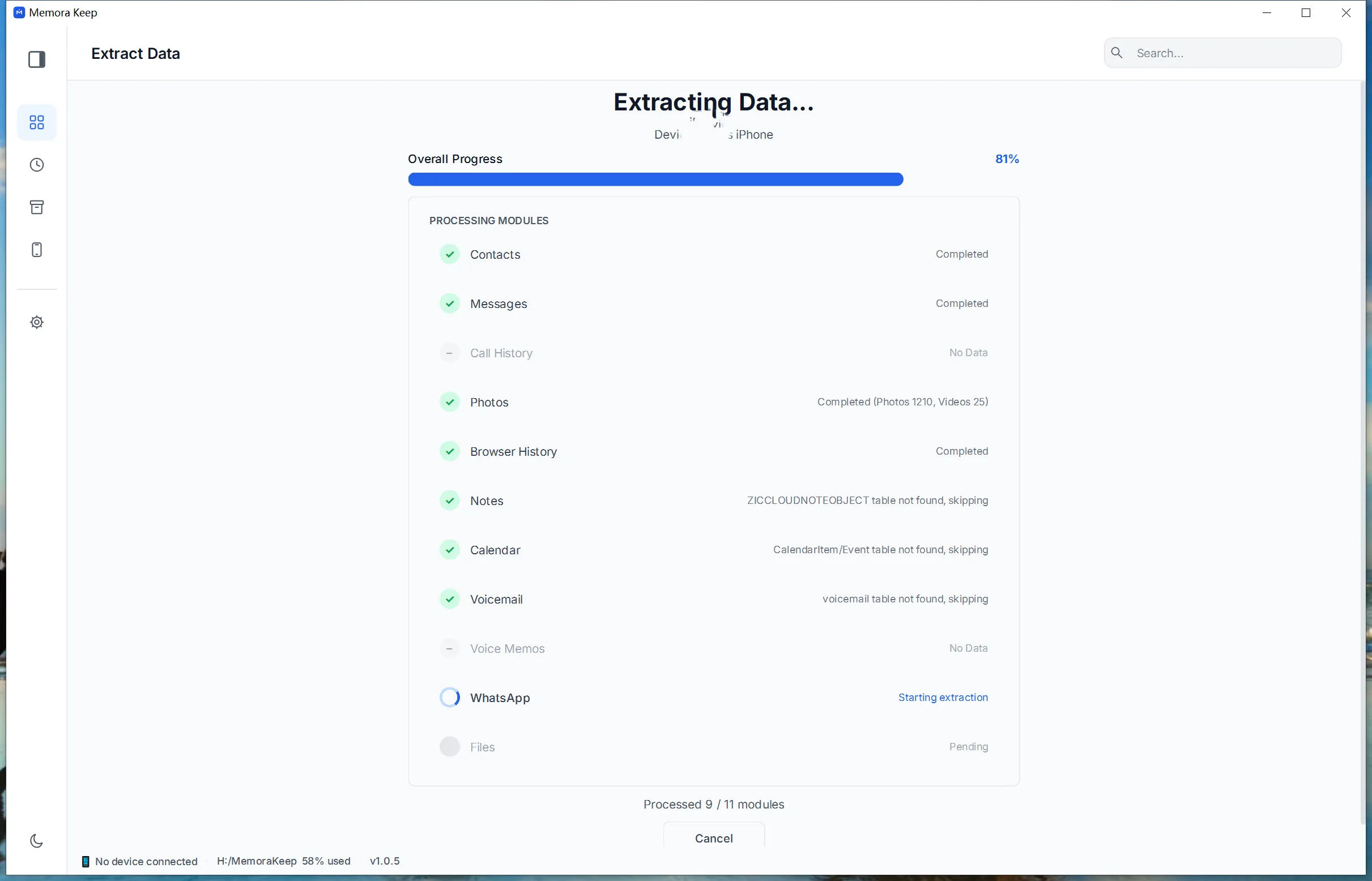
Wait while the data is extracted
Memora Keep parses the backup module by module and reports progress as it goes.
- 6
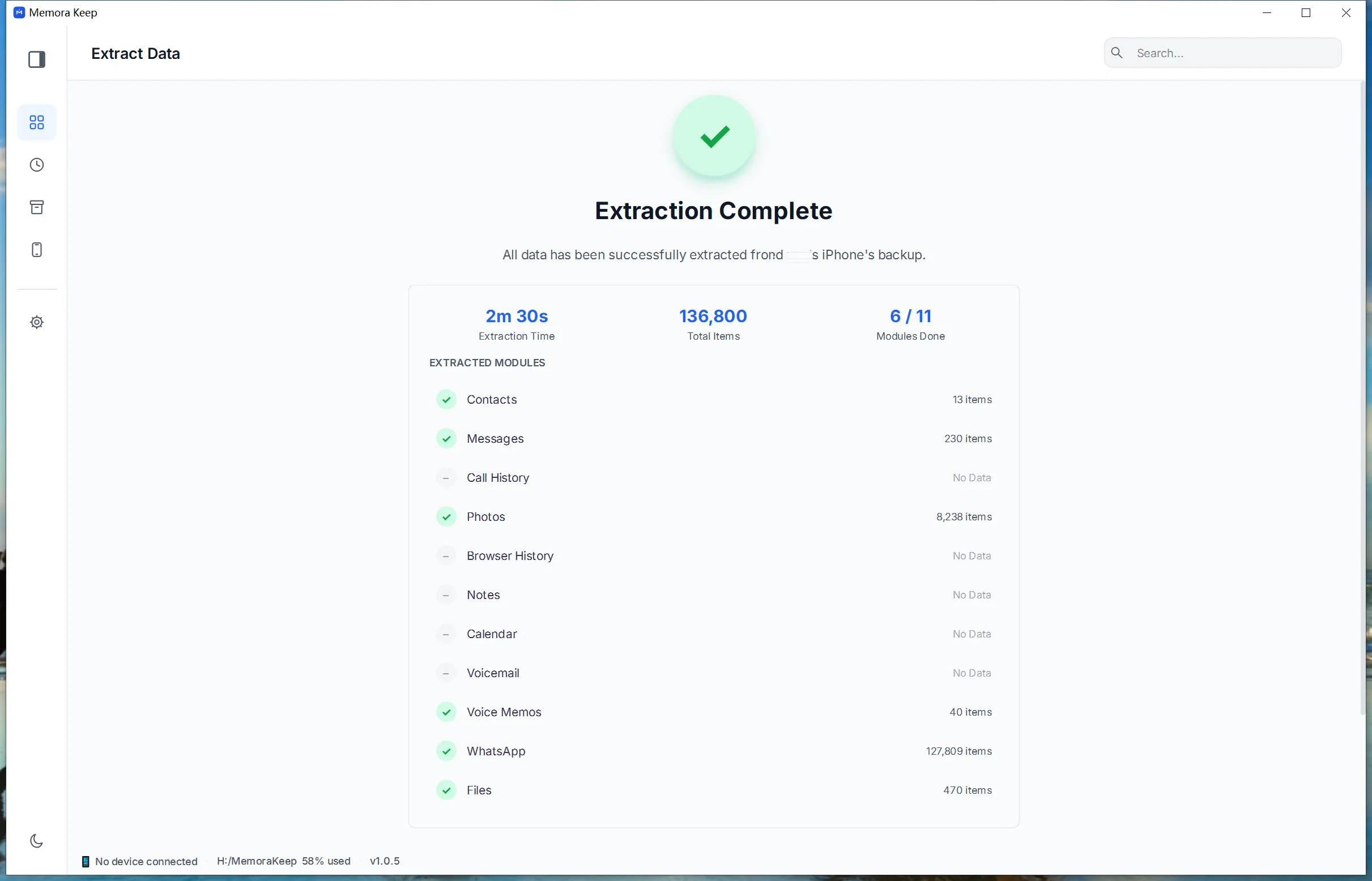
Import complete
The result screen confirms what was imported. Your original backup stays untouched.
- 7
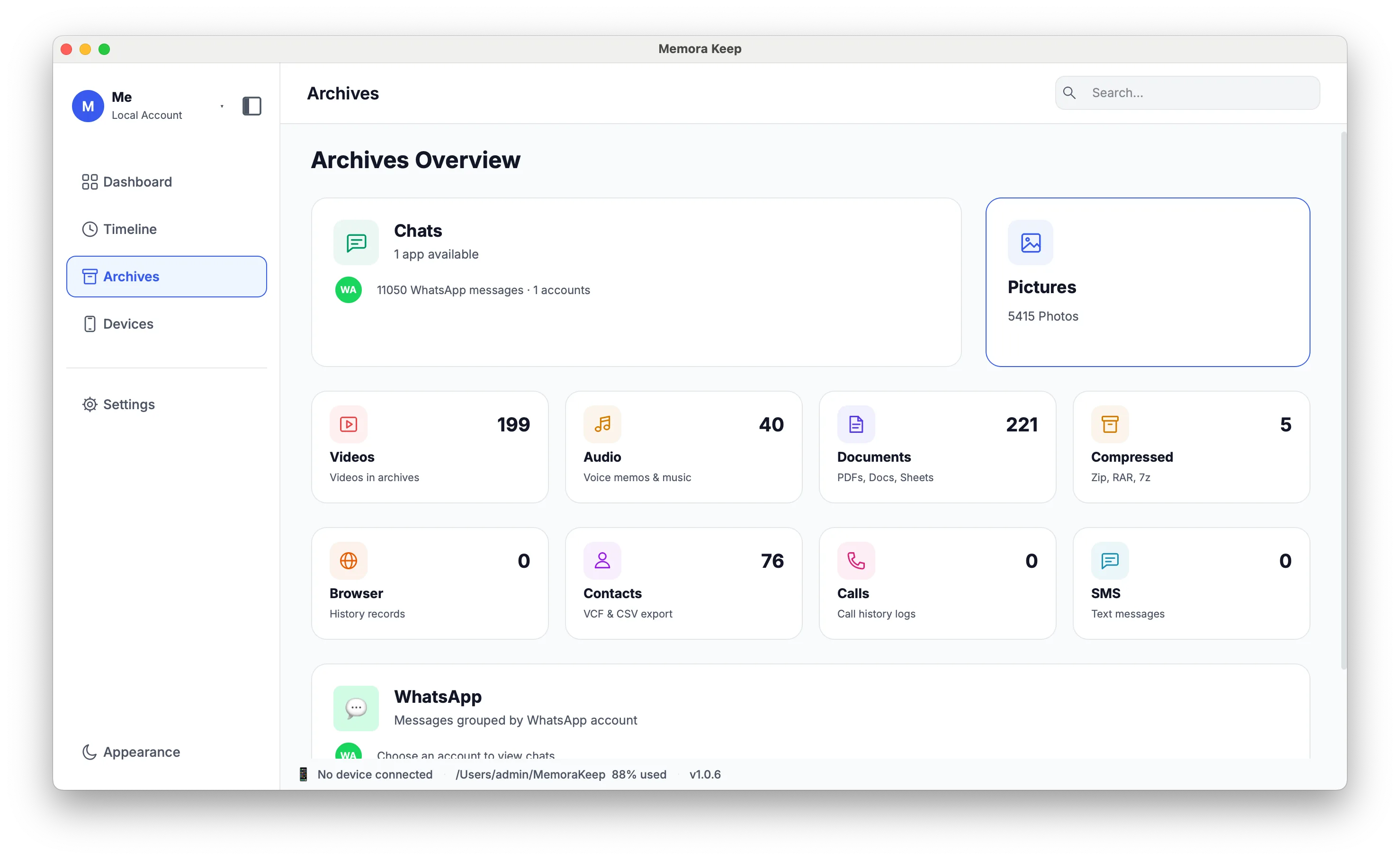
Open “Archives” to browse your data
Messages, WhatsApp chats, photos, contacts and more are readable in the archive.
Your archive stays on your computer
Save backups, chats and media in a folder you choose. Memora Keep does not upload your archive, and you can browse and export it offline without an account.
- No account and no sign-in required
- Backups, chats and media are never uploaded
- Diagnostics stay local unless you choose to send them
- Backups and the archive stay readable offline
FAQ
View and import an iTunes or Finder backup questions
Do I need to create a new backup first?
No. This flow is for a backup you already have, including an existing MobileSync/Backup folder copied from another computer.
How does the app know a folder is a valid backup?
It checks the device identifier, required files and backup details before importing.
What happens if the backup is encrypted?
The app detects encryption before importing. Follow the prompts and use the password set for that backup.
Can I browse documents and archives inside the backup?
Not in this version. Generic files such as documents and archives in an iOS backup are not parsed into the archive and there is no standalone file archive page; the raw backup itself is retained in full.
Related
Keep reading
- Feature iPhone backup Back up your iPhone locally and browse supported messages, WhatsApp chats, contacts, photos and videos. Read
- Feature Local archive Keep original backups, media and a browsable archive together on your computer, with no cloud account required. Read
- Feature Timeline Browse imported chats, photos, videos, documents and calls in one timeline, grouped by year, month and day. Read
Start your own local archive
Free, with no account or subscription. Your archive stays on your computer.
Windows & macOS · Free