View iPhone text messages on your computer
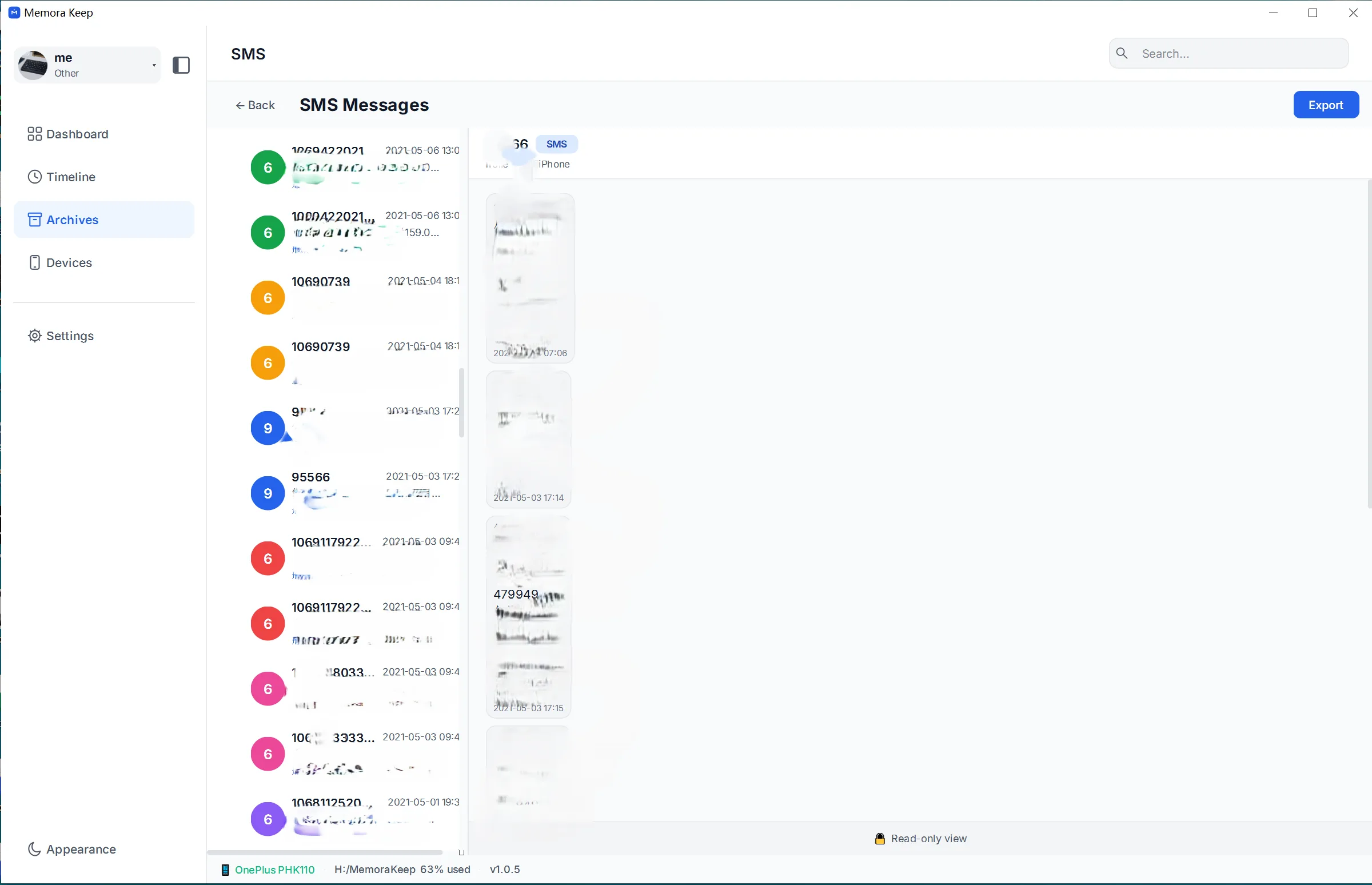
Read SMS from an iPhone backup on your computer, with a conversation list and message bubbles.
Windows & macOS · Free · No account required
Why it matters
The problems this solves
How this feature helps you keep and use your phone data.
-
SMS locked to the handset
A local backup lets you read saved text messages even when the original phone is no longer available.
-
Records you actually need to find
An address, a code or a confirmation is often in a text message. A readable conversation list is faster than scrolling a phone.
-
Needing the messages in a spreadsheet
Export messages to CSV when you want to sort or review them in a spreadsheet.
How it works
How to use it
- 1
Parse the messages
SMS is imported from an iPhone backup into the local archive.
- 2
Read by conversation
Conversations are listed, and opening one shows its messages as bubbles.
- 3
Export the records
SMS can be exported to CSV for use in a spreadsheet.
Capabilities
What you can do with it
Your archive stays on your computer
Save backups, chats and media in a folder you choose. Memora Keep does not upload your archive, and you can browse and export it offline without an account.
- No account and no sign-in required
- Backups, chats and media are never uploaded
- Diagnostics stay local unless you choose to send them
- Backups and the archive stay readable offline
FAQ
View iPhone text messages on your computer questions
Where do the messages come from?
From an iPhone backup. Import the backup to read its SMS in the local archive.
Can I export the messages?
Yes. SMS can be exported to CSV.
Can I read the messages without the phone?
Yes. The messages are read from the local archive, so the phone does not need to be connected.
Are contacts and call history included here?
No. This page covers SMS. Contacts and call history are browsed from their own pages in the archive.
Start your own local archive
Free, with no account or subscription. Your archive stays on your computer.
Windows & macOS · Free