Use case
The family’s phone data, in one place
One person can back up several phones into a single archive on a disk they own — a current phone, an older one, a spare — and keep the photos, messages and chats from all of them together. The archive has one owner: there are no per-person accounts and no shared access.
Windows & macOS · Free · No account required
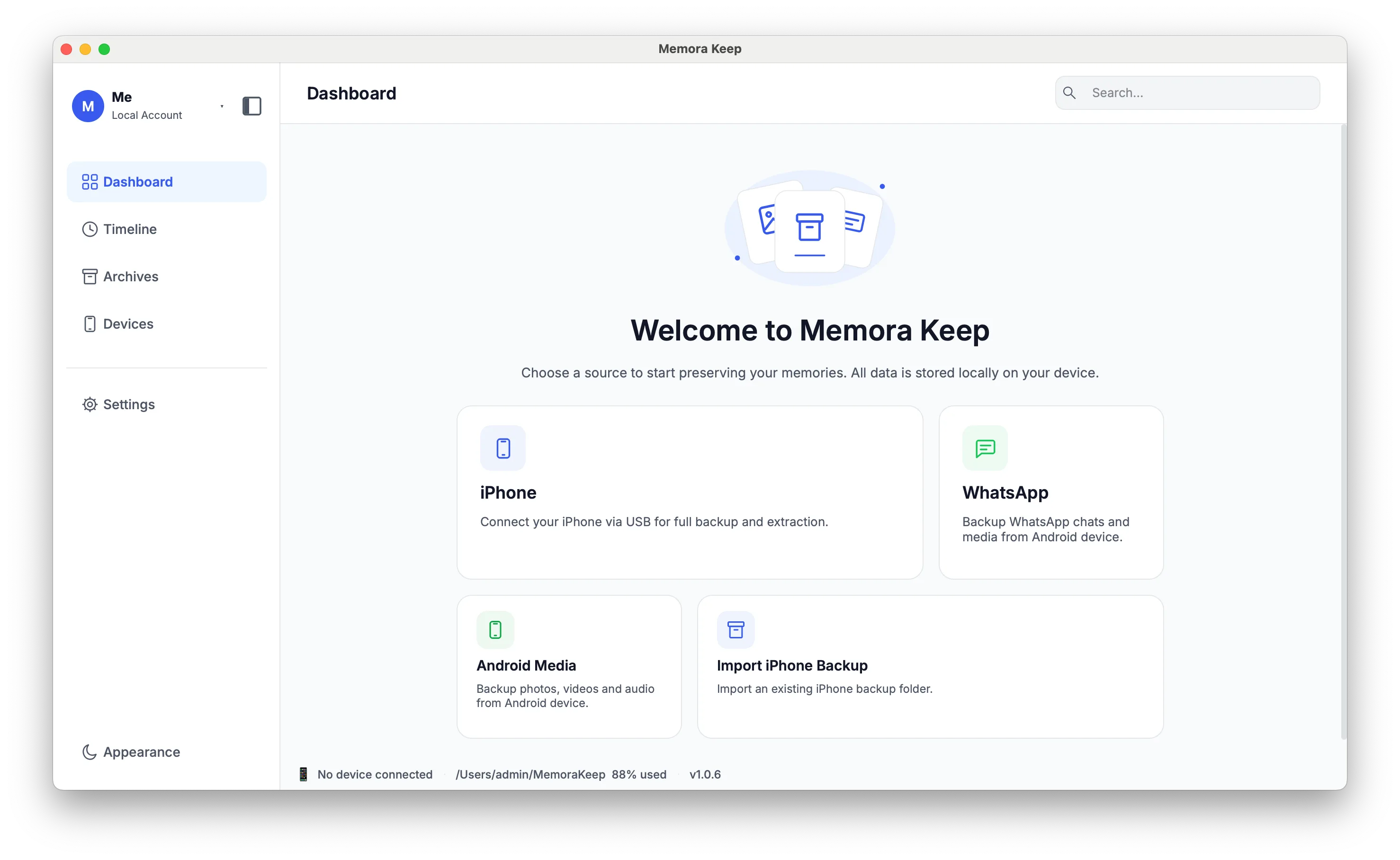
One person manages the archive. There are no family accounts, shared access permissions or family sync. Share exported files with relatives rather than giving them access to the archive.
The problem
Why this is harder than it should be
-
Phone data sits in separate accounts
Photos live in one cloud account, chats in an app, and an older phone’s content only on that device. Nothing keeps the family’s phone data together.
-
A backup you cannot open is not a keepsake
A Finder or iTunes backup can be written but not browsed, so it is only useful to whoever knows how to restore it.
-
Looking through it can depend on one person
If the person who set things up is not available, the rest of the family has no simple way to open what was kept.
Use case
How Memora Keep handles this
Back up each device into one archive folder, then browse everything from a single timeline or export what you want to pass on.
- 1
Back up each phone
Connect each phone in turn and back it up to the same folder on your own disk. Every device is recorded separately, so you can see what came from where.
- 2
Import the data into your archive
The backups are parsed into a local archive — WhatsApp chats, messages, contacts, call history, photos, video and the rest — grouped into categories and a shared timeline.
- 3
Browse or export
Move through everything by year, month and day, or filter to a single data type, then export the parts you want to keep or hand over.
In the app
What it looks like in the app
The same client you use for one phone also keeps several devices in a single archive.
Timeline
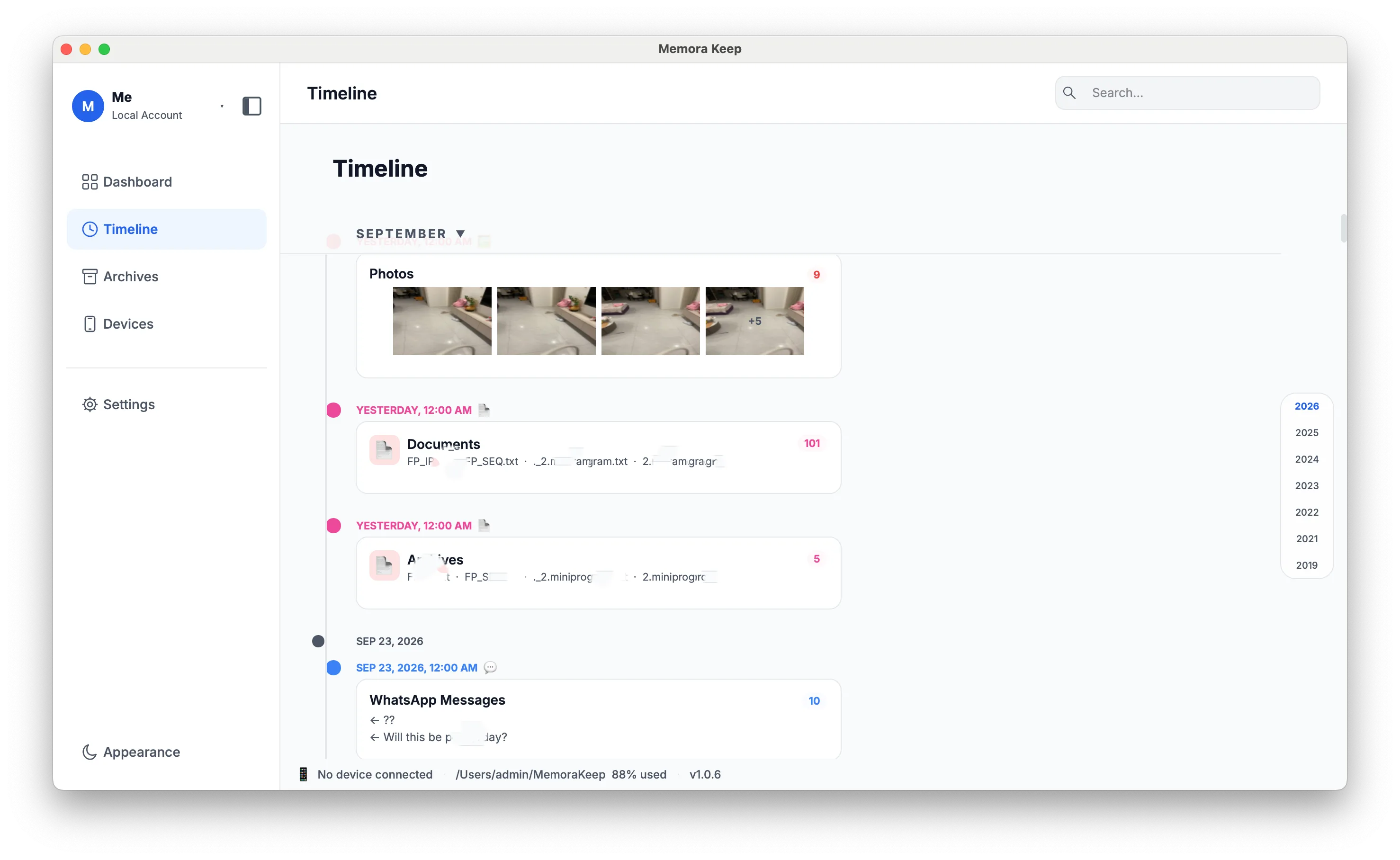
One timeline across every device
Photos, video, chats, messages and calls from all the backed-up devices are mixed into one timeline, grouped by year, month and day.
- Filter by data type without leaving the timeline
- Open an item to view its details, export it or delete it
- Browse by year, month or day
Photos
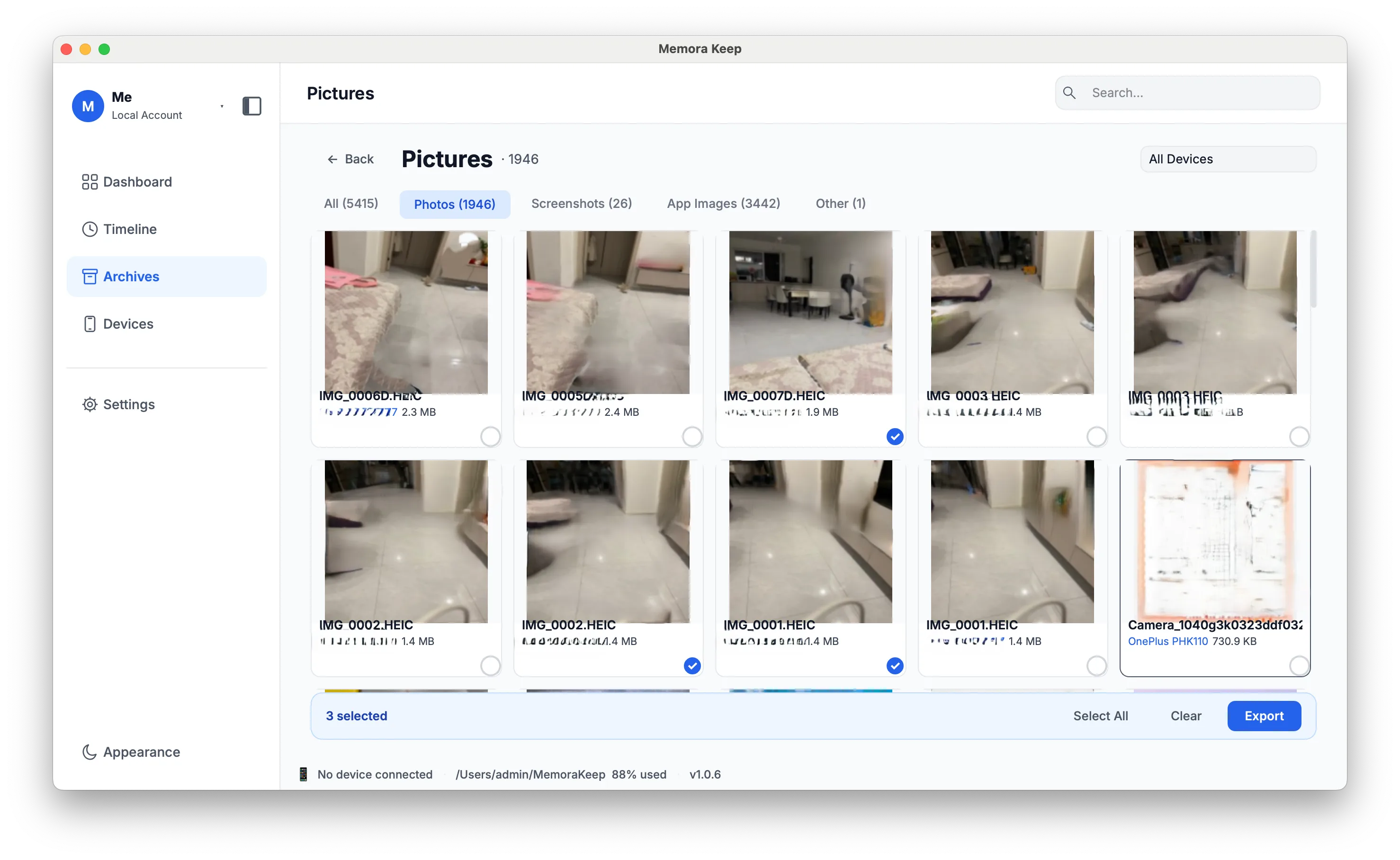
Photos from several phones in one grid
Photo browsing sorts images into photos, screenshots, apps and other, with a cached thumbnail grid and a full-screen viewer.
- Thumbnail caching keeps large libraries responsive
- Full-screen viewer with zoom, EXIF and download
- Multi-select for export
Devices
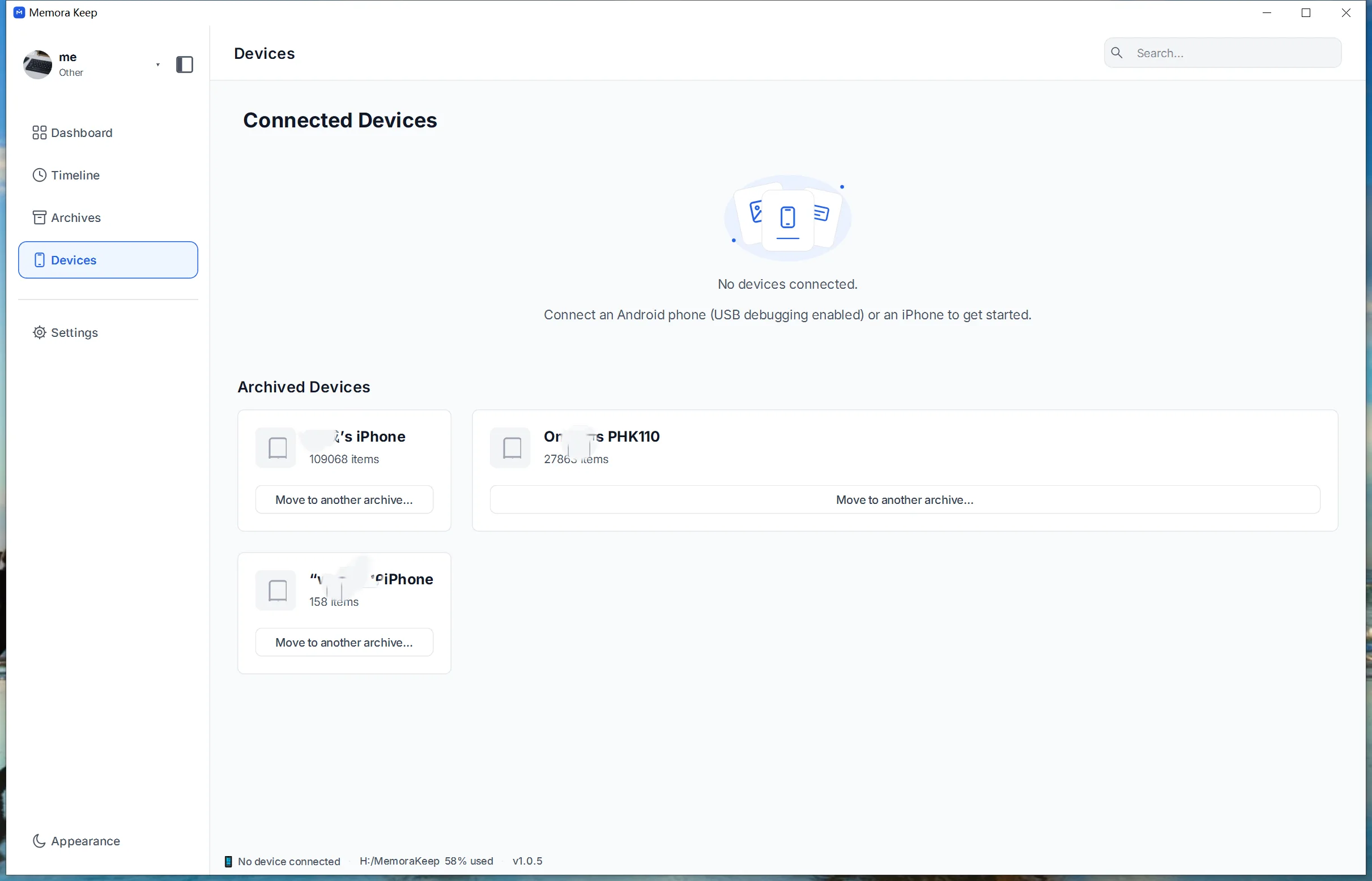
See which device each backup came from
The Devices page lists every phone you have backed up, with its last backup time and size and a history of past backups.
- Connected devices and their last backup time and size
- A backup history per device
- A status bar showing connection state and storage use
FAQ
Common questions
Can several family members share one archive?
No. The archive is single-owner. There is no multi-user or per-family-member account model, no shared access, and no permissions or family sync.
Can I keep data from more than one phone?
Yes. You can back up several devices into the same archive folder, and each device is tracked separately with its own last backup time and size.
Can I pass a copy to a family member?
You can export what you want — chats to HTML, CSV or PDF, media as original files, contacts to VCF — and hand over the files. Family sharing and automatic sync are not available.
Related
Keep reading
- Feature iPhone backup What a full-device backup captures, and the checks that run before it starts. Read
- Feature Timeline Everything from the devices you backed up, mixed by year, month and day. Read
- Guide Back up an iPhone to a computer The step-by-step walkthrough, from connecting the device to browsing the result. Read
Start your own local archive
Free, with no account or subscription. Your archive stays on your computer.
Windows & macOS · Free