Merge WhatsApp chats from different accounts
Bring WhatsApp chats from several different accounts together into one account in your local archive. Keep a connected history even when your accounts have changed.
Windows & macOS · Free · No account required
Why it matters
The problems this solves
How this feature helps you keep and use your phone data.
-
Your chats span different accounts
Chats collected under different WhatsApp accounts can be combined into a single account in the archive.
-
Switching accounts interrupts browsing
A combined account gives you one place to revisit the chats you chose to bring together.
-
You want to keep the combined chats
After merging, browse the result and use the separate export or iPhone transfer feature when you need it elsewhere.
How it works
How to use it
- 1
Prepare the account data
Back up or import the WhatsApp data you want to combine, then check the accounts in your local archive.
- 2
Choose the accounts to merge
In the desktop client, choose the different accounts whose chats should be brought together and review the merge settings.
- 3
Merge and review
Run the merge in the client, then open the resulting account and check the chats you intended to include.
Capabilities
What you can do with it
Step by step
Merge WhatsApp chats, step by step
Two stages: get the account data into your archive, then select the accounts and run the merge.
1. Get the WhatsApp data in
- 1
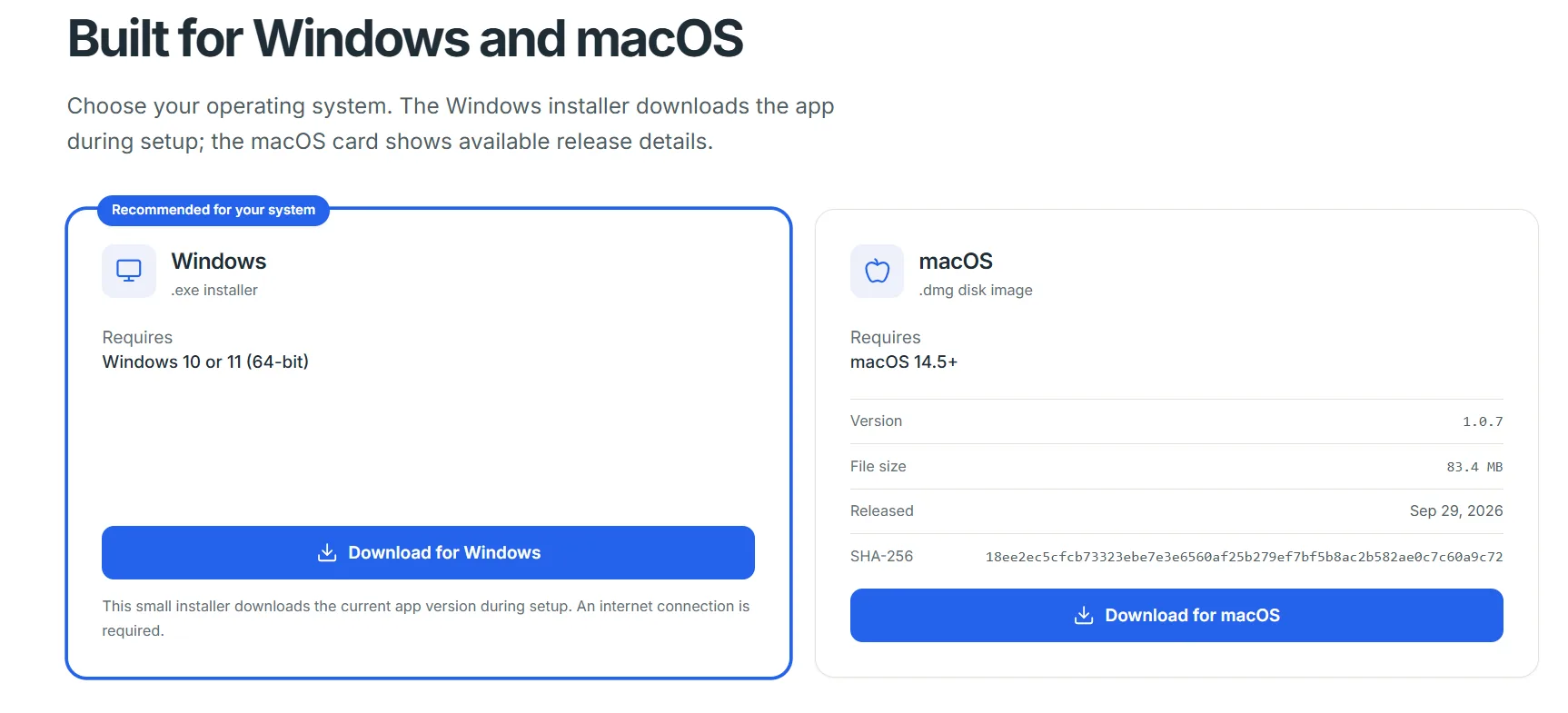
Download and install Memora Keep
Install the desktop client on your Windows PC or Mac.
- 2
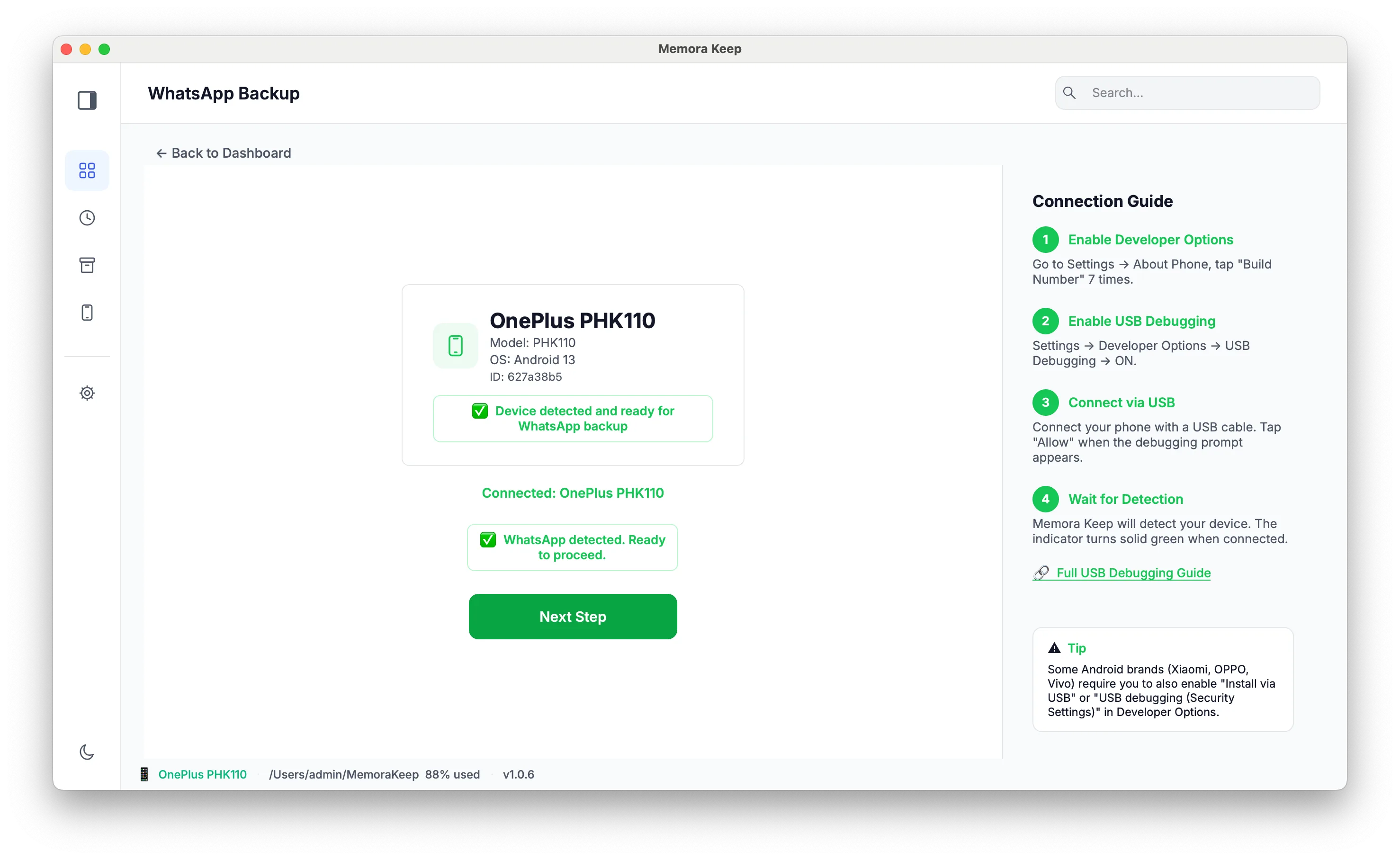
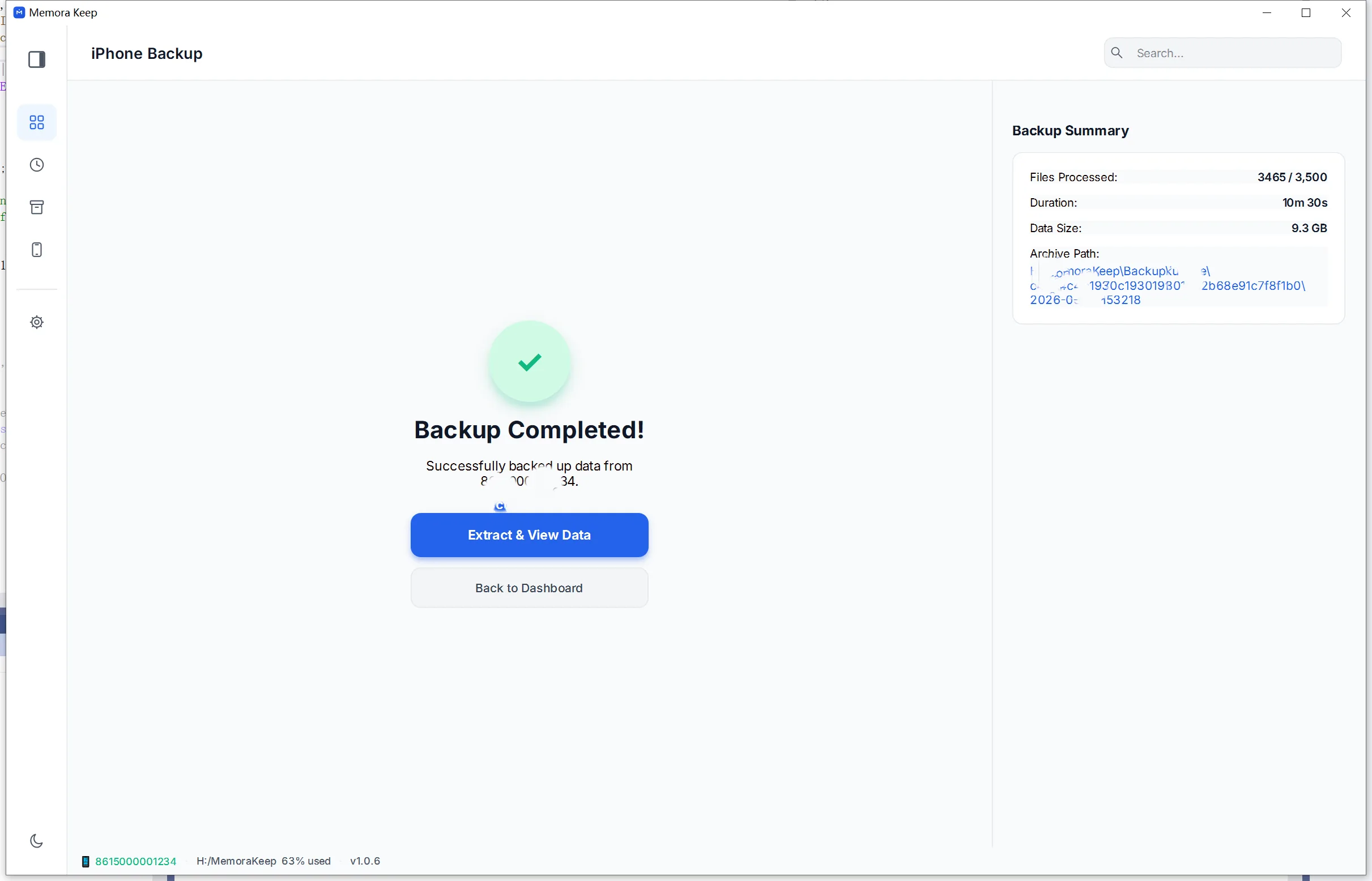
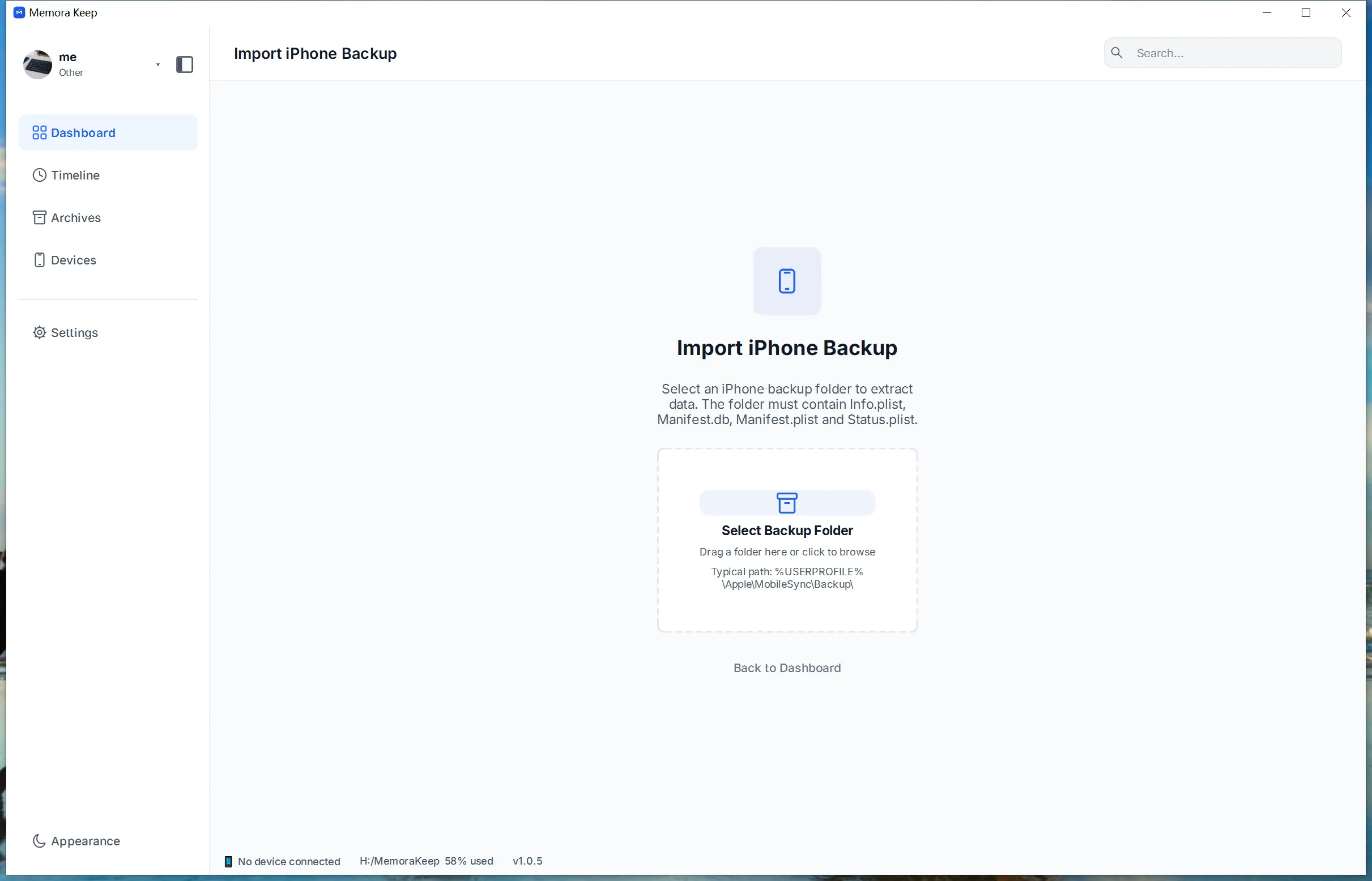
Back up or import the WhatsApp data
On an iPhone, WhatsApp comes in with the full device backup, or import an existing iTunes or Finder backup. On Android, back up WhatsApp through the WhatsApp module.
2. Run the merge
- 1
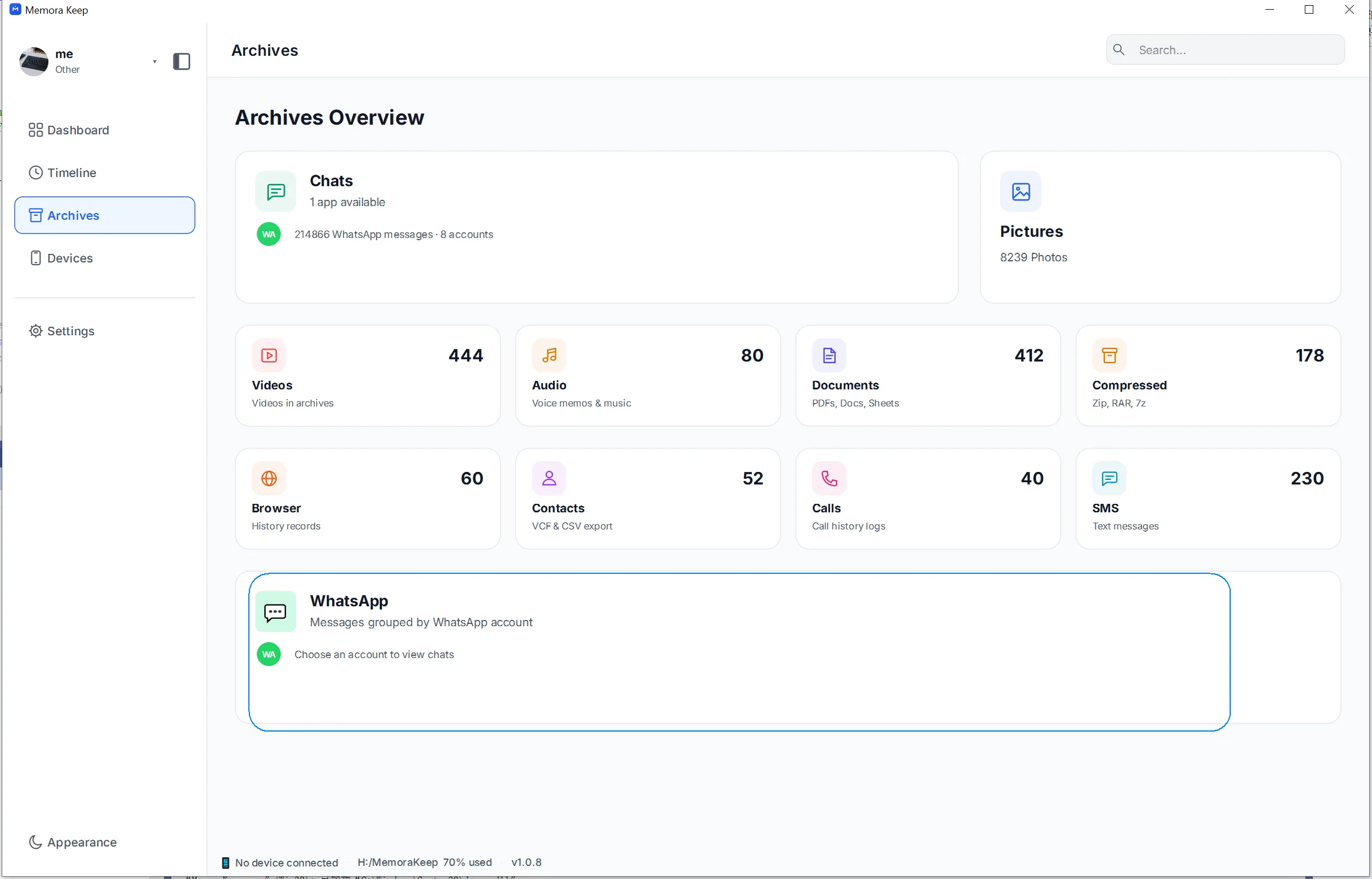
Open the WhatsApp section in Archives
Go to Archives, select WhatsApp and click Open to see every stored account.
- 2
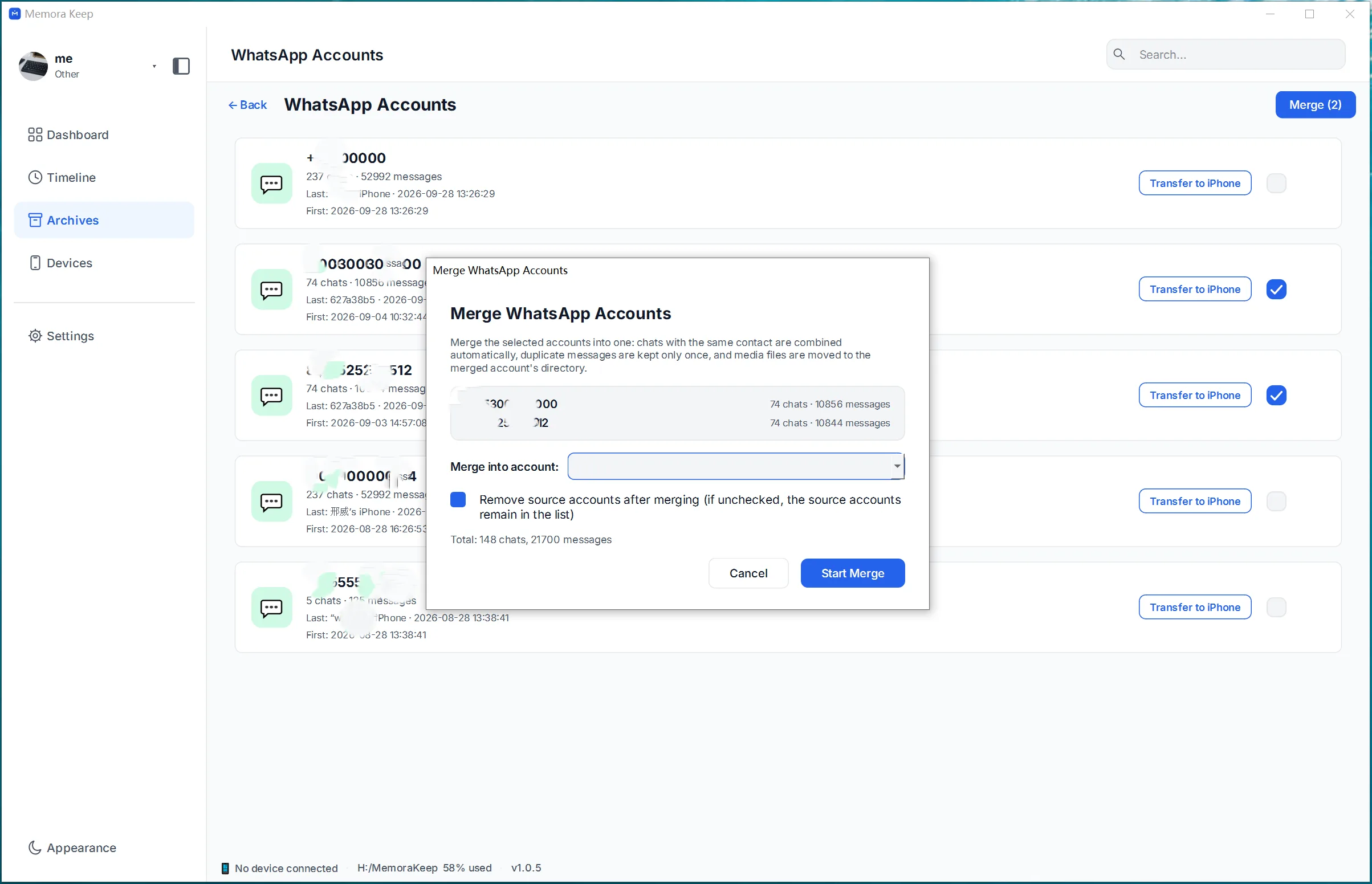
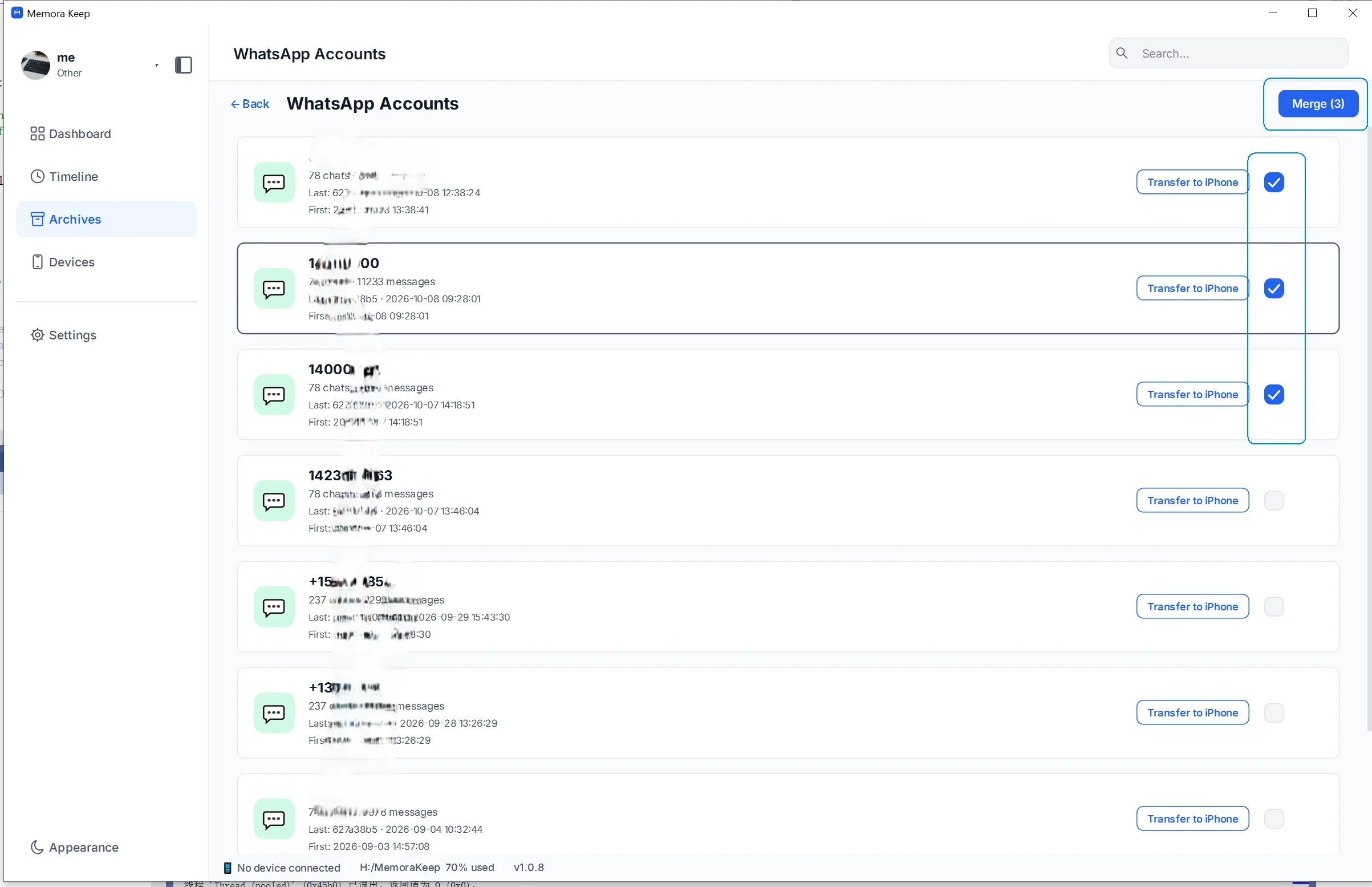
Select the accounts to merge
Tick any number of accounts whose chats should be brought together, then click "Merge" in the top-right corner.
- 3
Configure the merged account
Choose one of the selected accounts as the result or fill in a new name, decide whether the original account data is kept, then click "Start Merge".
- 4
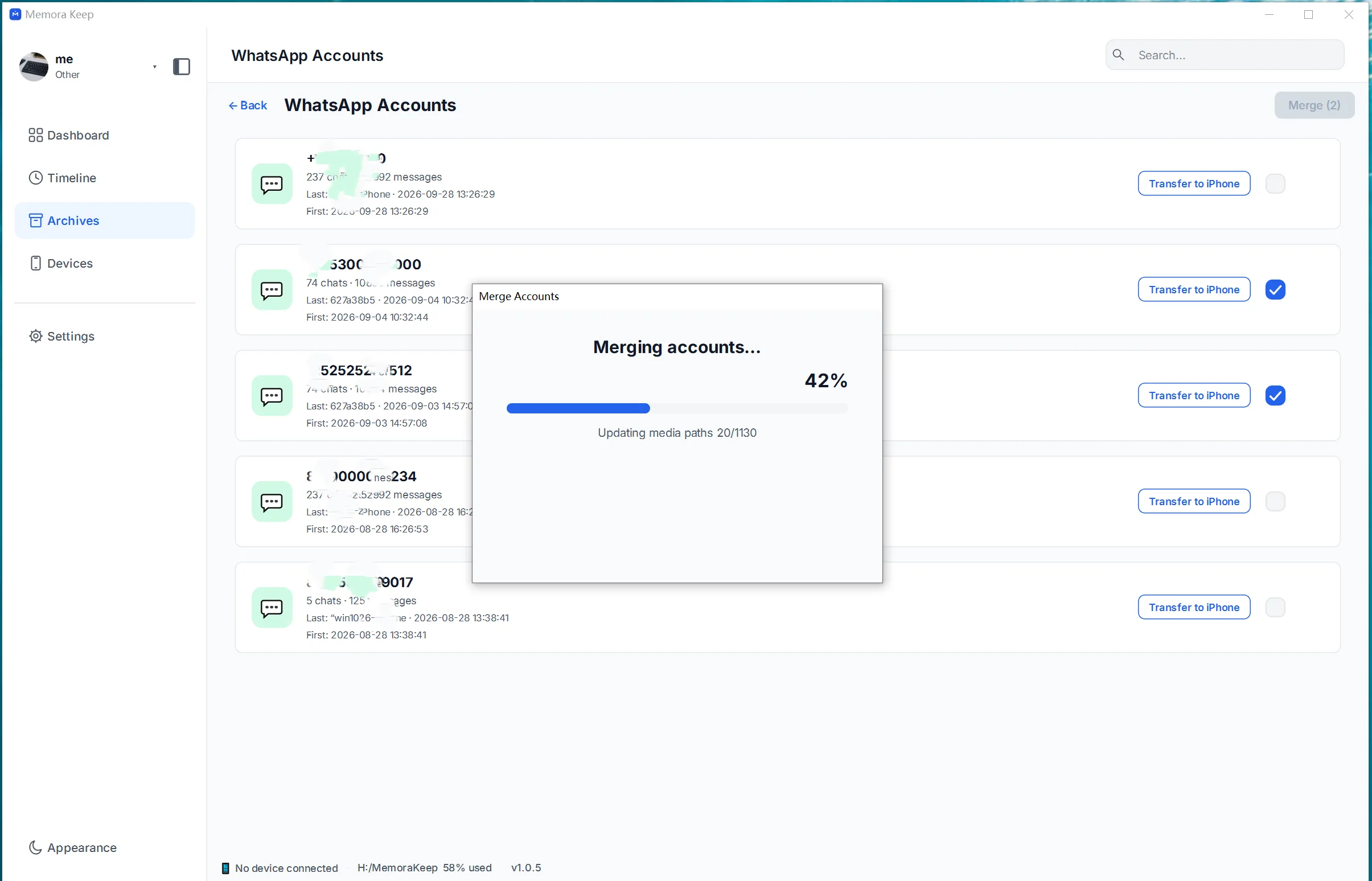
Wait while the merge runs
The client combines the selected chats into one account and removes duplicate messages.
- 5
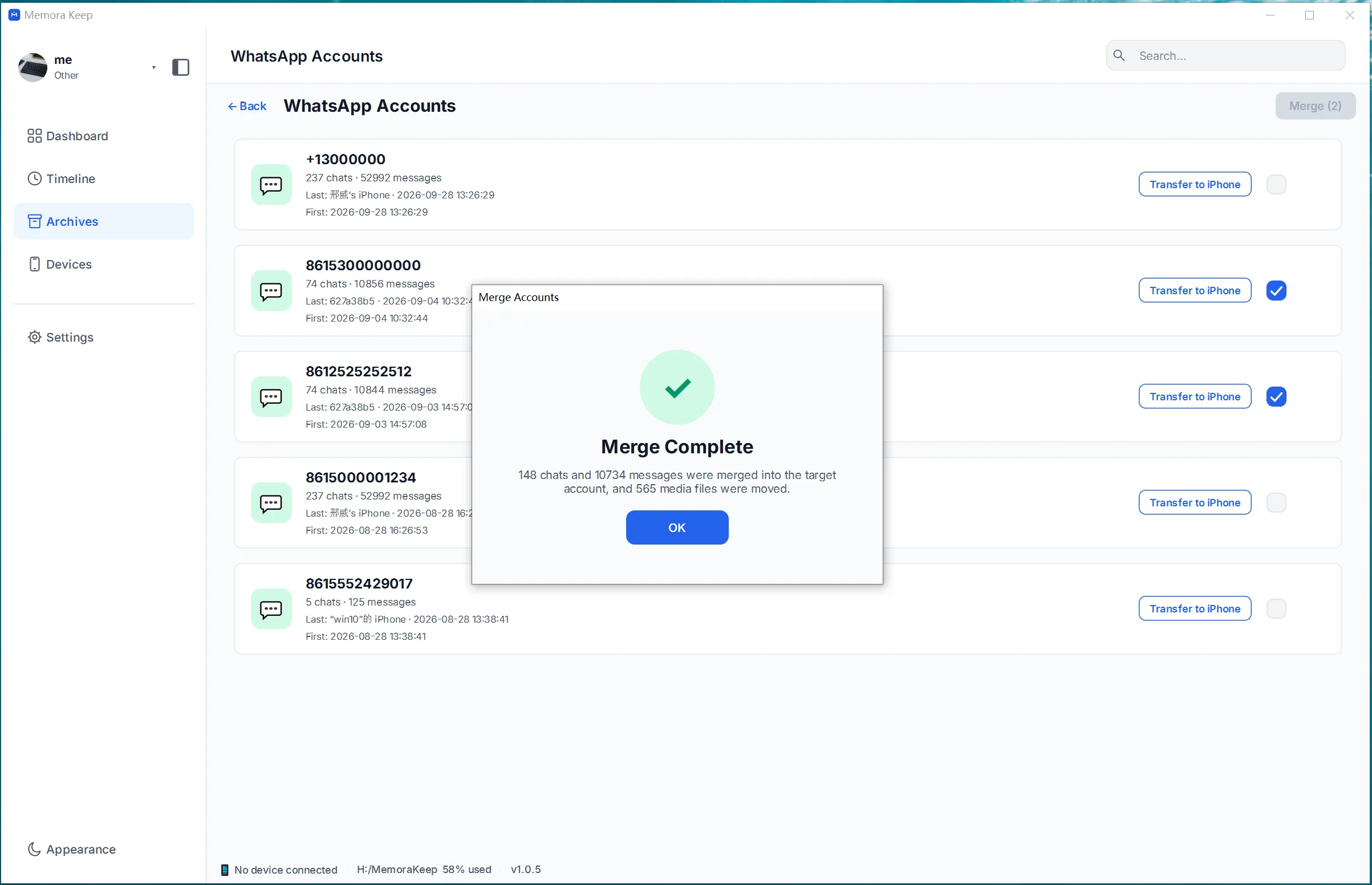
The merge completes
A success screen confirms that the chats have been combined into one account.
- 6
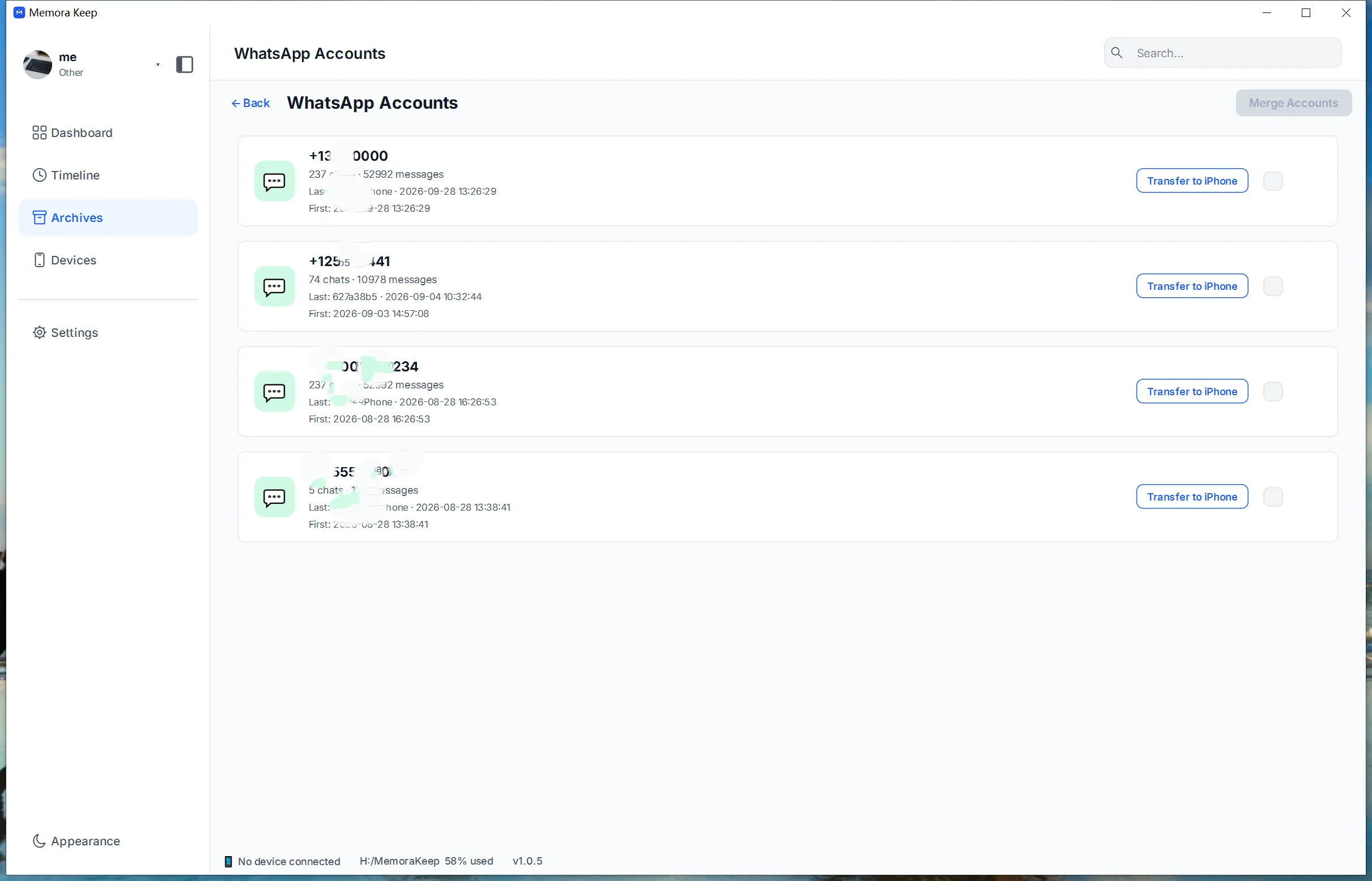
Open the merged account
The merged account appears as its own entry on the account list, ready to browse.
Your archive stays on your computer
Save backups, chats and media in a folder you choose. Memora Keep does not upload your archive, and you can browse and export it offline without an account.
- No account and no sign-in required
- Backups, chats and media are never uploaded
- Diagnostics stay local unless you choose to send them
- Backups and the archive stay readable offline
FAQ
Merge WhatsApp chats from different accounts questions
Can I combine different WhatsApp accounts?
Yes. This feature combines chats from several different WhatsApp accounts into one account in the Memora Keep archive. It is not limited to repeated backups of the same account.
Does this combine my live WhatsApp logins?
This feature merges stored account data in Memora Keep. It does not combine phone numbers or live WhatsApp login identities.
Is WhatsApp account merging available now?
Yes. Account merging is a completed feature in the Memora Keep desktop client for Windows and macOS.
Does merging automatically transfer data to an iPhone?
No. Merging and iPhone transfer are separate operations. Review the merged chats, then use the WhatsApp transfer to iPhone workflow if needed.
Related
Keep reading
- Feature WhatsApp chat viewer Read backed-up WhatsApp chats on your computer, search within a conversation, and preview photos and videos. Read
- Feature WhatsApp chat export Export one or many conversations to HTML, CSV or PDF, with media and timestamps. Read
- Feature WhatsApp transfer to iPhone Transfer WhatsApp data from your local archive to an iPhone with Memora Keep for Windows and macOS. Read
Start your own local archive
Free, with no account or subscription. Your archive stays on your computer.
Windows & macOS · Free