Android to iPhone WhatsApp transfer tool
WhatsApp chats backed up from Android are converted into iPhone backup format and written to the iPhone through a full-device restore.
Windows & macOS · Free · No account required
Why it matters
The problems this solves
How this feature helps you keep and use your phone data.
-
Chat history that seems lost across platforms
A new phone does not automatically include your archived chats. This feature converts backed-up Android WhatsApp data for an iPhone restore.
-
Keep the transfer on your computer
Transfer from your local WhatsApp archive to a connected iPhone without uploading the backup to a cloud service.
-
Not knowing whether the transfer worked
A silent transfer gives no confidence that the data arrived. The restore reports its progress and its result step by step.
How it works
How to use it
- 1
Convert the backup
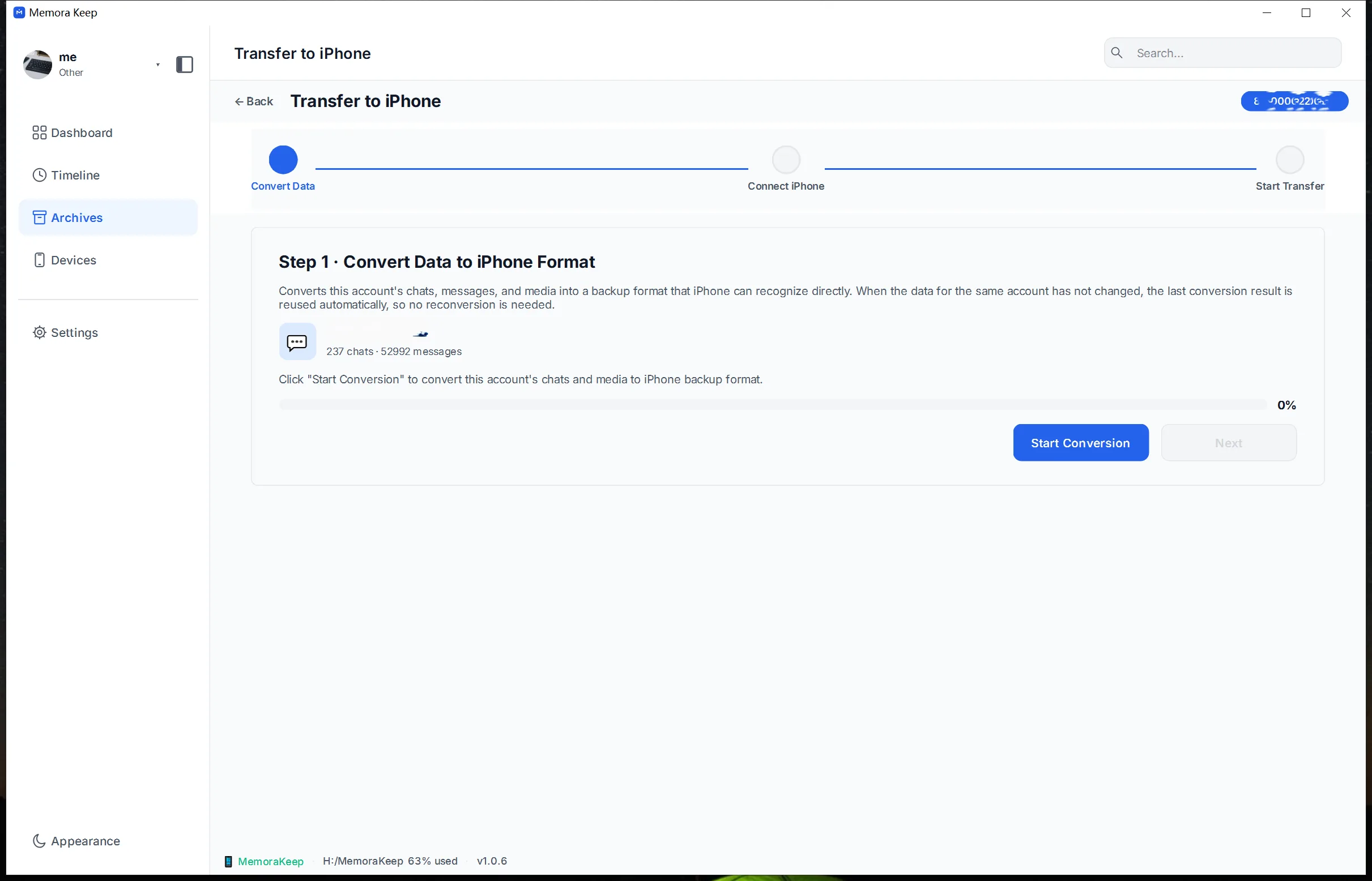
The WhatsApp data that was backed up from Android is converted into iPhone backup format.
- 2
Connect the iPhone
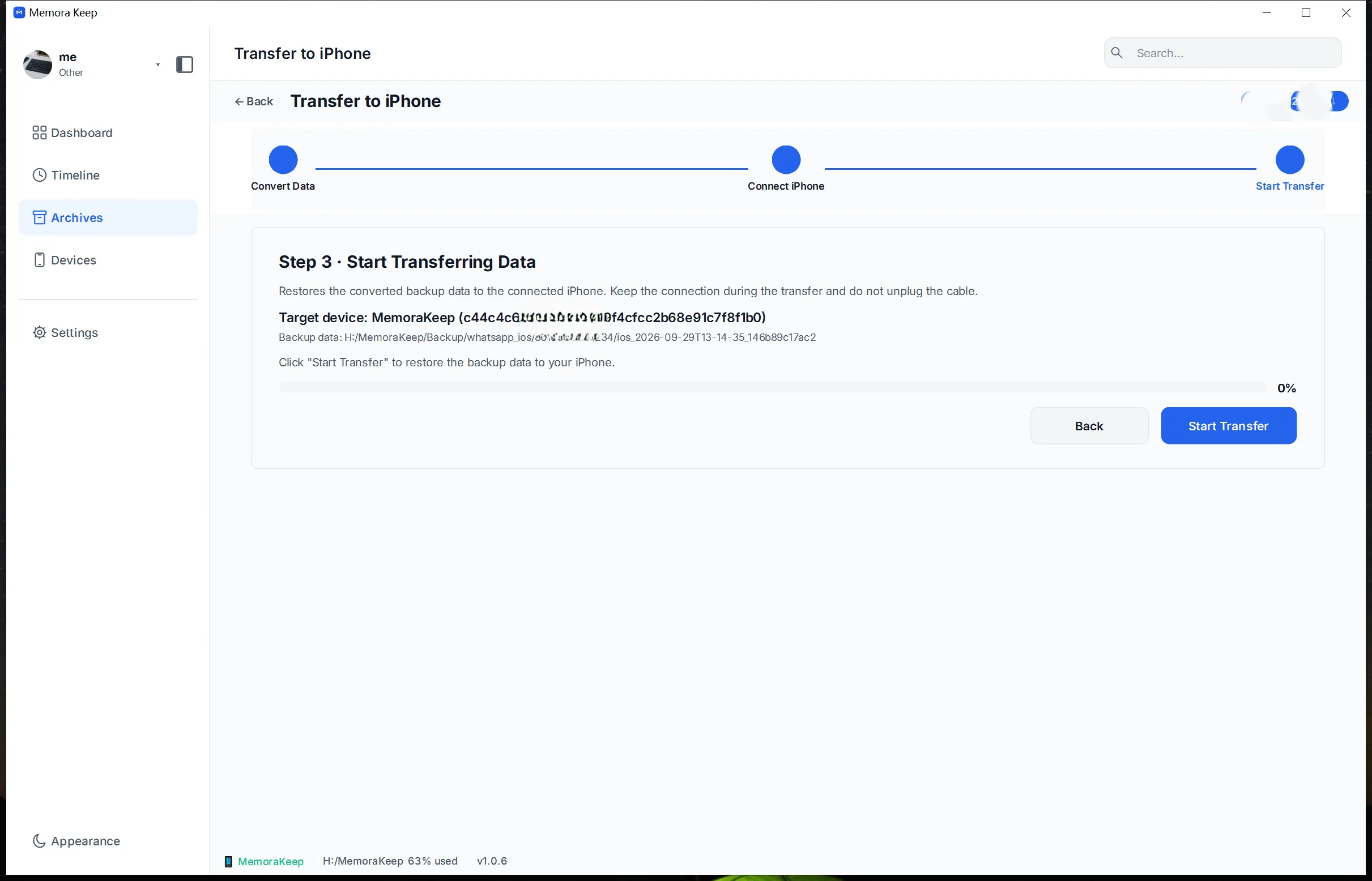
The app prompts you to connect the iPhone, and the converted data is written to it with a full-device restore.
- 3
Watch the restore
Step-by-step progress and results are shown as the restore runs. When the data for the same account is unchanged, the previous conversion output is reused.
Capabilities
What you can do with it
Step by step
Move WhatsApp from Android to iPhone, step by step
Two stages: back up the WhatsApp data from the Android phone, then restore it to the iPhone.
1. Back up WhatsApp from your Android phone
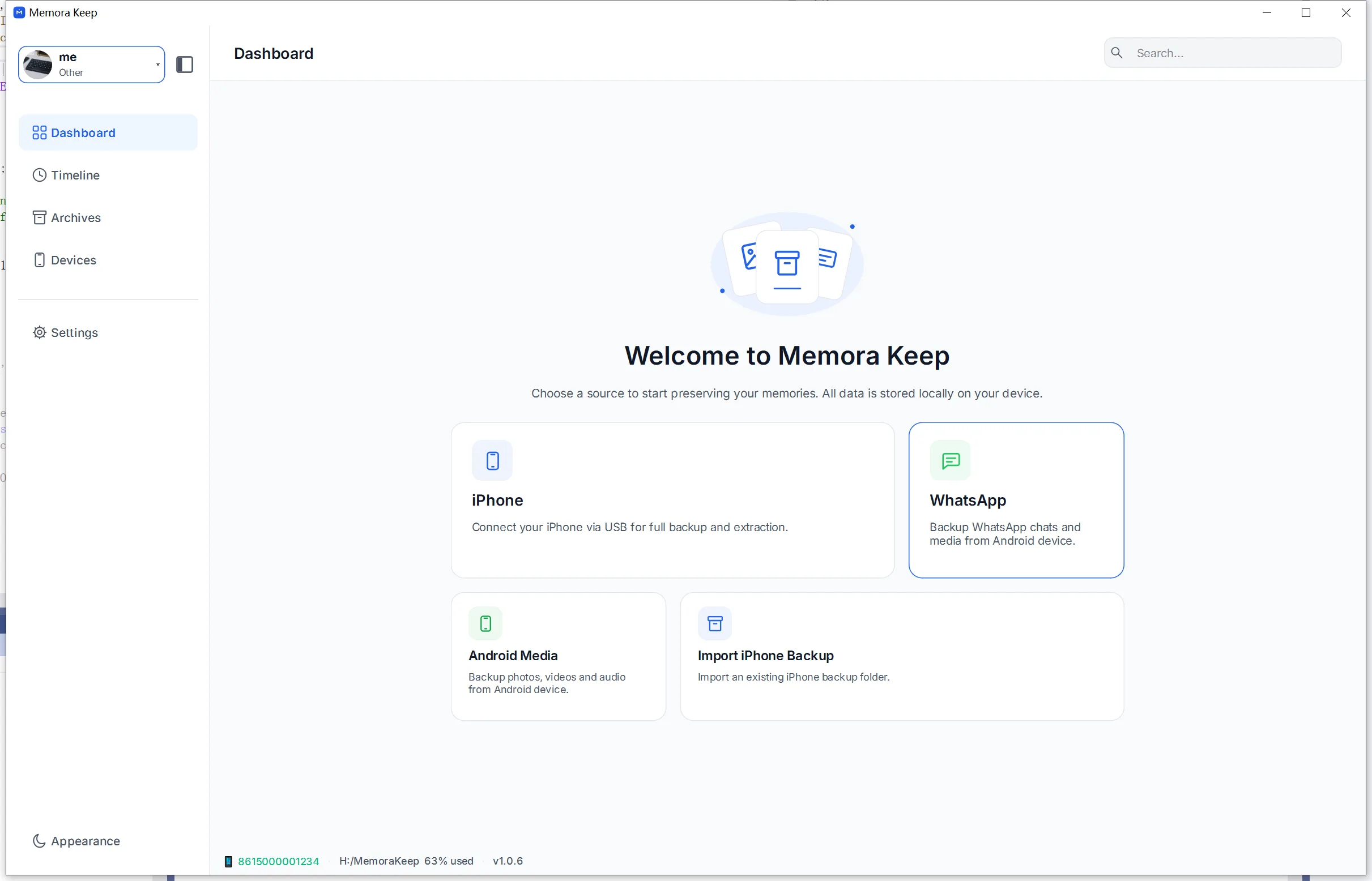
- 1
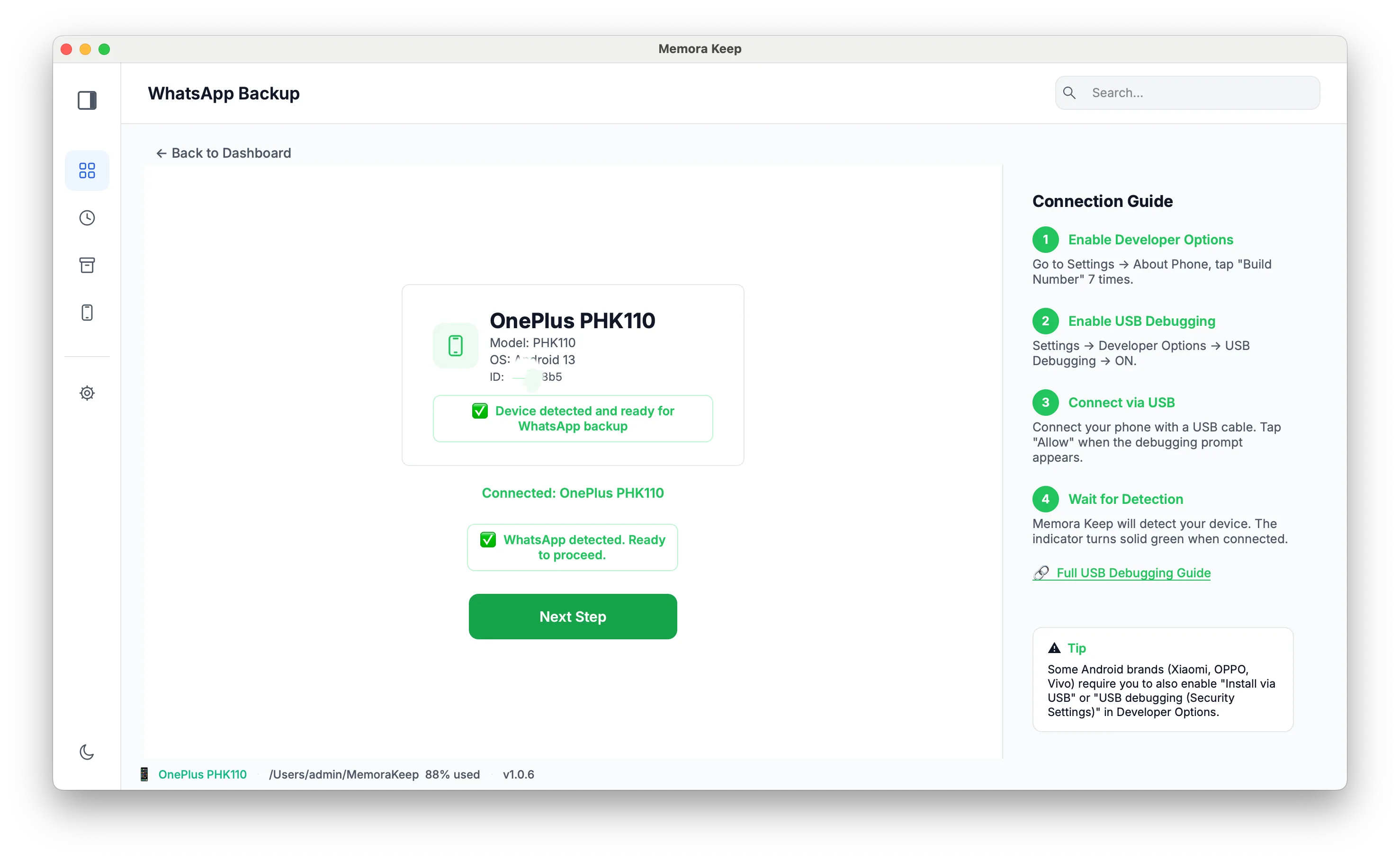
Open the WhatsApp module from the Dashboard
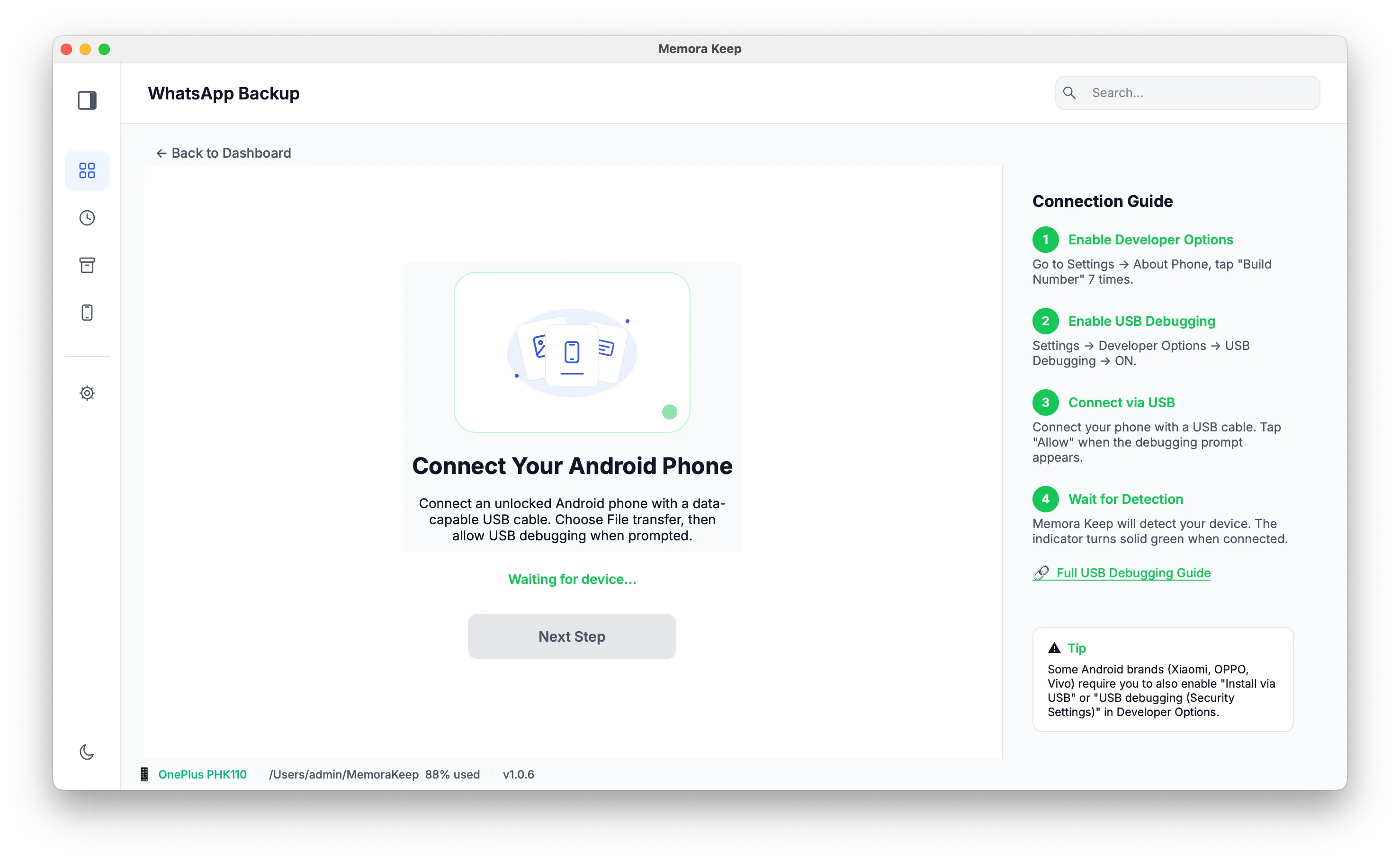
- 2
Connect your Android phone to the computer with a USB cable
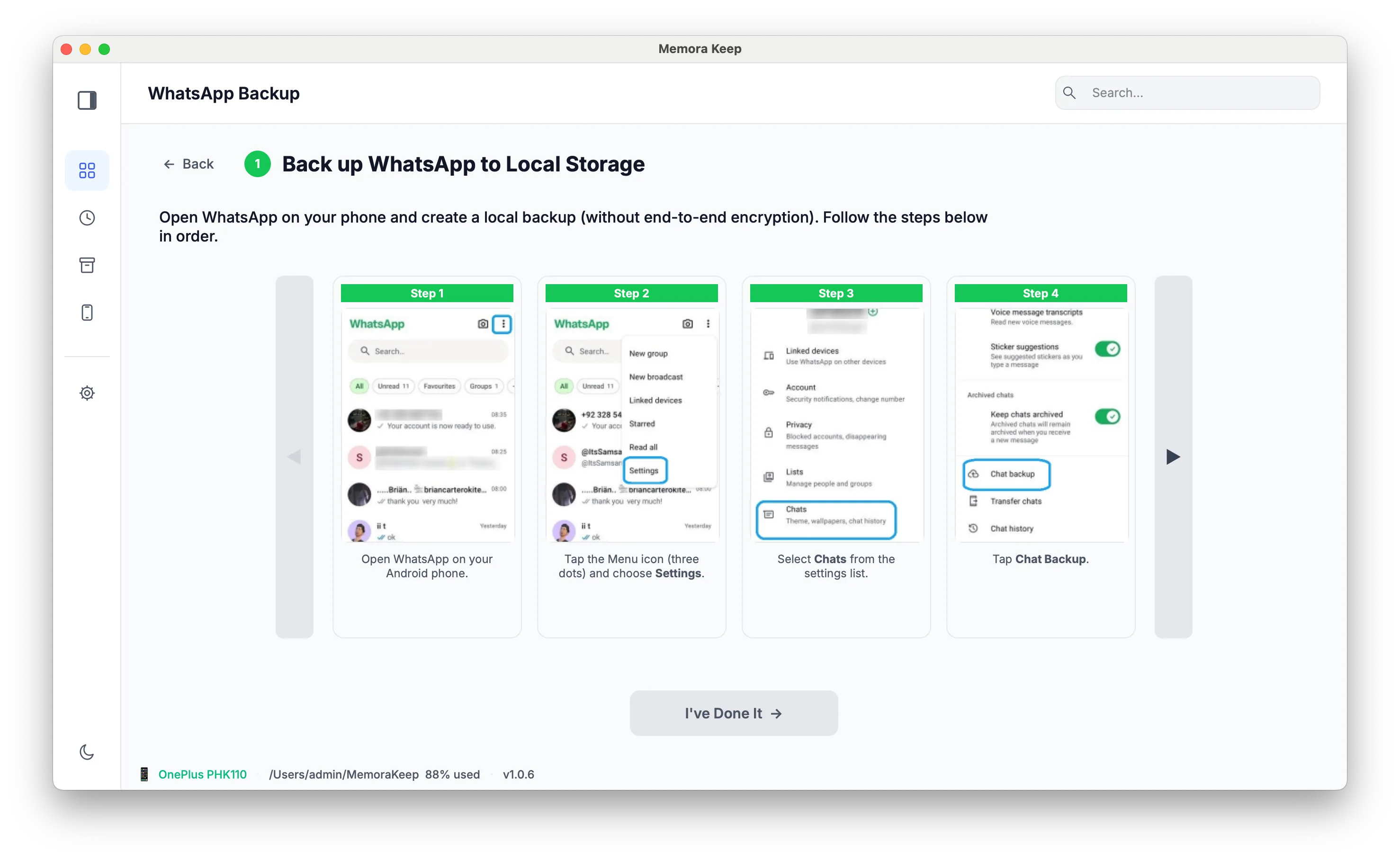
- 3
Back up WhatsApp to local storage
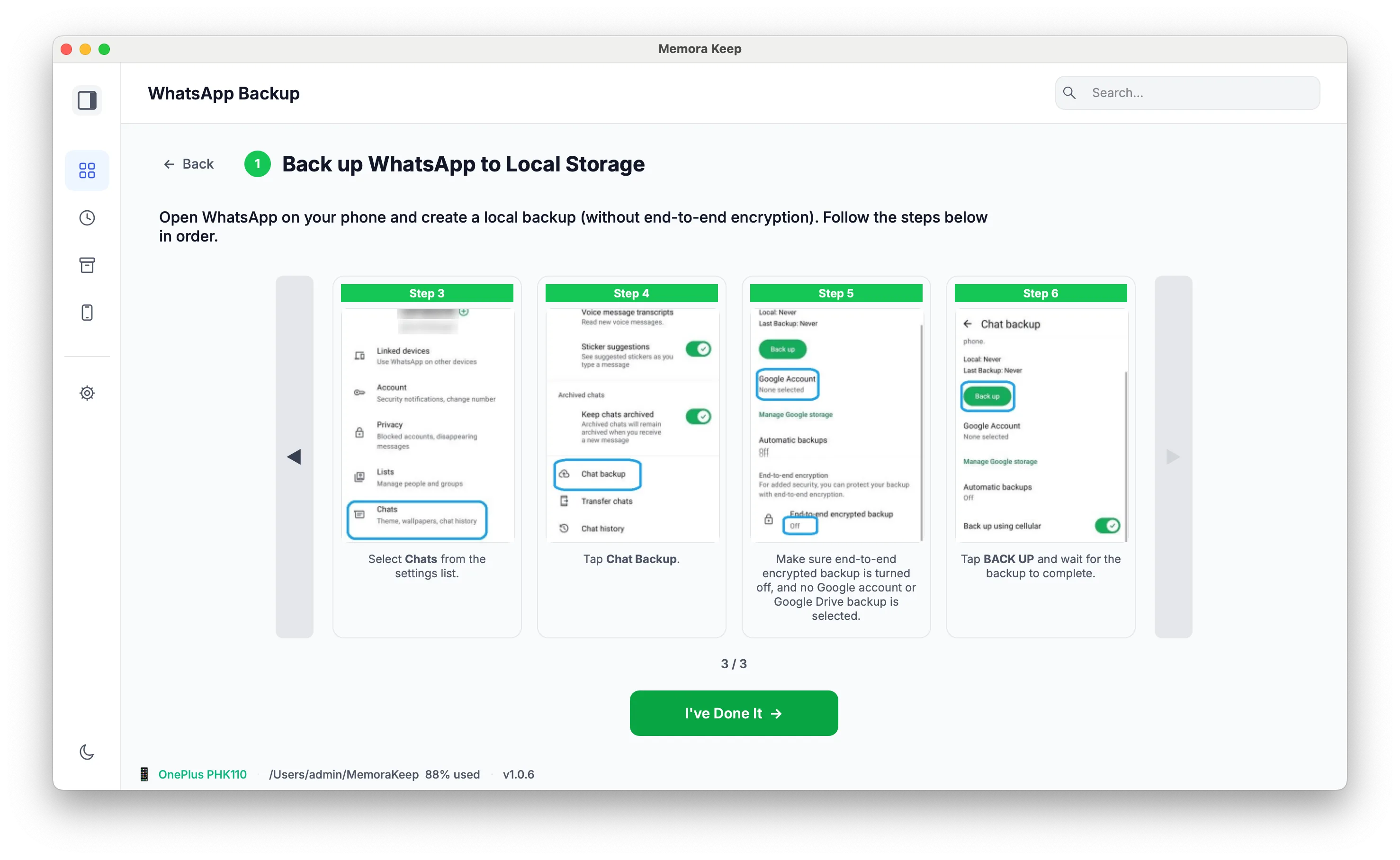
- 4
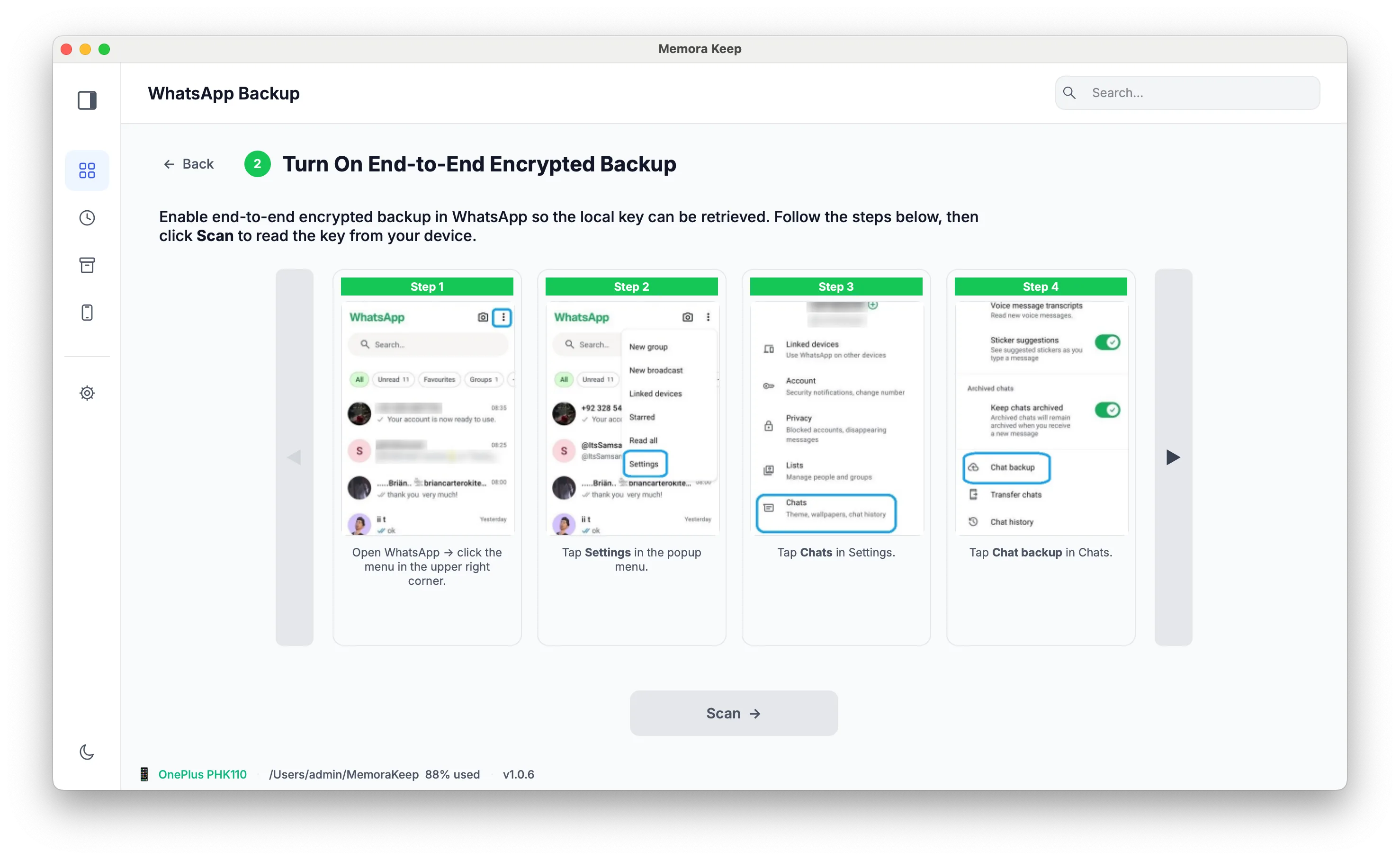
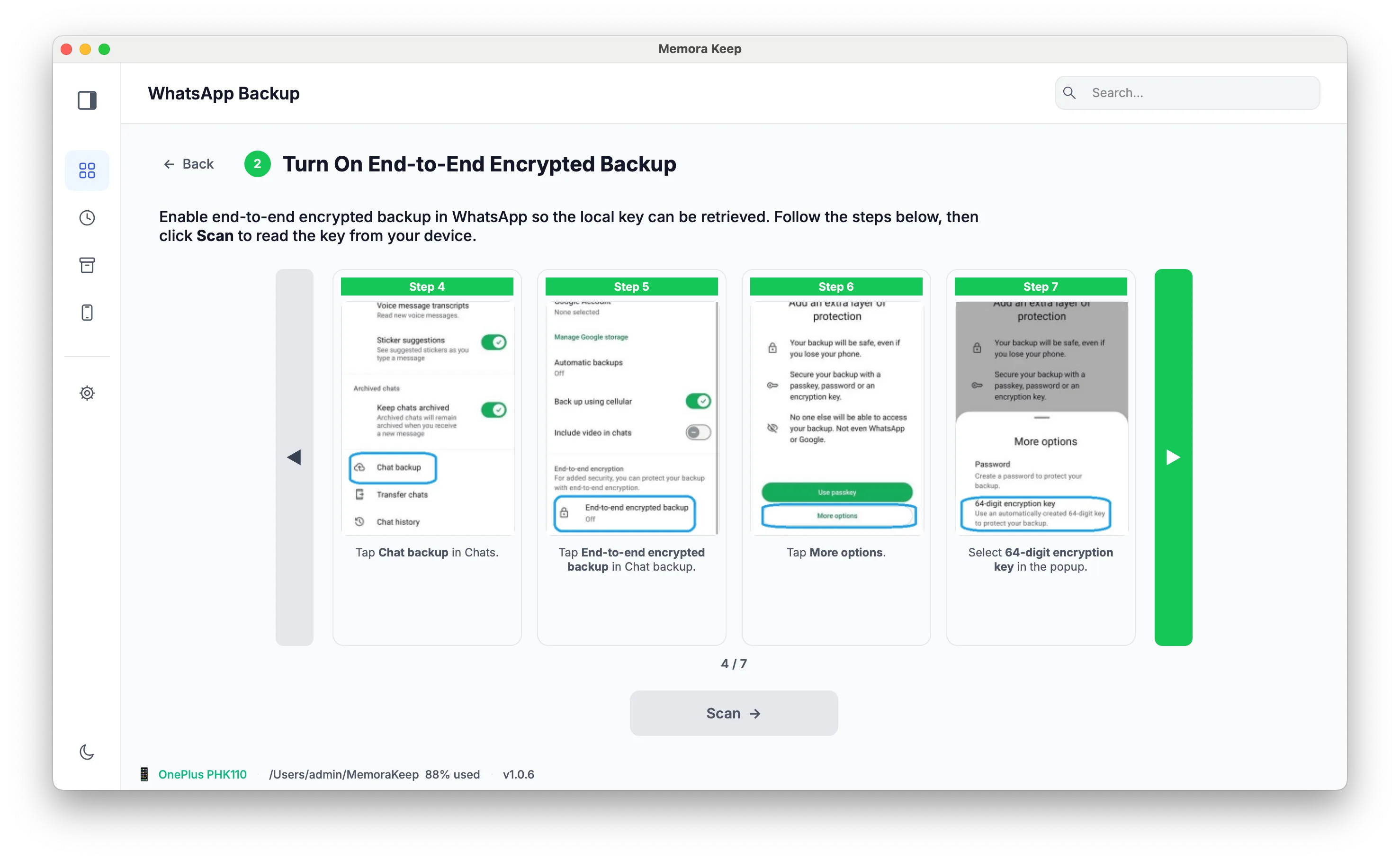
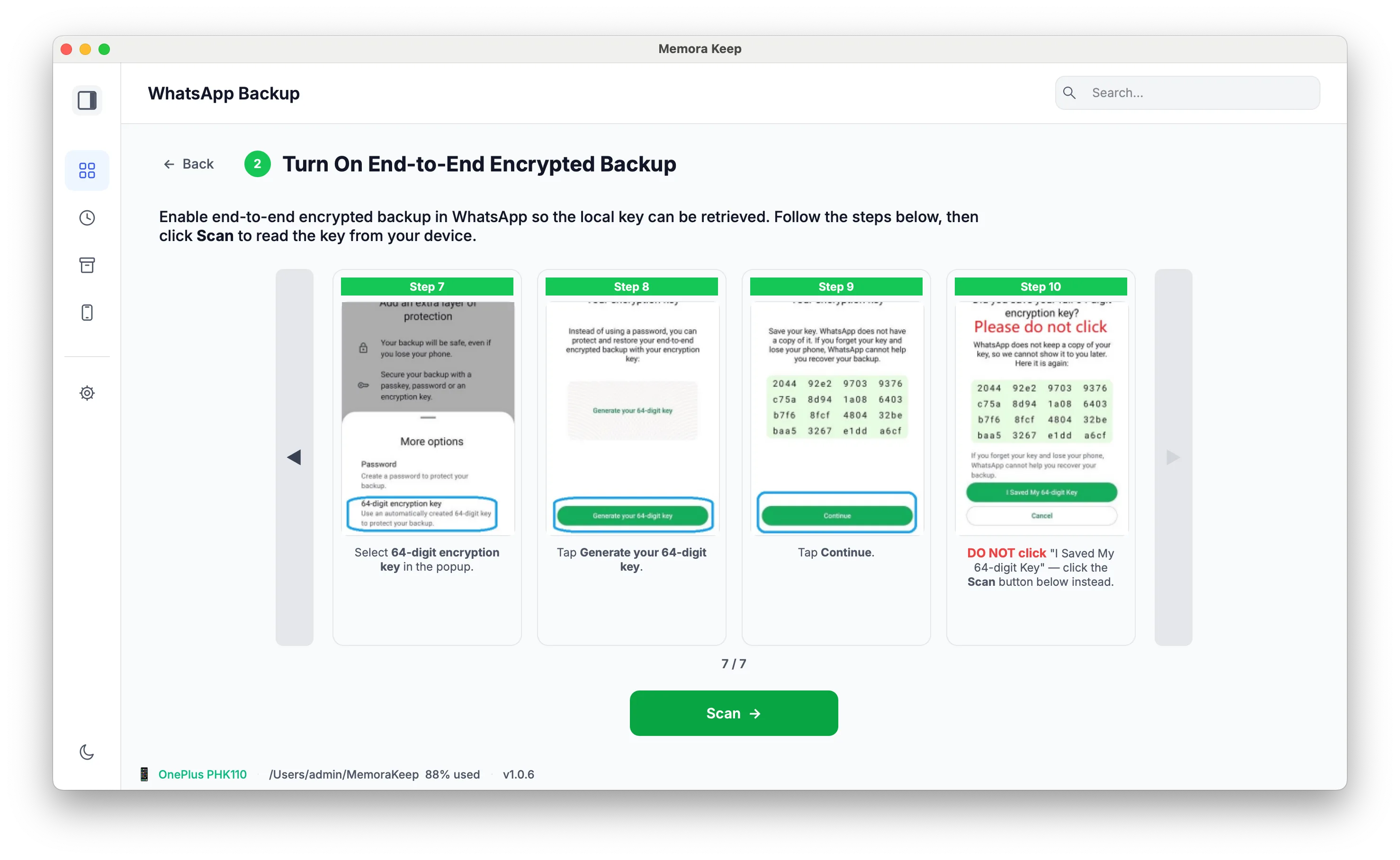
Turn on the end-to-end encrypted backup
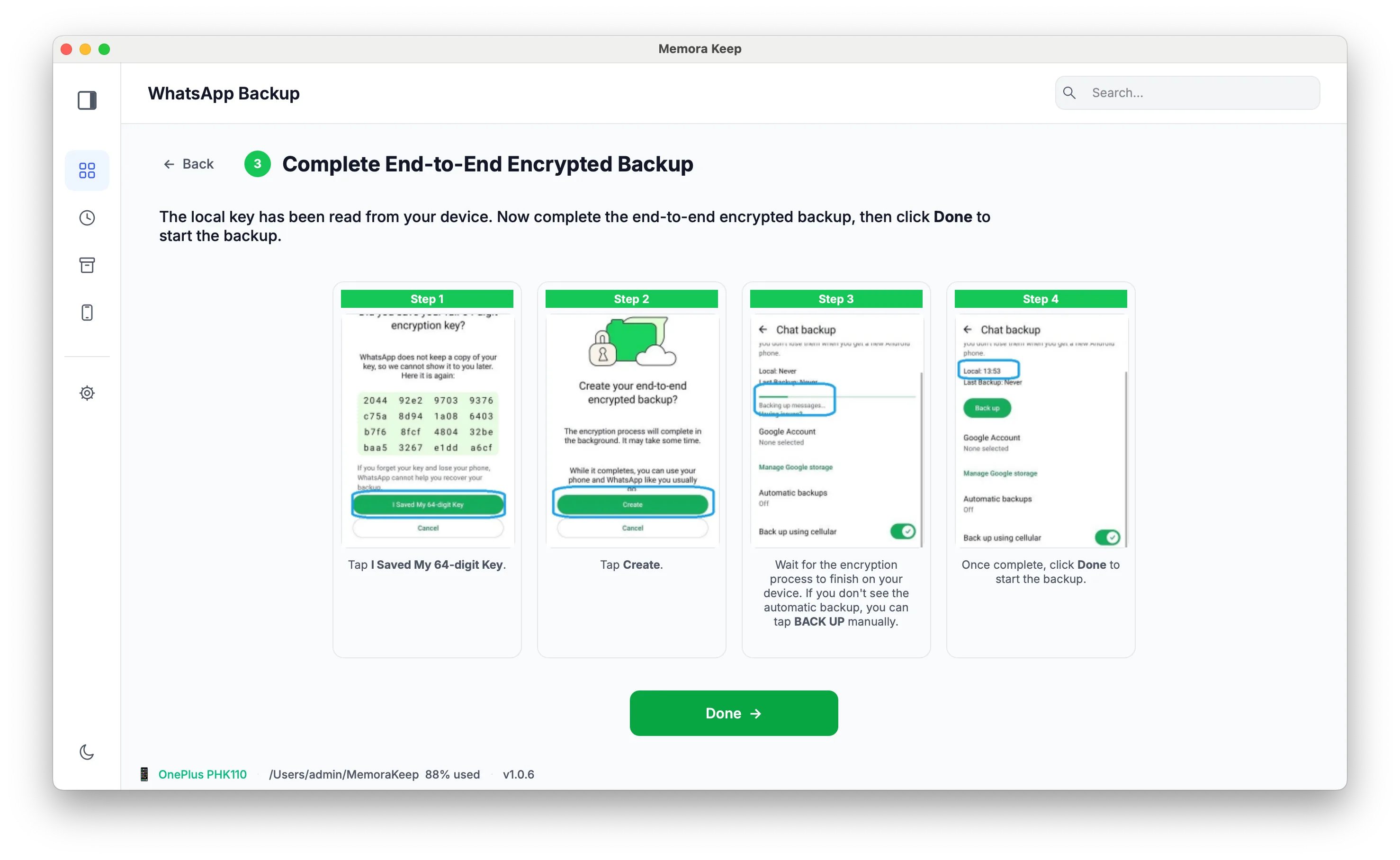
- 5
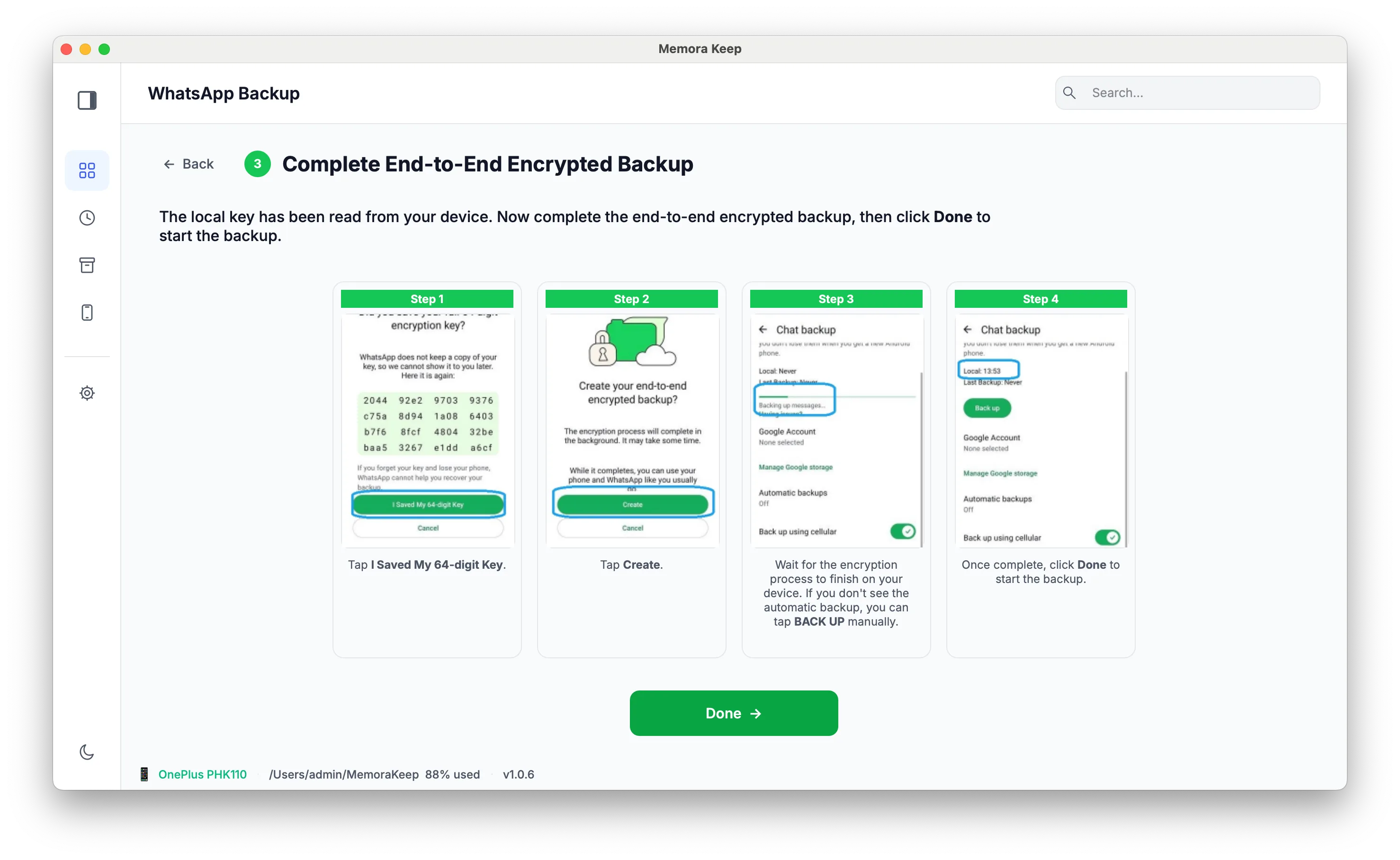
Complete the end-to-end encrypted backup
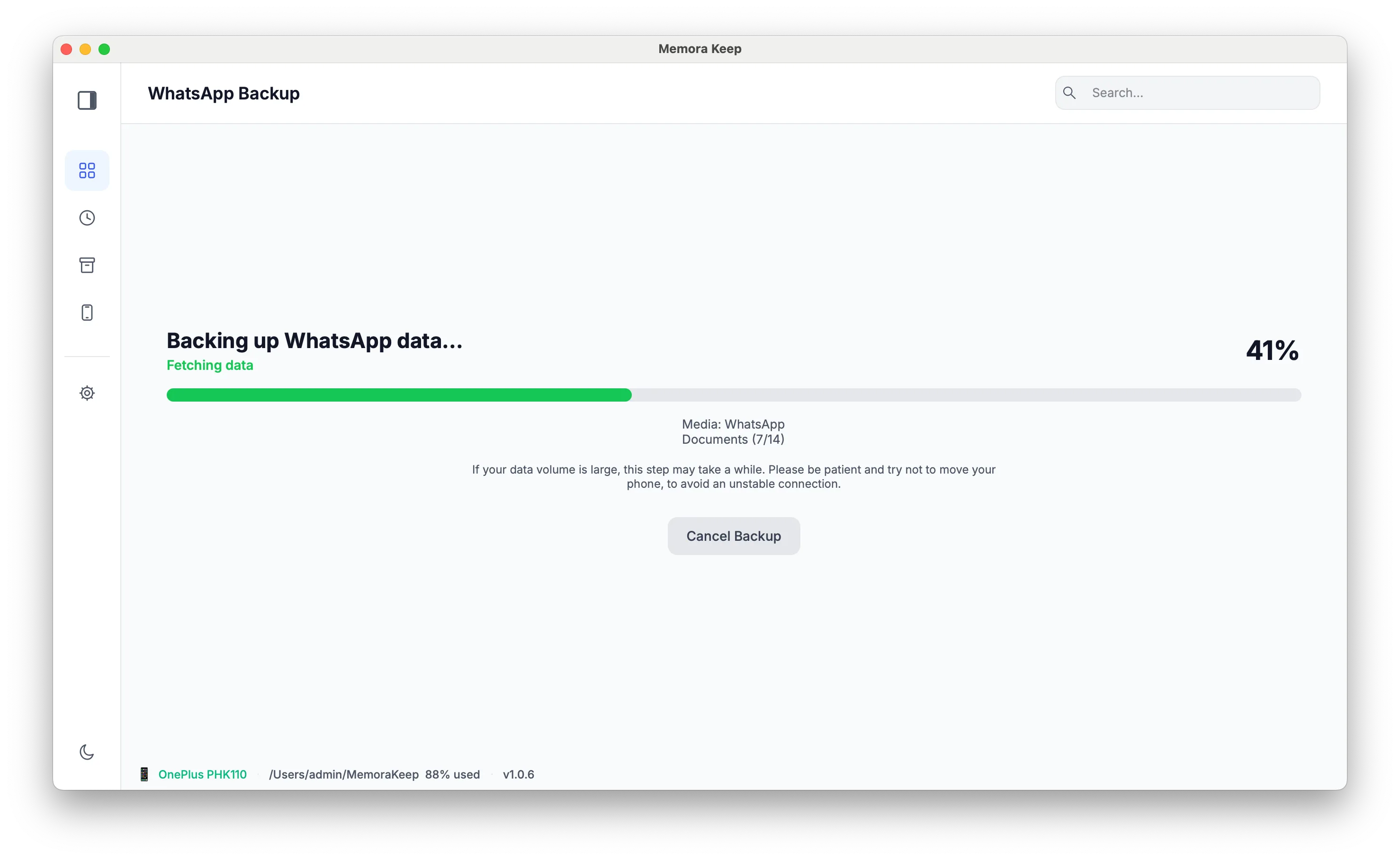
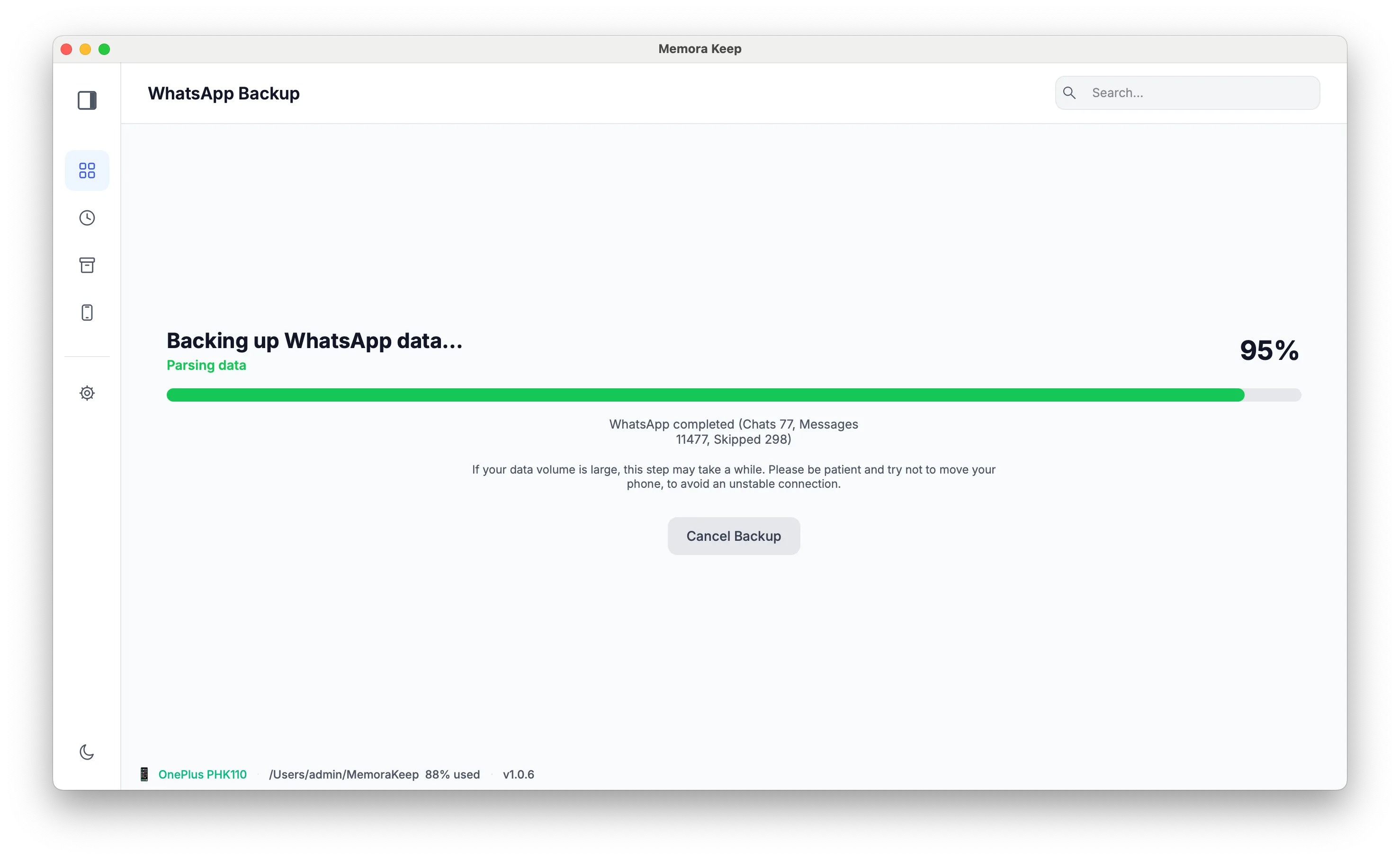
- 6
Wait while the WhatsApp data is backed up
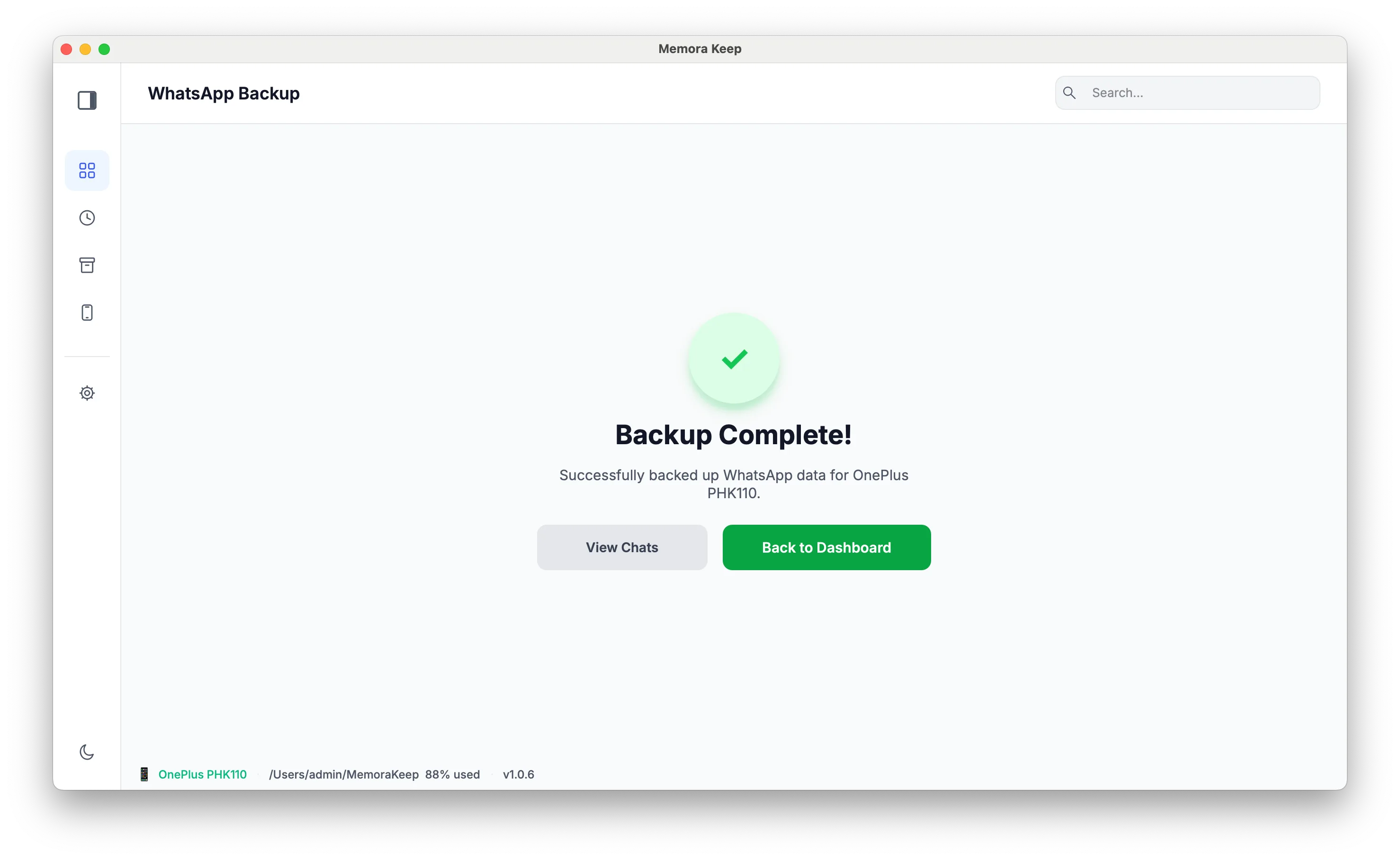
- 7
The backup completes
2. Restore the data to your iPhone
- 1
Open WhatsApp from Archives
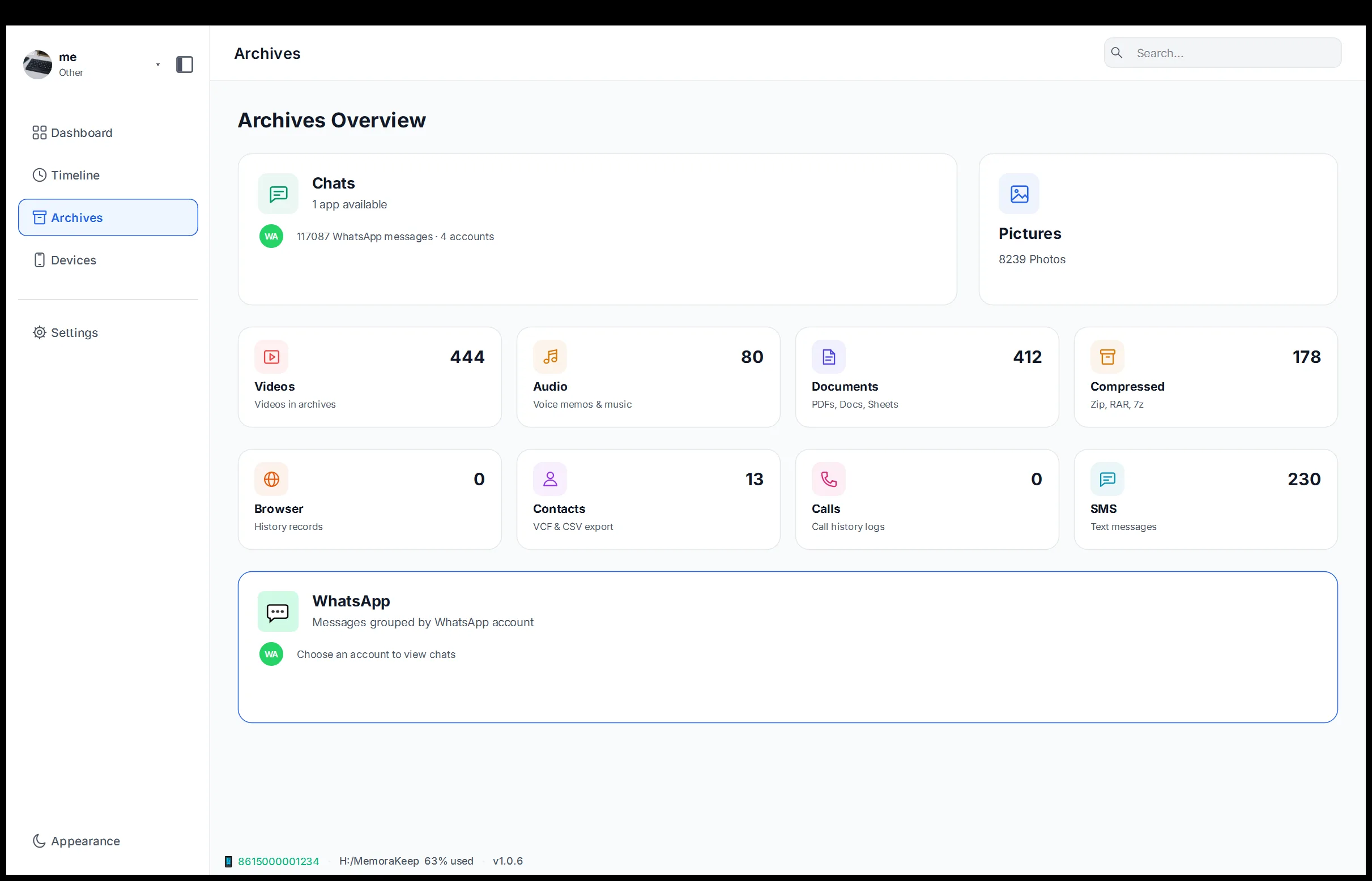
- 2
Select the data to restore and choose “Transfer to iPhone”
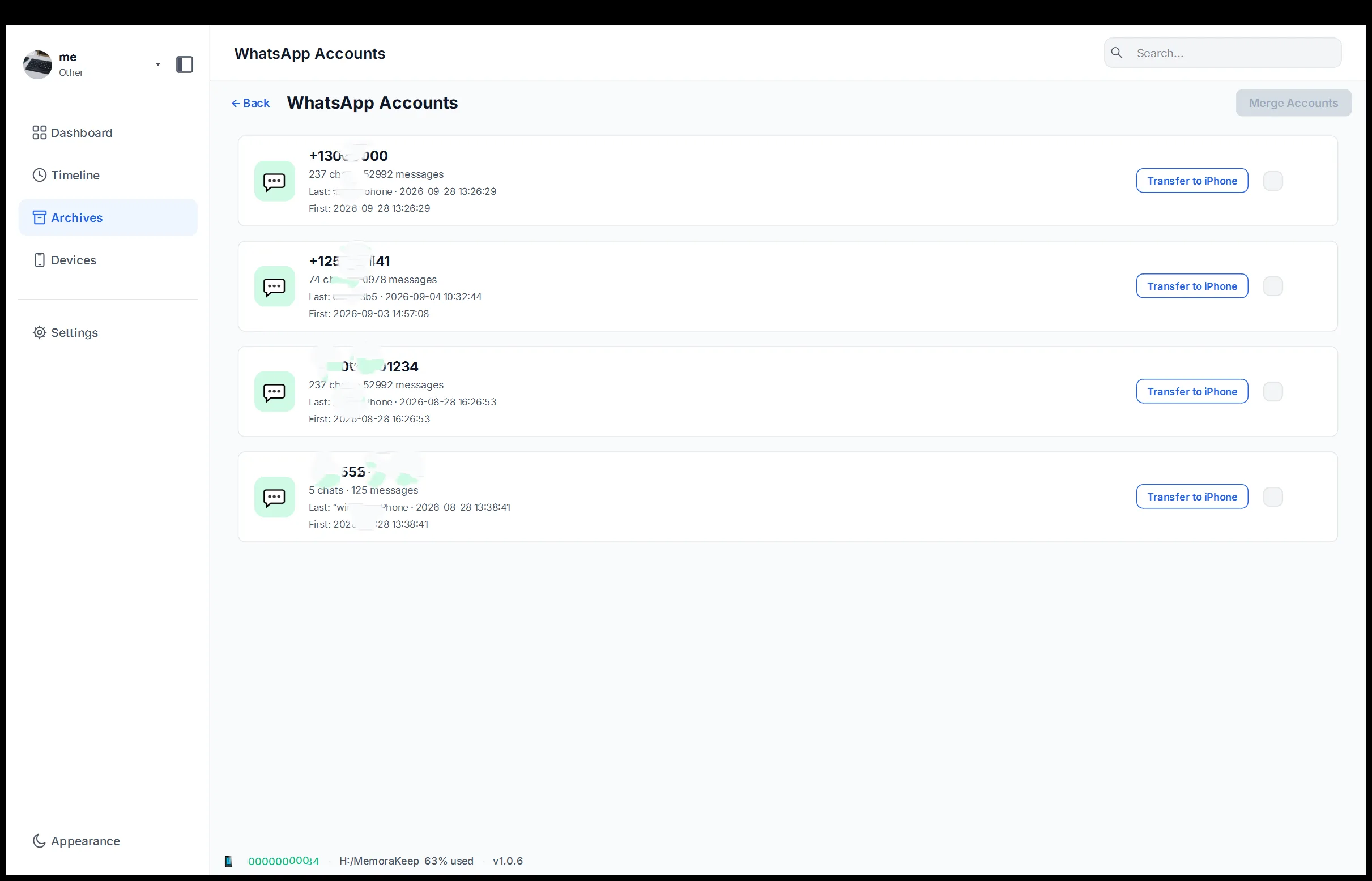
- 3
Start converting the data
- 4
Connect your iPhone to the computer, then click “Next”
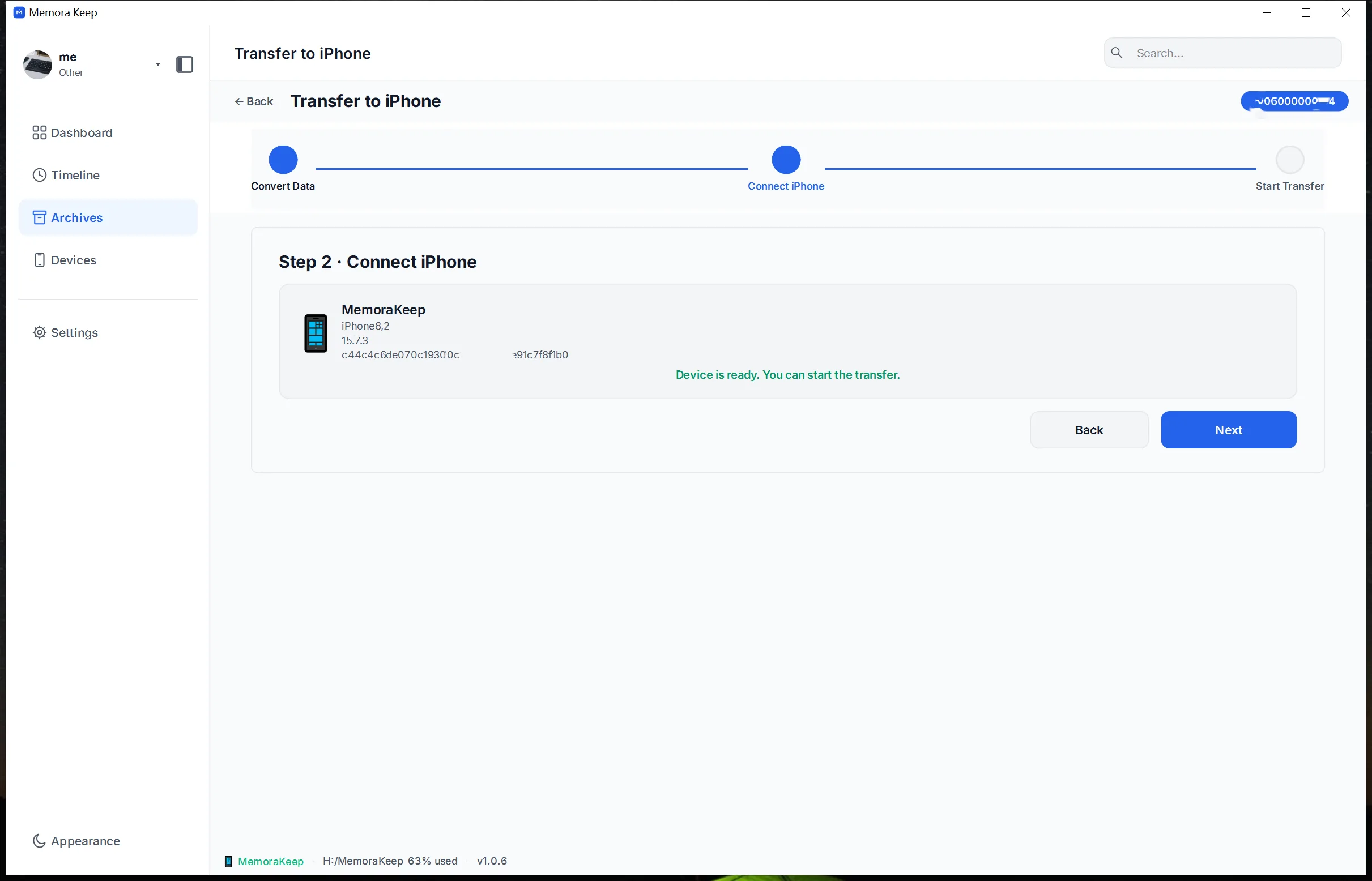
- 5
Turn off Find My iPhone before restoring
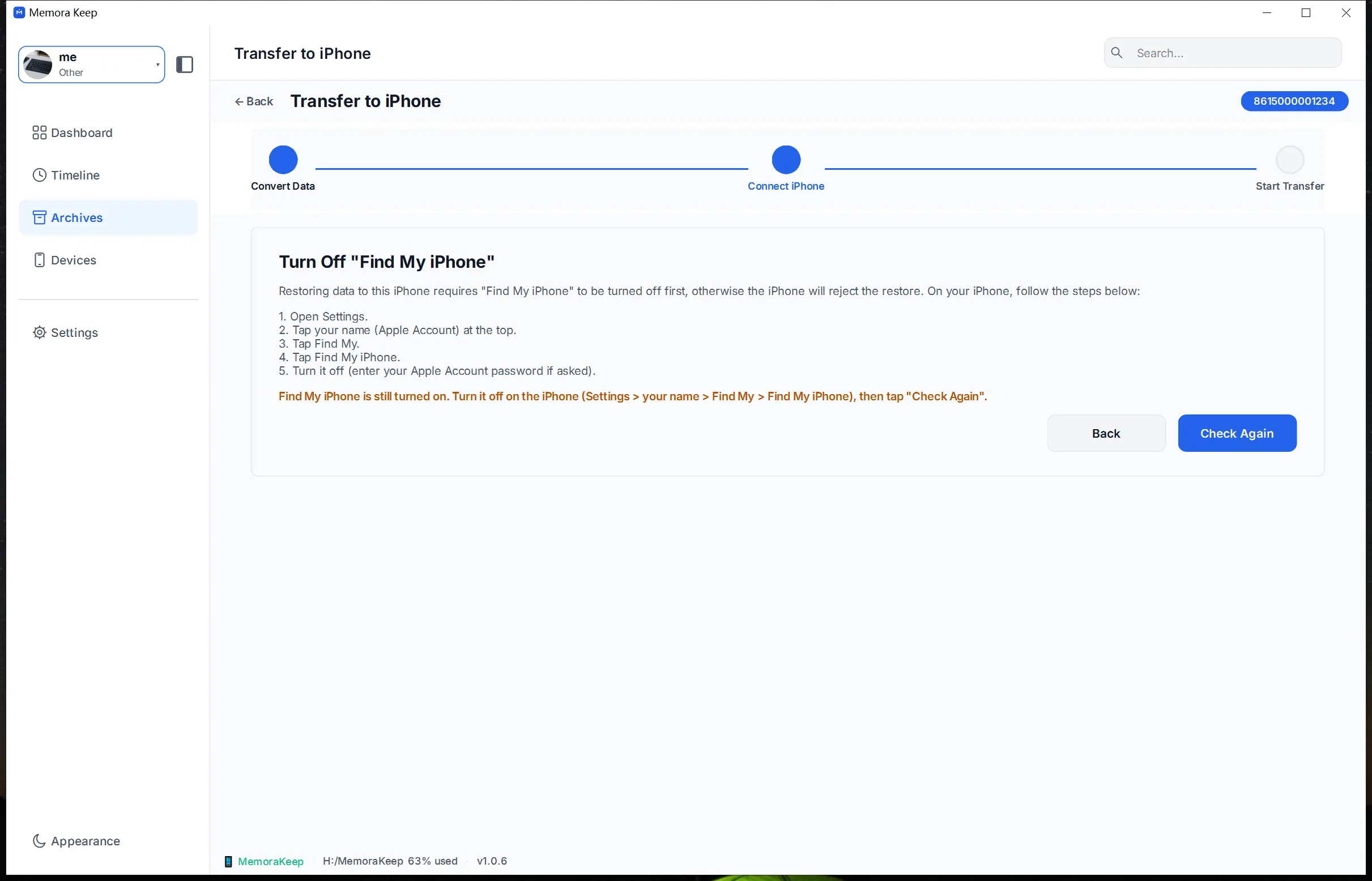
- 6
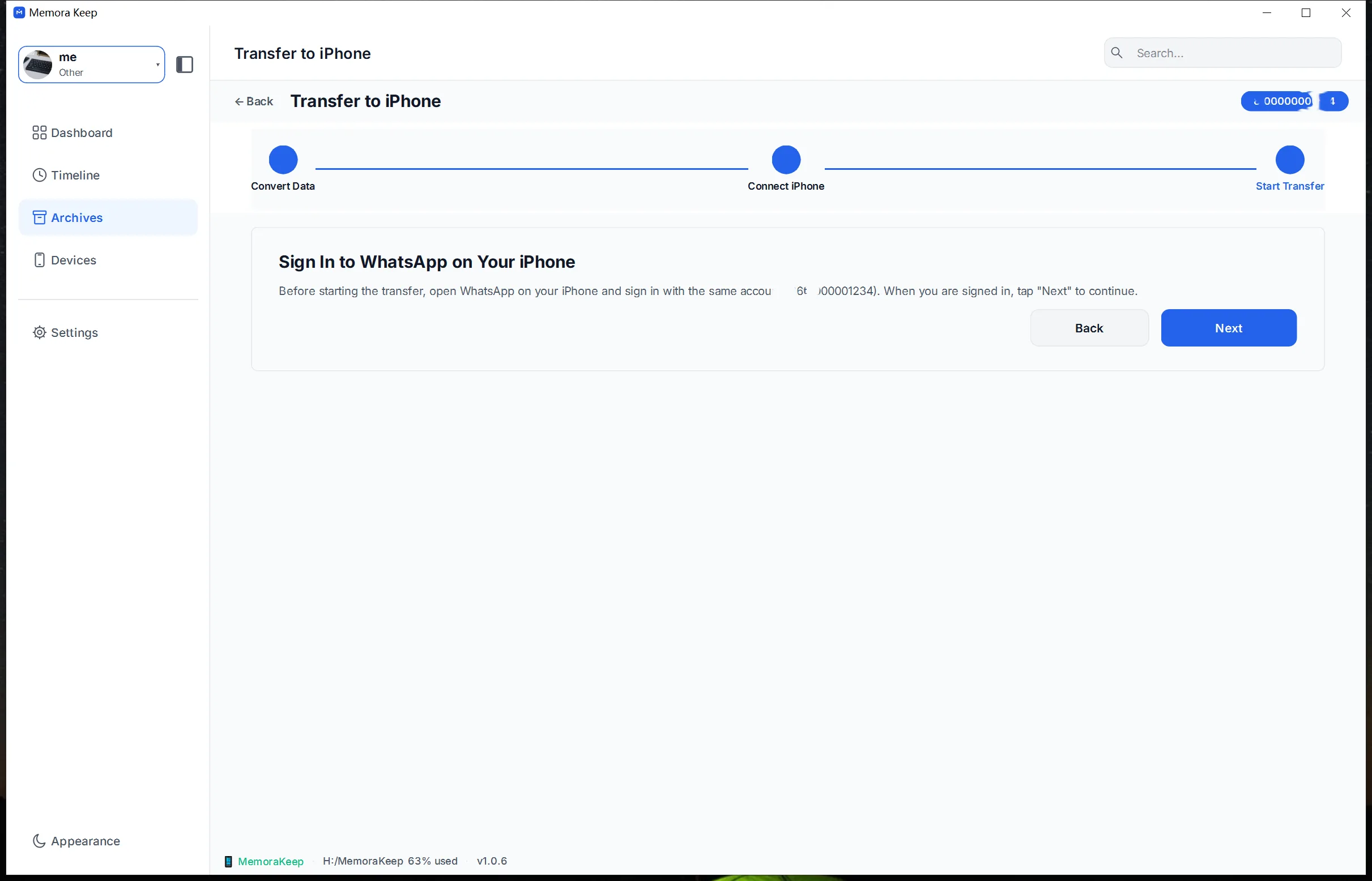
Sign in to WhatsApp on your iPhone, then click “Next”
- 7
Start the transfer and wait for it to finish
- 8
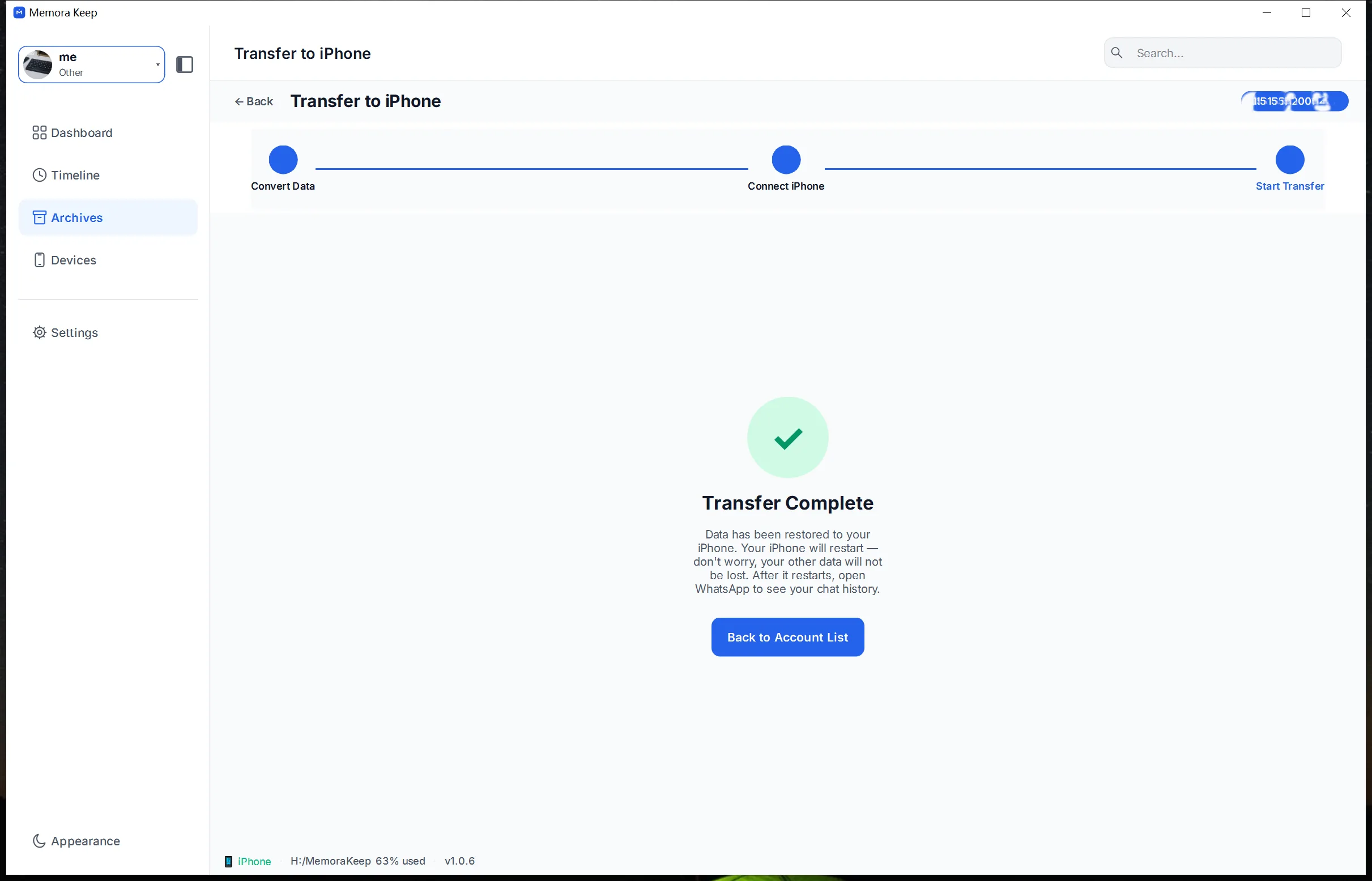
The transfer is complete
Your archive stays on your computer
Save backups, chats and media in a folder you choose. Memora Keep does not upload your archive, and you can browse and export it offline without an account.
- No account and no sign-in required
- Backups, chats and media are never uploaded
- Diagnostics stay local unless you choose to send them
- Backups and the archive stay readable offline
FAQ
Android to iPhone WhatsApp transfer tool questions
Where does the data being transferred come from?
From the WhatsApp backup of an Android device, made with the WhatsApp backup flow.
Does the transfer go through a cloud service?
No. The conversion and the restore work from the backup on your own disk and the connected iPhone.
How is the data written to the iPhone?
Through a full-device restore, which reports step-by-step progress and results.
Is everything converted again every time?
No. If the data for the same account has not changed, the previous conversion output is reused.
Related
Keep reading
- Feature WhatsApp backup Back up WhatsApp and WhatsApp Business chats and media from a phone, and read them in a local archive. Read
- Feature Merge WhatsApp chats Combine chat histories from multiple different WhatsApp accounts into one account in your local archive, and remove duplicate messages. Read
- Feature WhatsApp transfer to iPhone Transfer WhatsApp data from your local archive to an iPhone with Memora Keep for Windows and macOS. Read
Start your own local archive
Free, with no account or subscription. Your archive stays on your computer.
Windows & macOS · Free