Transfer WhatsApp data to iPhone
Transfer archived WhatsApp data to an iPhone using a full-device restore. Prepare the data in Memora Keep on Windows or macOS, then follow the restore prompts.
Windows & macOS · Free · No account required
Why it matters
The problems this solves
How this feature helps you keep and use your phone data.
-
The history is on your computer
An archive keeps conversations accessible on your computer. This feature lets you transfer WhatsApp data to an iPhone when you want it on a phone again.
-
A readable export is not a phone transfer
PDF, HTML and CSV exports are for reading or processing. Use the dedicated iPhone transfer workflow to move WhatsApp data to the phone.
-
You have several accounts to bring together
Use account merging to combine the stored data first, review the result, and then continue with the separate iPhone transfer workflow.
How it works
How to use it
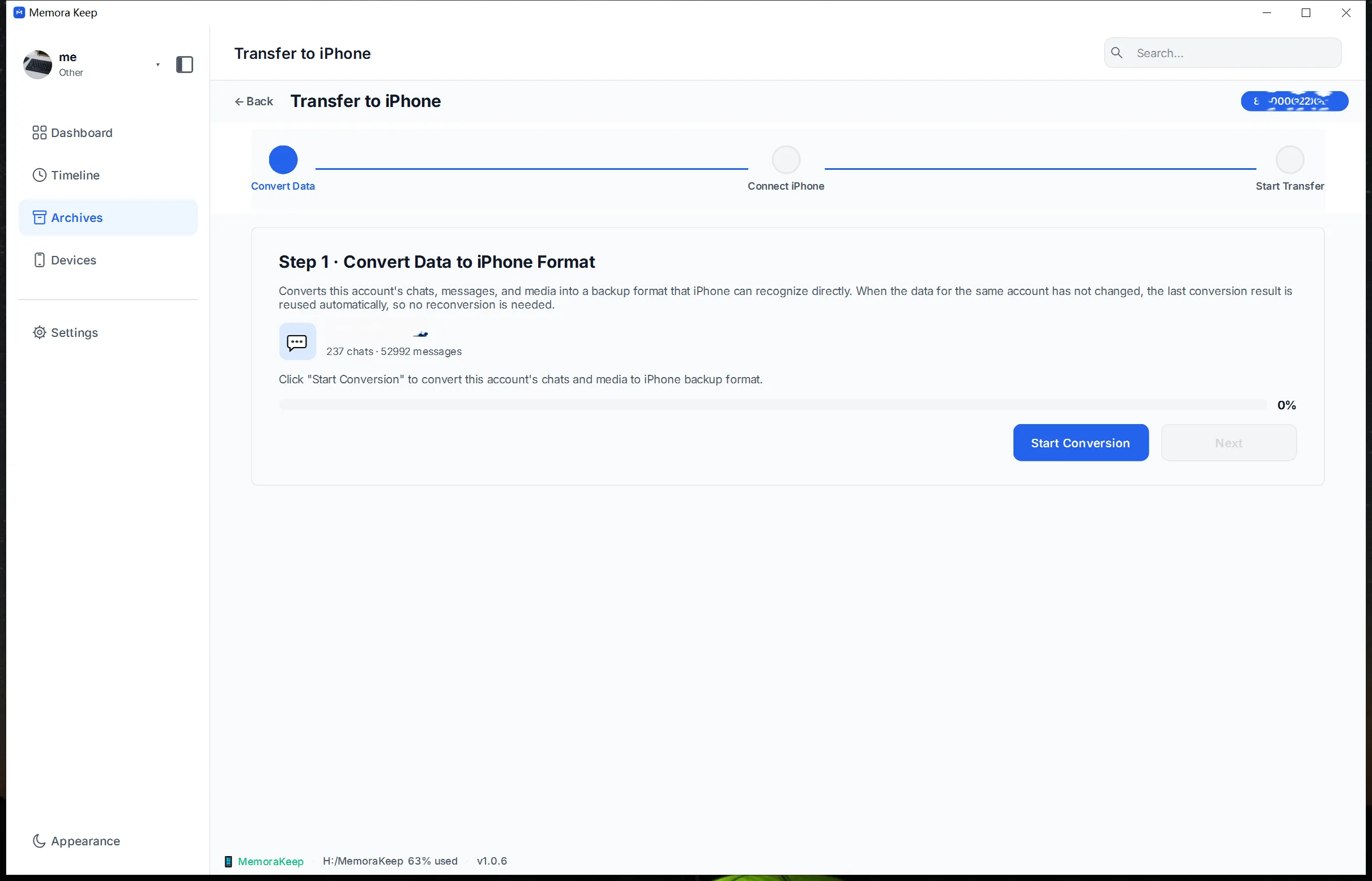
- 1
Choose the WhatsApp data
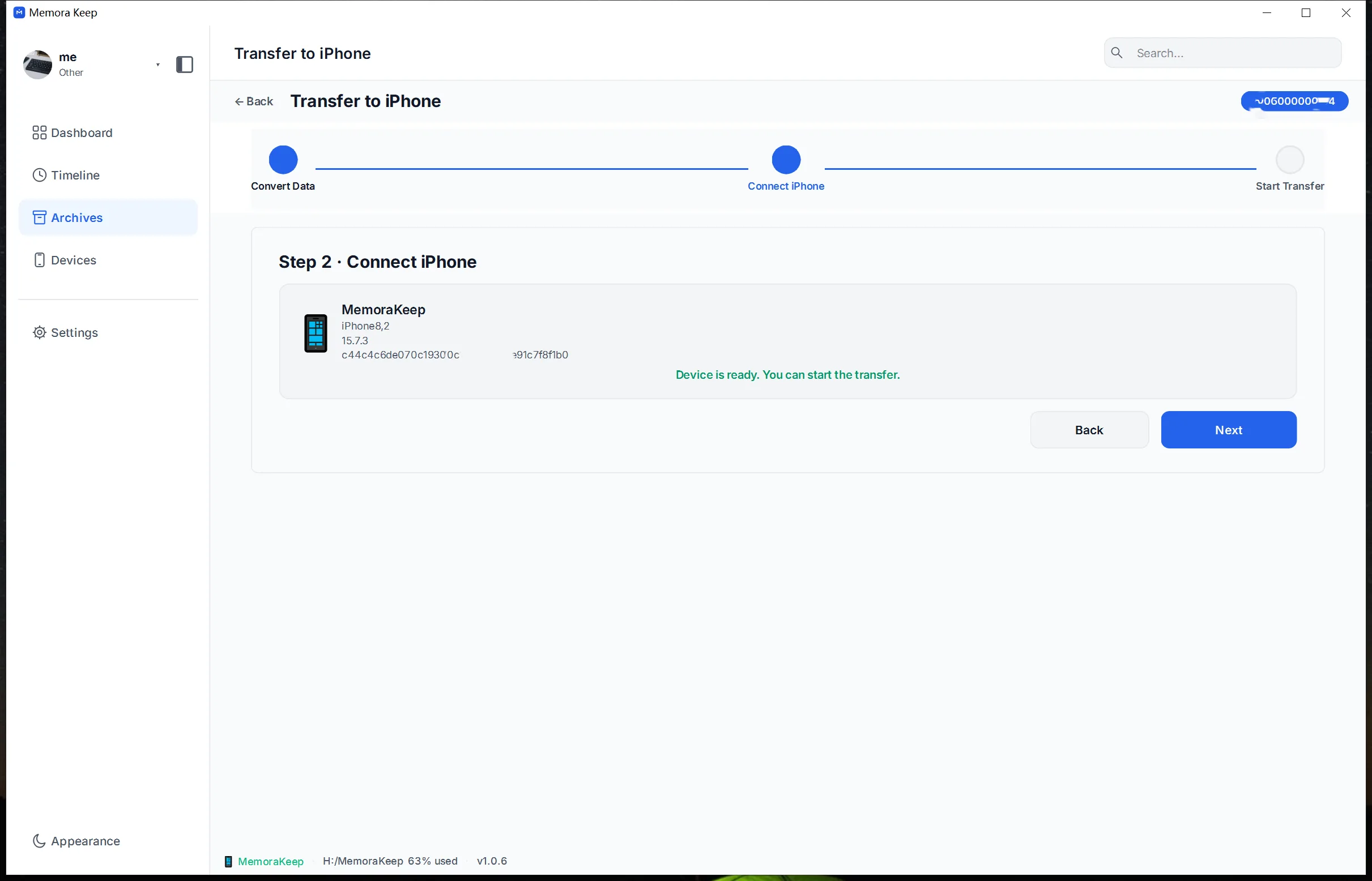
Open the desktop client and choose the WhatsApp account data in your local archive that you want to transfer.
- 2
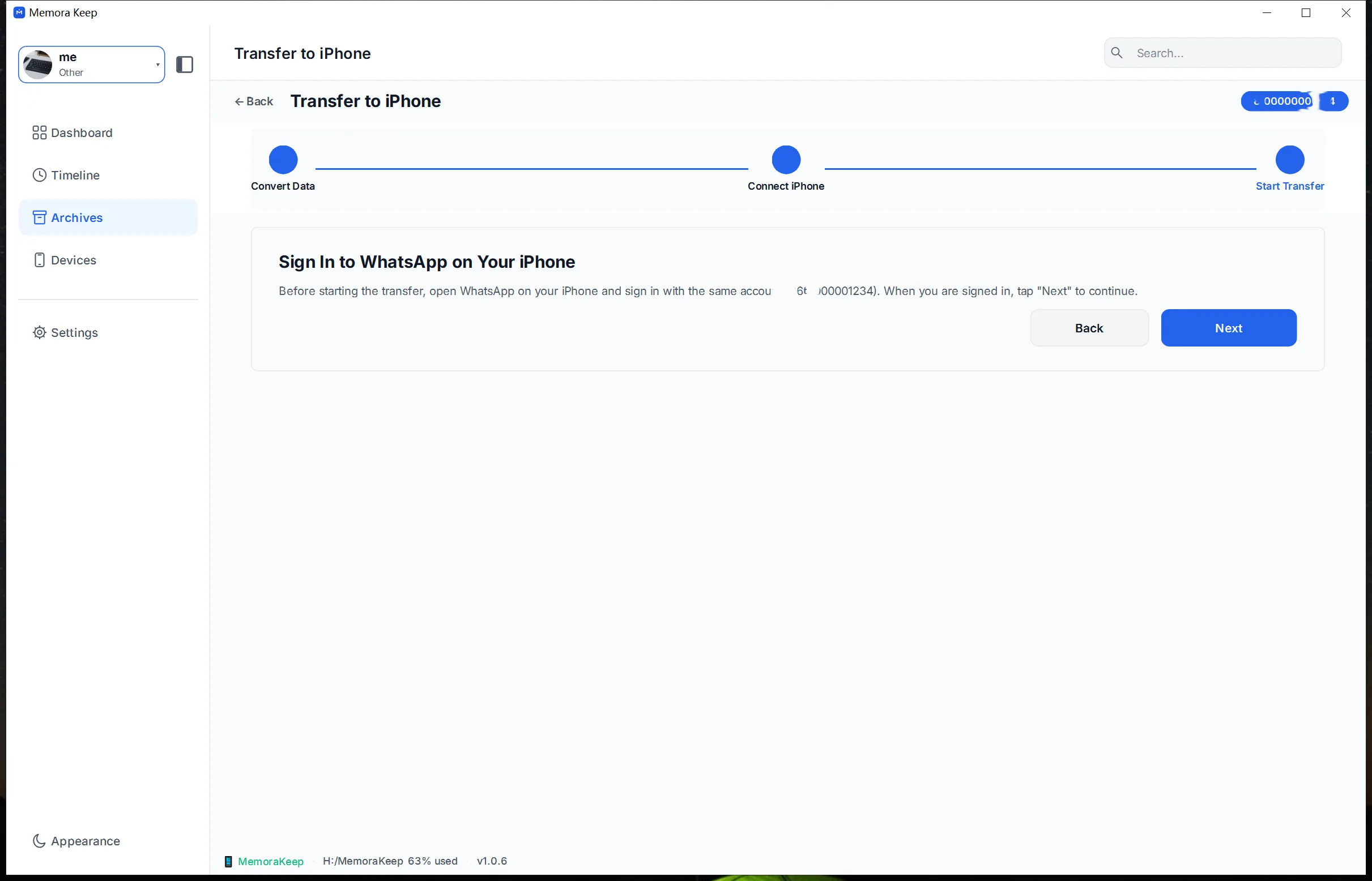
Connect and confirm the iPhone
Back up the destination iPhone, connect it and follow the app prompts. This transfer uses a full-device restore and may replace existing phone data.
- 3
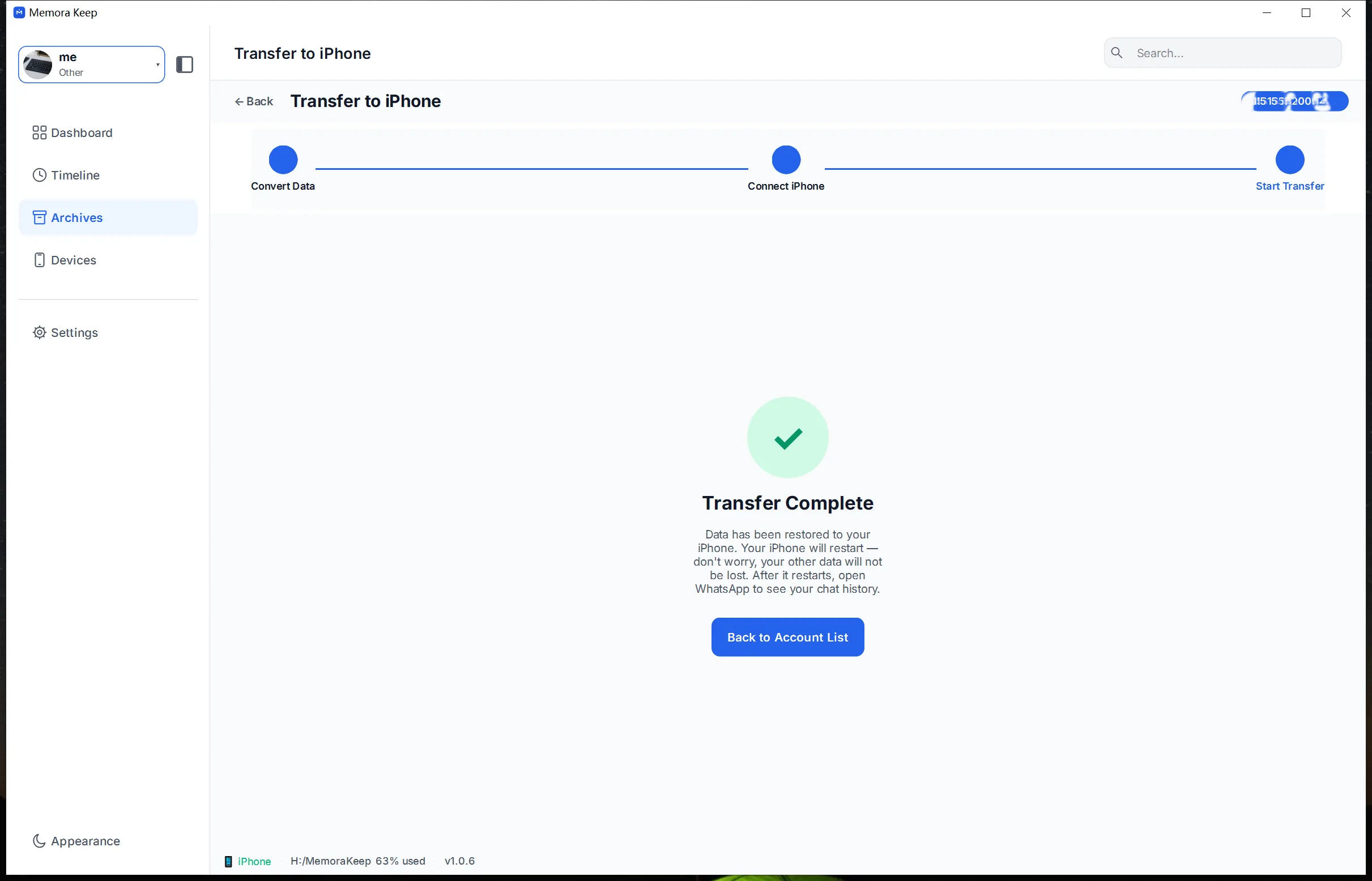
Transfer and check the result
Complete the transfer in the client, then check the WhatsApp conversations on the destination iPhone.
Capabilities
What you can do with it
In the app
Screenshots
Your archive stays on your computer
Save backups, chats and media in a folder you choose. Memora Keep does not upload your archive, and you can browse and export it offline without an account.
- No account and no sign-in required
- Backups, chats and media are never uploaded
- Diagnostics stay local unless you choose to send them
- Backups and the archive stay readable offline
FAQ
Transfer WhatsApp data to iPhone questions
Is WhatsApp transfer to iPhone available now?
Yes. WhatsApp data transfer to iPhone is a completed feature in the Memora Keep desktop client.
Can I merge different accounts before transferring?
Yes. Use WhatsApp account merging to combine the stored data into one account, review it, then start the separate iPhone transfer workflow.
Is this the same as exporting a chat to PDF?
No. PDF, HTML and CSV exports create readable files. The iPhone transfer feature moves WhatsApp data to the destination phone.
What should I check before transferring?
Back up the destination iPhone first and review the restore prompts. The transfer uses a full-device restore, which may replace existing phone data.
Related
Keep reading
- Feature Merge WhatsApp chats Combine chat histories from multiple different WhatsApp accounts into one account in your local archive, and remove duplicate messages. Read
- Feature WhatsApp: Android → iPhone Transfer WhatsApp chats and media from Android to iPhone: back up on your computer, convert the data, then restore it. Read
- Feature WhatsApp backup Back up WhatsApp and WhatsApp Business chats and media from a phone, and read them in a local archive. Read
Start your own local archive
Free, with no account or subscription. Your archive stays on your computer.
Windows & macOS · Free