Import guide
How to import WhatsApp from Google Drive
Download a WhatsApp backup from Google Drive, unlock it in Memora Keep and browse the chats on your Windows PC or Mac.
Last updated
Prerequisites
- Memora Keep installed on Windows or macOS, with enough free space for the backup and extracted data
- Access to the Google account that holds the WhatsApp backup and an internet connection
- For an end-to-end encrypted backup: the matching 64-character backup key
- For a backup without end-to-end encryption: access to the WhatsApp account that created it, for the verification steps shown in the client
- 1
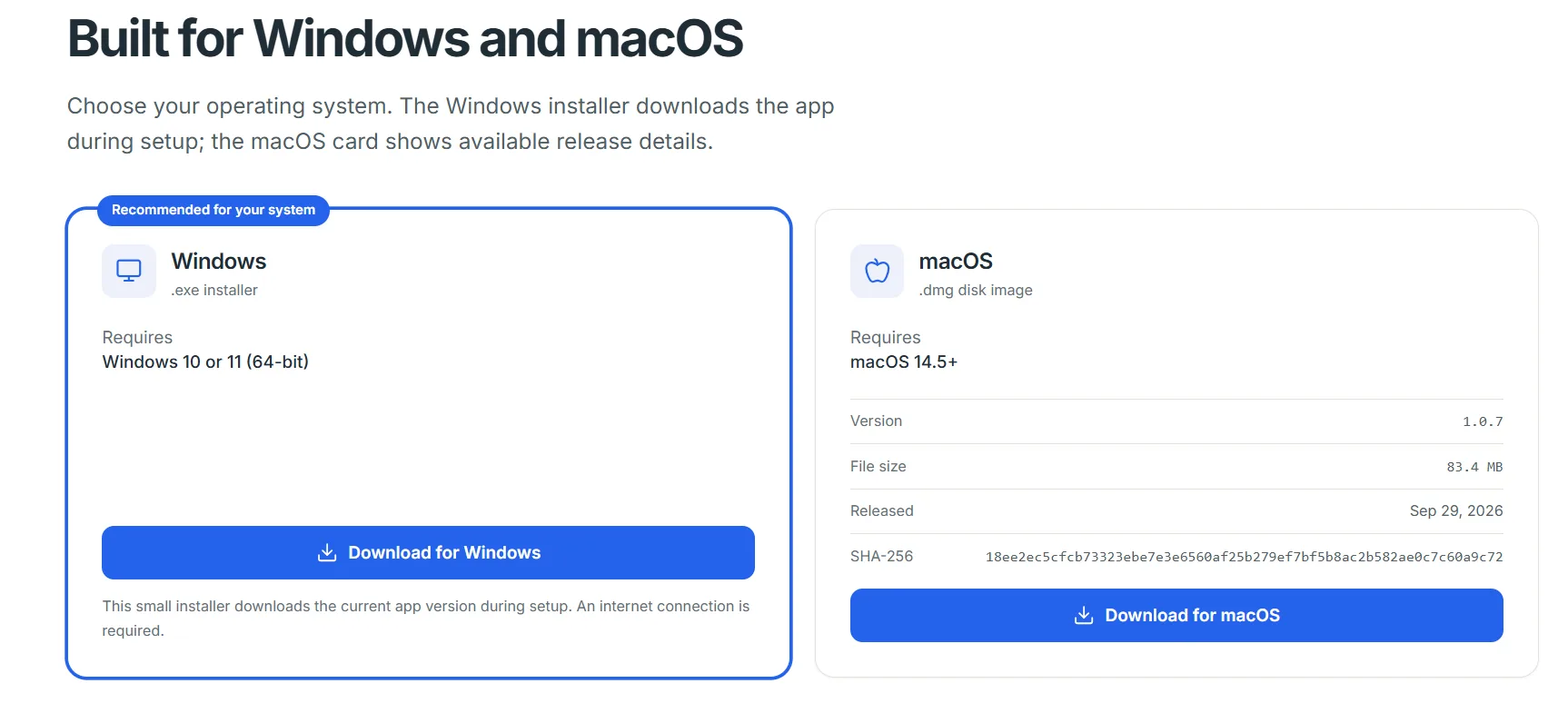
Download and install Memora Keep
Download Memora Keep for Windows or macOS, install it and choose a local archive location with enough free space.
- 2
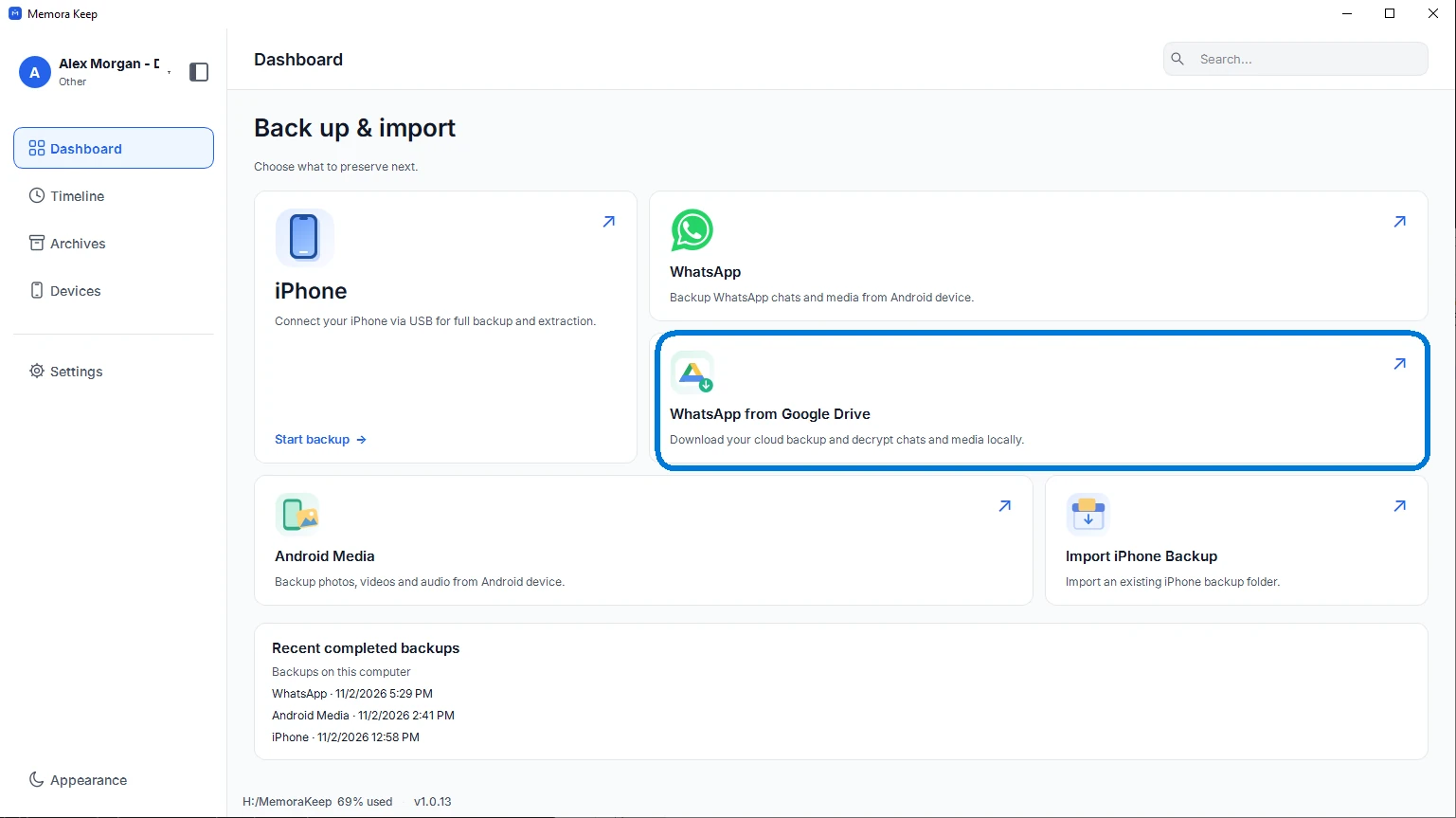
Open WhatsApp from Google Drive
On the Dashboard, choose “WhatsApp from Google Drive”. This opens the dedicated WhatsApp backup import workflow.
- 3
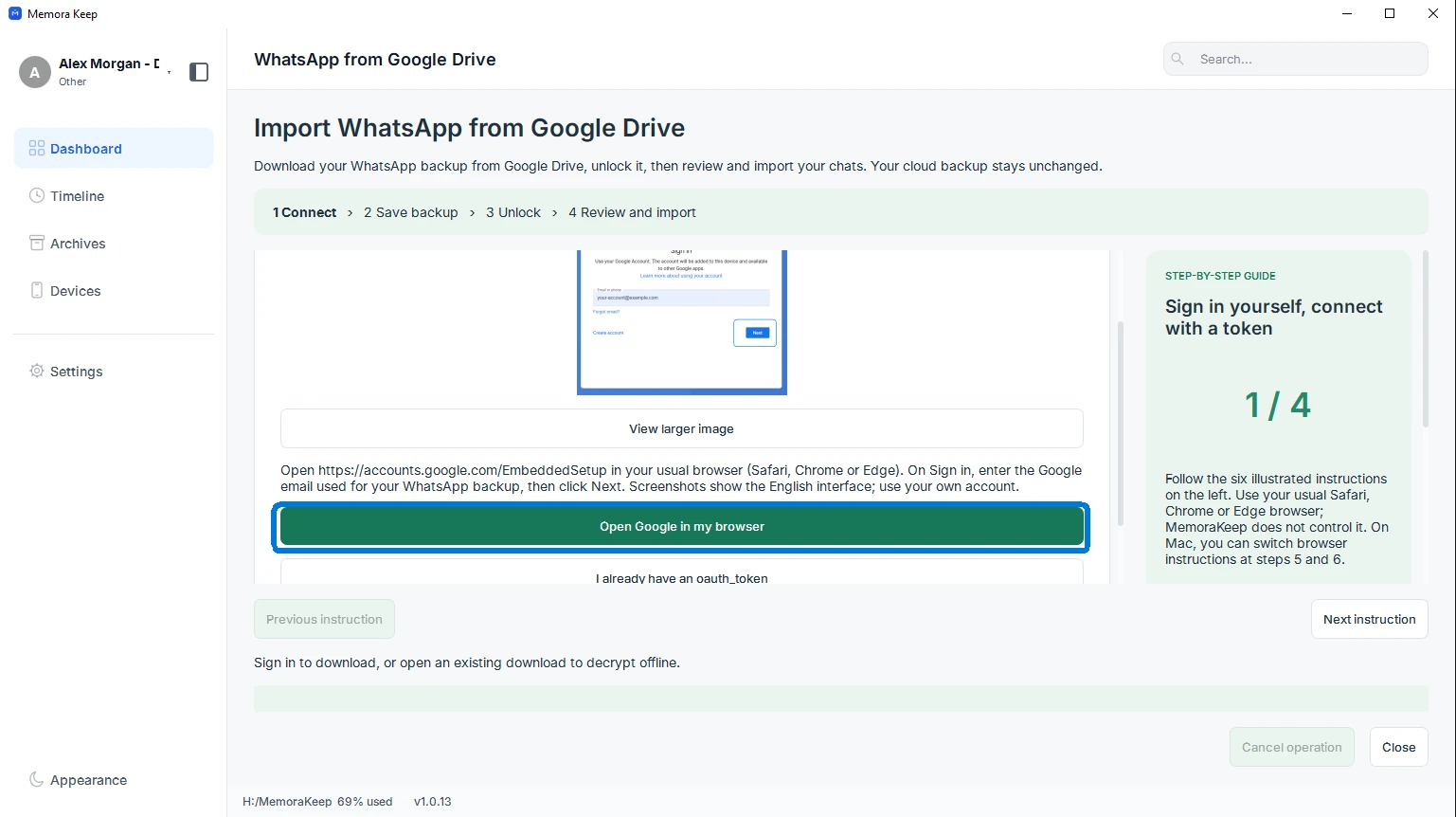
Open Google in your browser
Click “Open Google in my browser”. Follow the illustrated sign-in instructions in Memora Keep while using your usual browser.
- 4
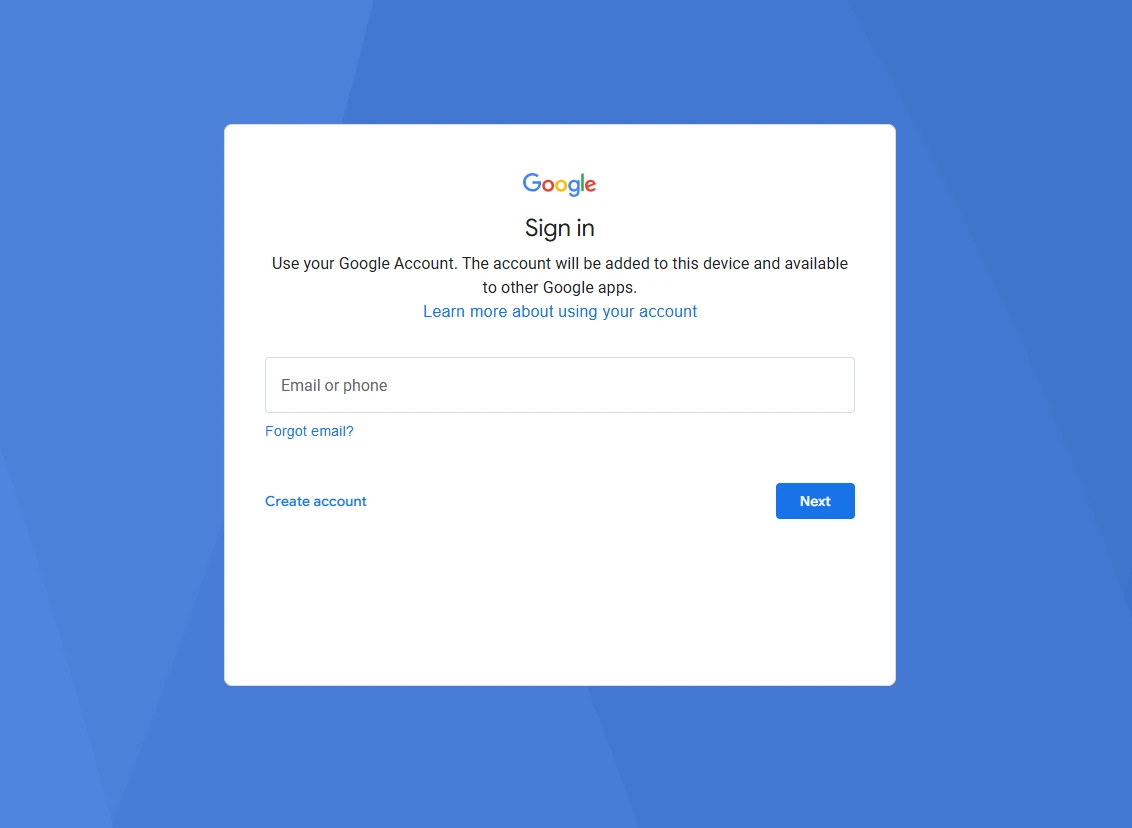
Sign in to the backup’s Google account
Sign in on the Google page with the account that holds your WhatsApp backup. Complete any verification Google requests. Enter your Google password only on Google’s page, never in Memora Keep.
- 5
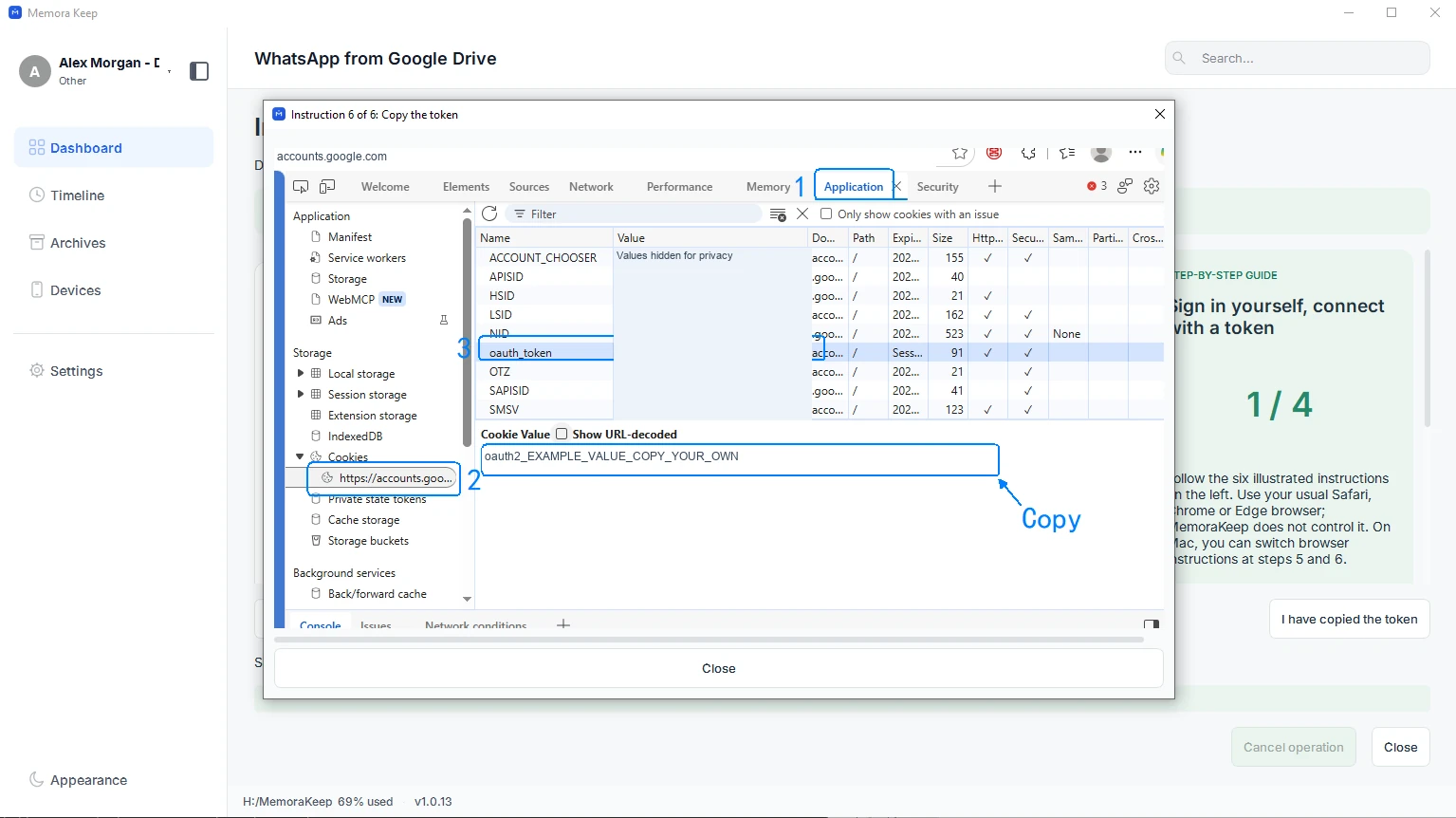
Copy the oauth_token value
Follow the client’s browser-specific instructions to find the oauth_token cookie on accounts.google.com and copy its full value. On Safari, switch to the Safari instructions in the client. Copy only the value, without the cookie name or quotation marks.
- 6
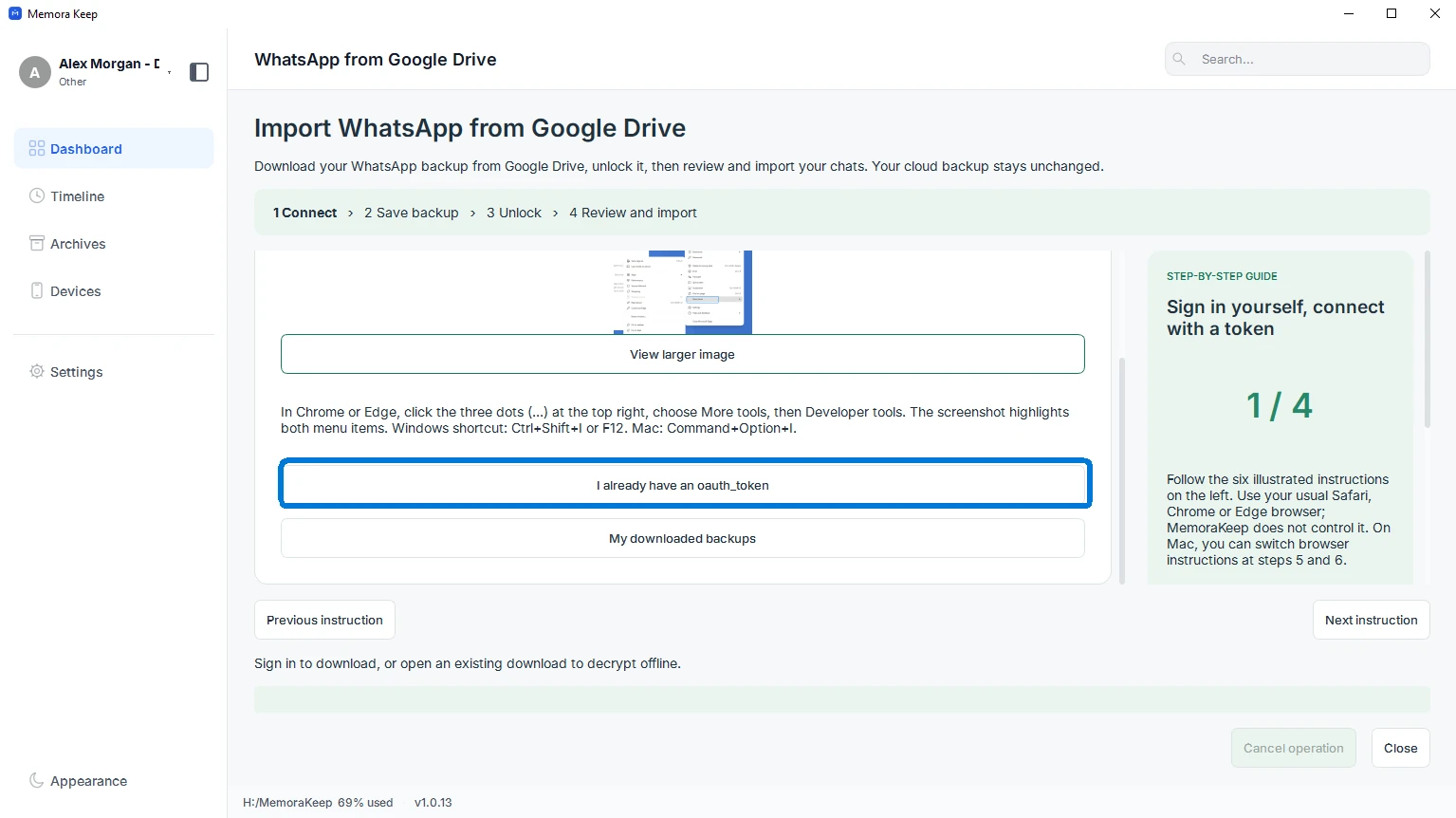
Return to Memora Keep
Choose “I already have an oauth_token”, or the confirmation shown after the illustrated instructions, to open the account and token fields.
- 7
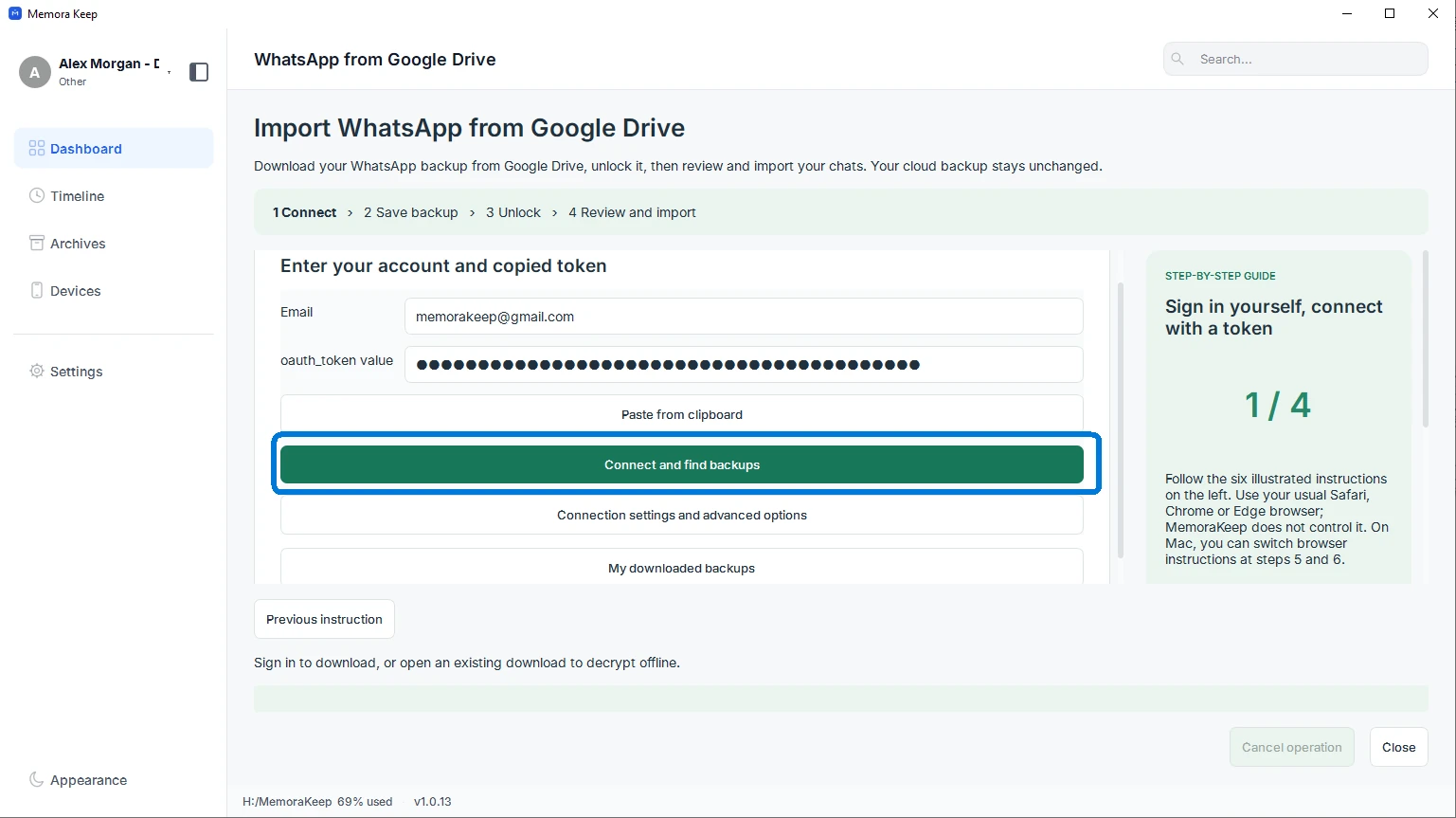
Connect and find backups
Enter the same Google account email, paste the copied oauth_token value and click “Connect and find backups”. Keep this token private; it grants access to your account.
- 8
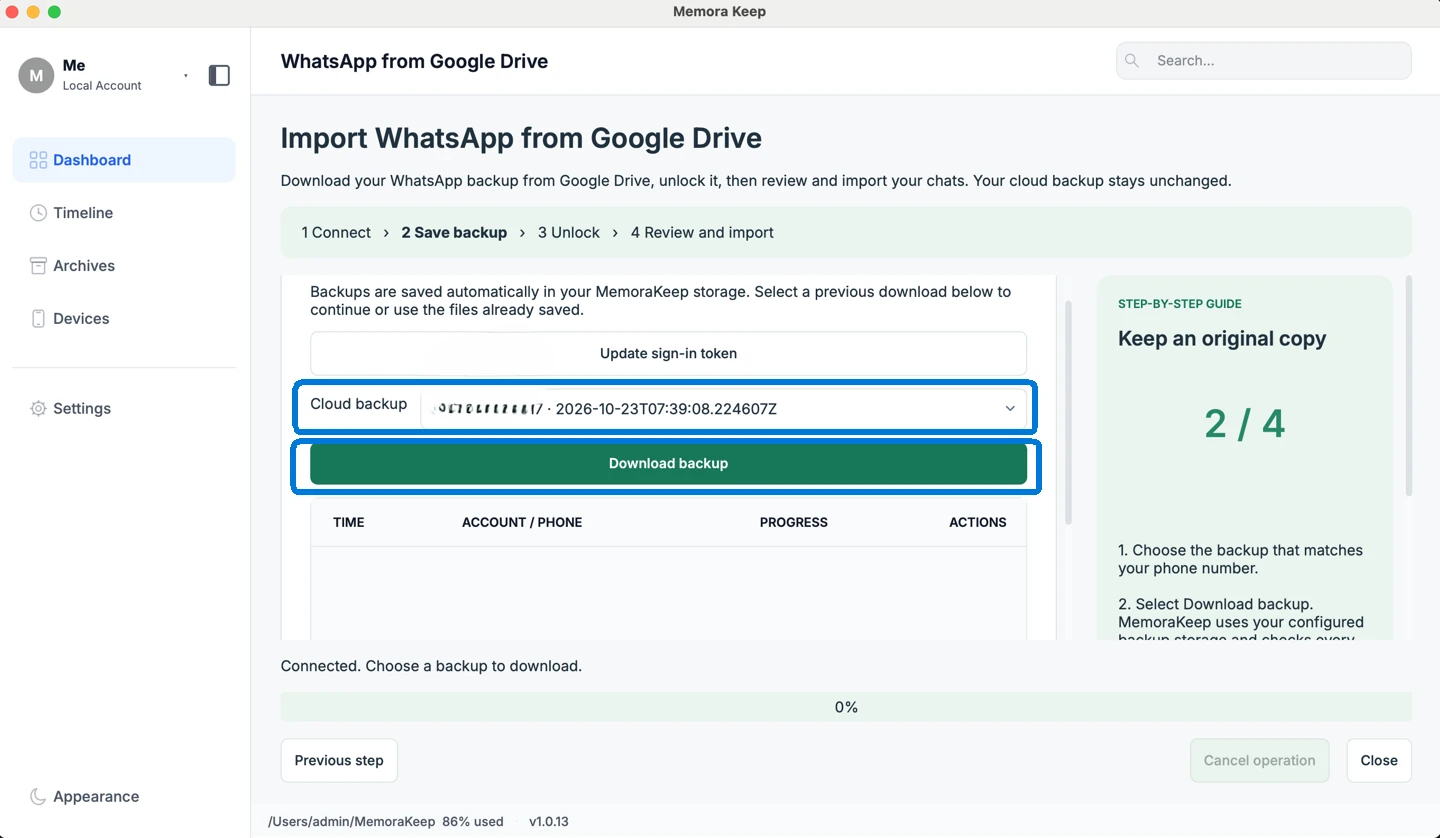
Choose and download the backup
Select the WhatsApp backup you want from the list, check the account and date, then click “Download backup”. Keep the computer online until the download finishes.
- 9
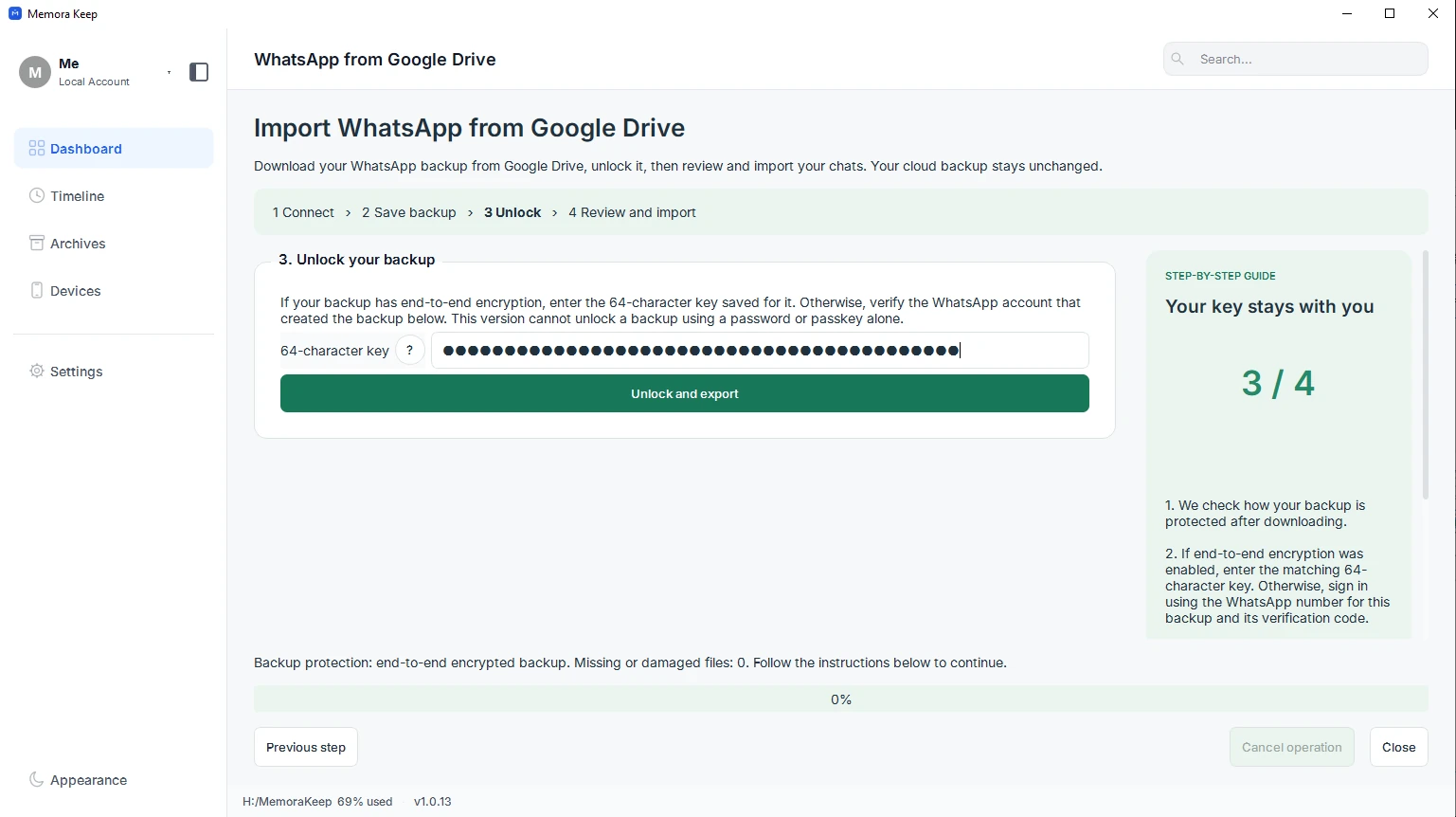
Follow the unlock steps for your backup
The next steps depend on the backup’s encryption. For an end-to-end encrypted backup, enter its matching 64-character key and choose “Unlock and export”. For other supported backups, follow the WhatsApp account verification shown in the client. The screenshot illustrates the 64-character-key route.
- 10
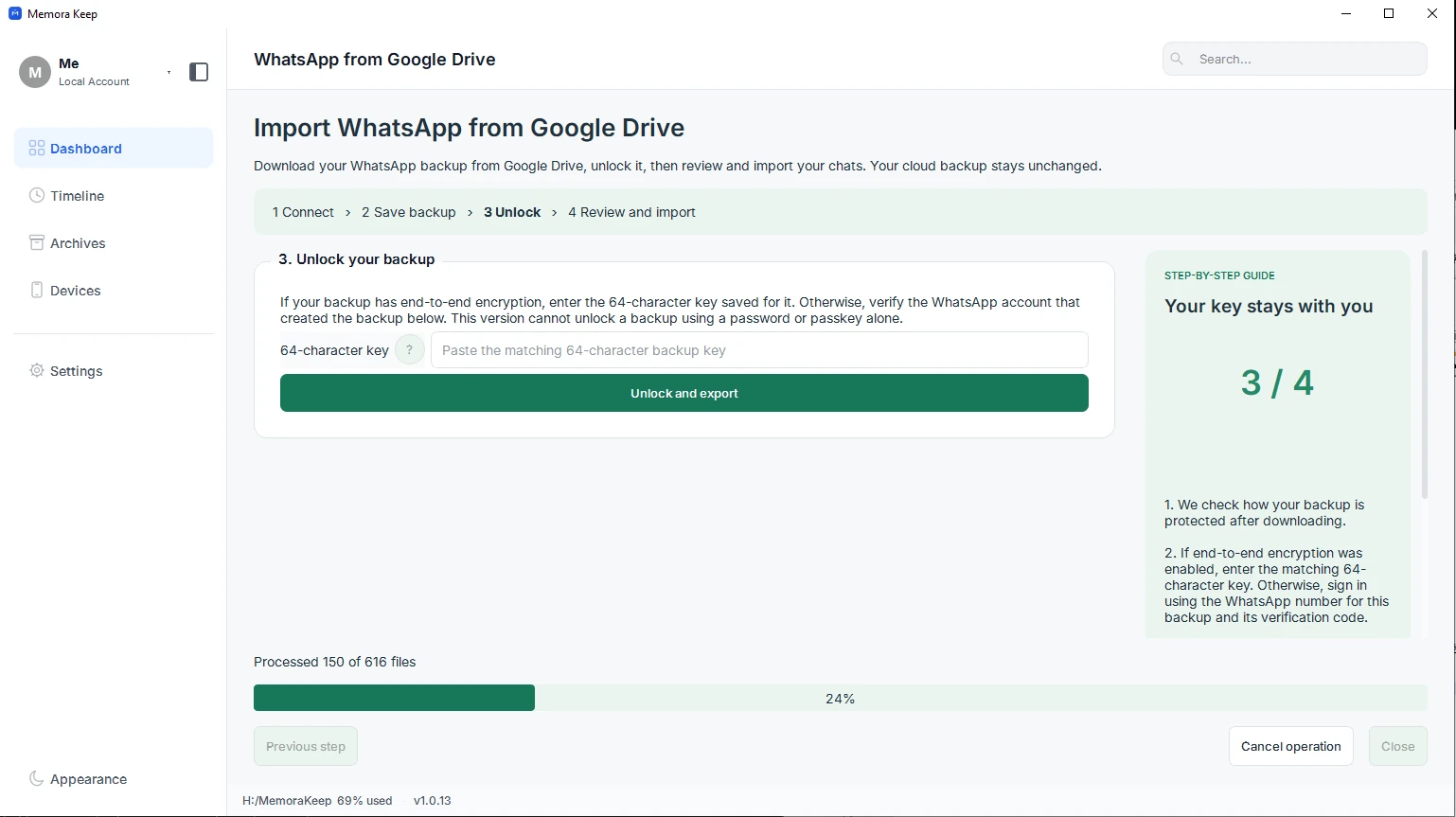
Wait for decryption and import
Keep Memora Keep open while it decrypts the downloaded files and imports the messages. Wait for the completion message before opening the result.
- 11
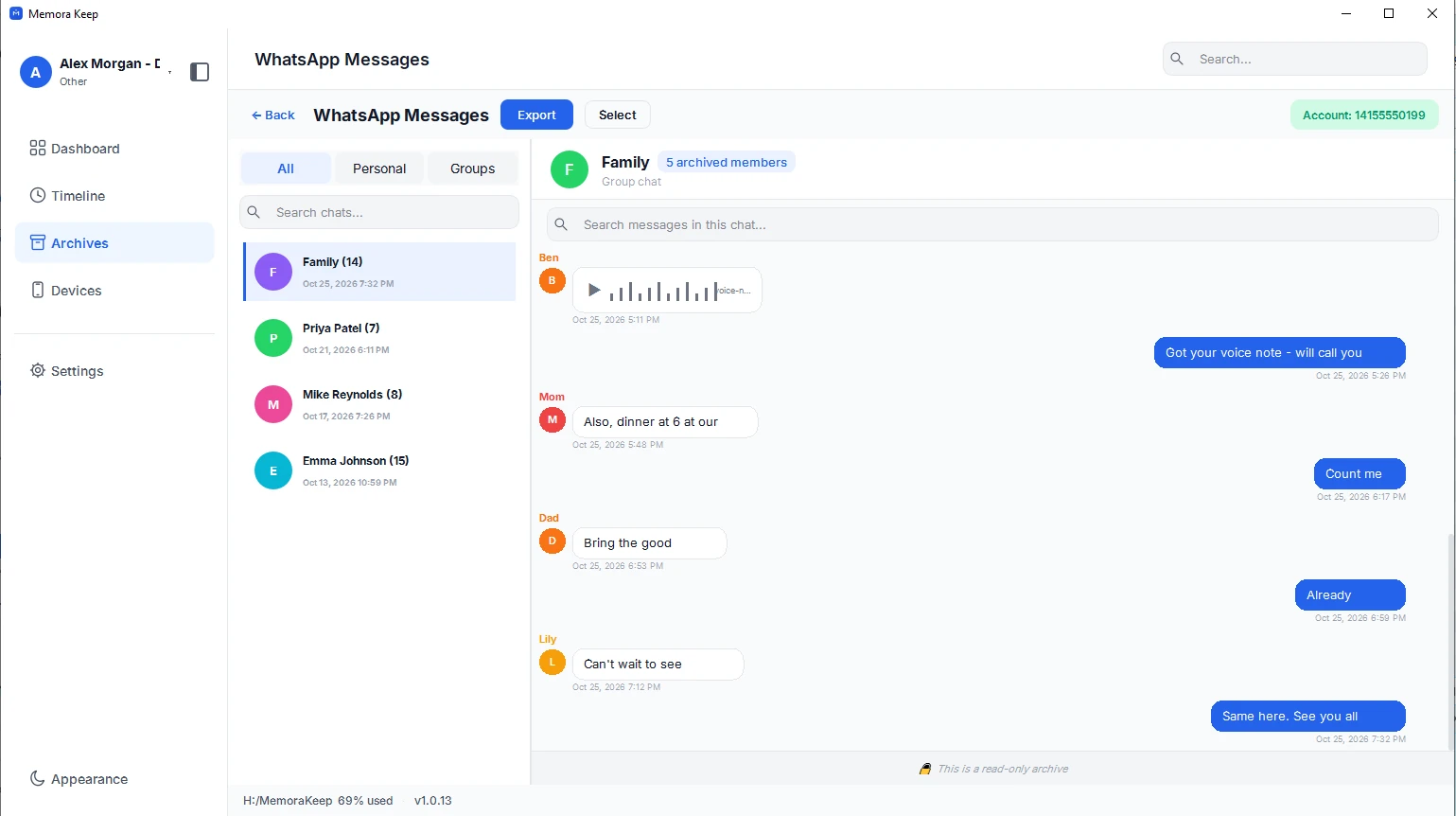
Read the imported conversations
Open Archives, choose WhatsApp and select the imported account. Open a conversation to review the messages and available media.
Notes
Keep your sign-in token and backup key private. Paste them only into the matching fields in the desktop client; do not send them in support messages or screenshots. Downloading a backup and unlocking it are separate stages. A successful download does not mean the messages have been decrypted.
The browser screenshots use example credentials. Use the token from your own sign-in session.
Frequently asked questions
Does this import every file in my Google Drive?
No. This workflow is specifically for supported WhatsApp backups. It is not a general Google Drive file importer.
Can I unlock a backup with its password or passkey?
This version cannot unlock an end-to-end encrypted backup with a password or passkey alone. You need its matching 64-character backup key. Other supported backups use the account verification steps shown in the client.
What if the sign-in token expires?
Stop any running download, choose “Update sign-in token” and obtain a fresh oauth_token for the same Google account. The client keeps your downloaded files and selected record.
Does importing change the cloud backup?
The workflow downloads and reads a local copy. Your backup in Google Drive stays unchanged.
Need help with a step?
The support center answers the common questions, and you can tell us where you got stuck.